October 1, 2026 · Updated November 3, 2026
How to design a logo with AI, step by step
Design a logo with AI in genvi: ask for a simple flat mark, add your name as real text, cut out the background, and check the name before use.
A logo is a small, simple mark that stands for a business. AI can make many ideas in minutes, which is a quick way to find a direction. But a logo is not a finished brand on its own. This guide shows how to design a logo with AI in genvi. You will make ideas, pick one, and add your name in clean letters. Then you give it a see-through background and save it in the sizes you need.
What you will make: an AI logo
A square logo mark, and a version with your business name next to it. Both are saved as PNG files with a see-through background. You will also learn what to check before you use it, such as whether the name is already taken.
What you need
- A genvi account. Sign up if needed.
- Your business name, and three words that describe it, for example "warm, local, friendly."
- One idea for a shape: a leaf, a cup, a mountain, a letter.
Step 1. Choose the right model for a logo
Logos need clean shapes, few colours and a flat look. Two groups of models in genvi are made for design work.
- Recraft is the logo-friendly choice. genvi describes Recraft v4 as a "professional design and layout model with fine-grained SVG style control." Recraft v4.1 Pro is the premium version, for brand design and vector styling. Recraft v4.1 Flash is the fast, low cost one. Use it to try many ideas.
- Ideogram v4.5 is described as made for "posters, logos and designs with accurate typography." Choose it when you want the AI to draw a few letters too.
A word on "vector." A vector file is made of shapes and lines. You can make it as big as a billboard without it going blurry. A normal picture is made of tiny dots, so it goes blurry when it is enlarged. genvi's model list says Recraft has style control for SVG, a common vector file type. It does not say the files you get back are vectors. So expect a picture with a clean, flat style. You can trace it later in a drawing app. We did not test a vector file here, and we do not promise one.
Step 2. Ask for a simple mark
Open Chat Studio or start an Image Composer project. Choose a Recraft model. Set Images to 4, so you get four ideas at once. Set Aspect Ratio to 1:1, which is square.
Write a short prompt. A prompt is the words that tell the AI what to make. Say what it is, the style, and the limits. For example:
A simple flat logo mark of a mountain and a sun for an outdoor shop. Two colours, thick clean lines, rounded shapes, plain white background, no text, no gradients, no shadows.
Three tips. Ask for a plain white background, so it is easy to cut out later. Ask for no text, because you will add your name yourself. Ask for two or three colours, because a logo should still work in one colour.

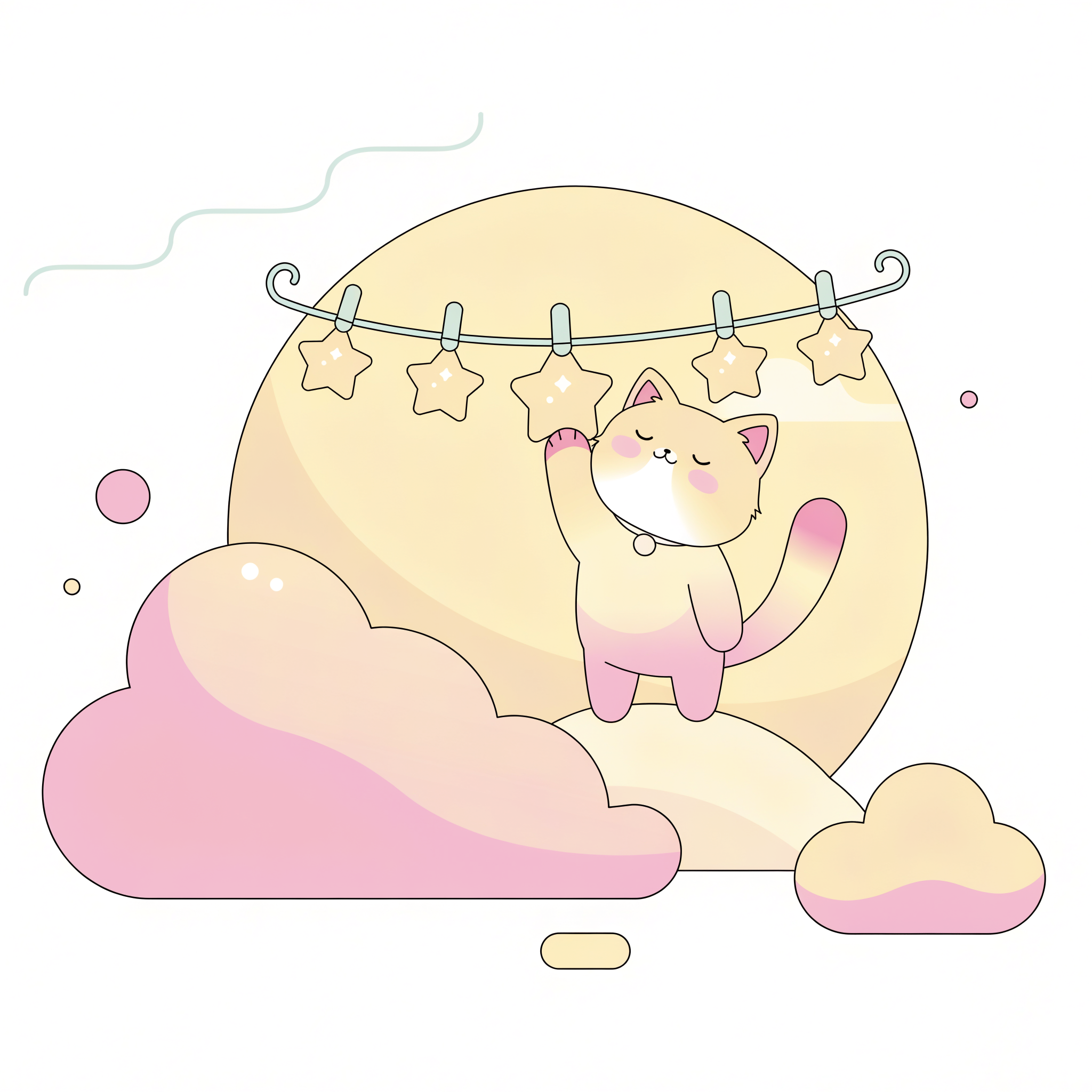
A flat style with clean outlines and rounded shapes, made with Recraft v4.1 Pro. This is the sort of look that suits a logo or a sticker.
Step 3. Pick one and push it further
Look at the four ideas. Which one still works when it is small, like a social media avatar? Which is the simplest? Pick that one. If none is right, change one thing in the prompt, such as the shape or the colours, and run again. Change only one thing each time, so you can see what helped.
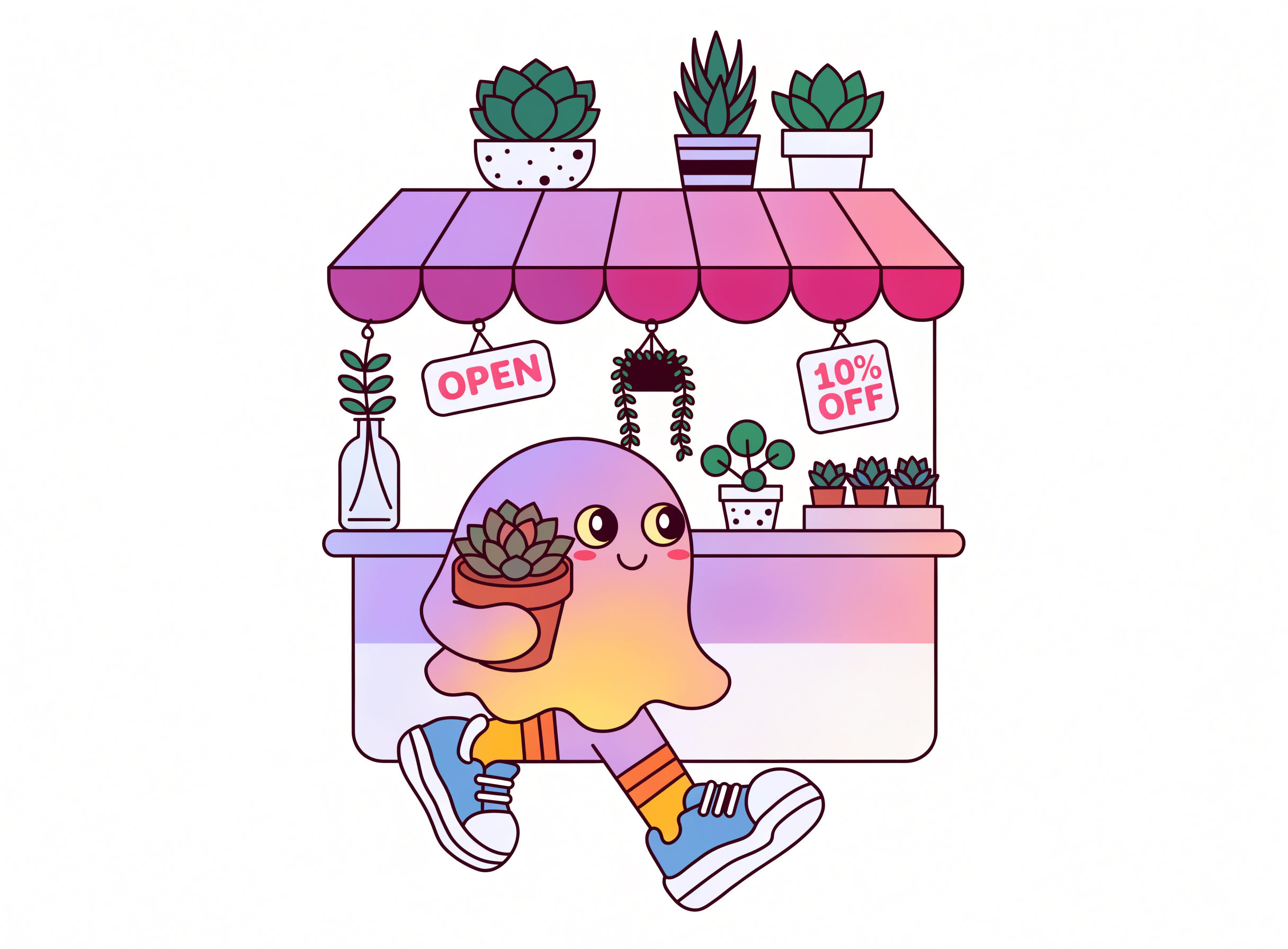
A character mark with a thick outline, made with Recraft v4.1 Pro. Mascots like this can work as a logo for a shop or a channel.
To keep a style the same across versions, add your favourite result as a reference picture. Then ask for "the same style, but with a coffee cup." Recraft models in genvi do not take reference pictures. Use Ideogram v4.5 for this step instead. It accepts up to five reference pictures.
Step 4. Add your name as real text
AI can spell a short word, but it often slips on longer names. The safe way is to type the name yourself.
- Open the picture in the Image Composer.
- Click the Text tool and type your business name.
- Pick one simple font. Two fonts at most. Plain, bold letters read best when small.
- Put the name beside or under the mark, and leave room around it.
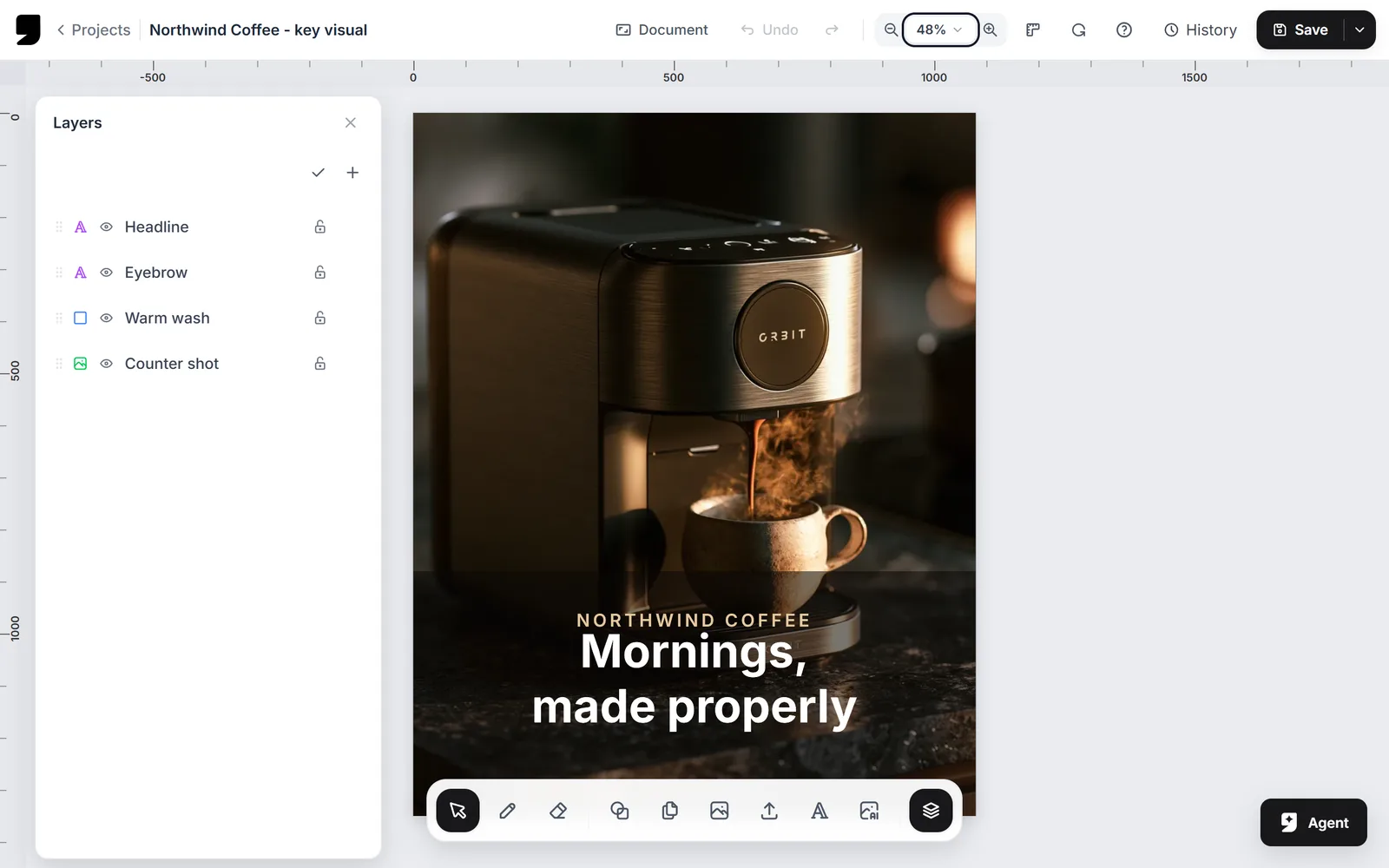
The Image Composer keeps the mark and the words as separate layers, so you can move the name without redrawing the logo.
Step 5. Make the background see-through
If the picture has a plain white background, you can cut it out. Select the picture layer and choose Remove background in the Image Composer. Or use the free Remove background tool. Either one gives you a see-through PNG. Look closely at the edges. Thin lines and soft glows are the hardest part for any cut-out tool. If the edge is rough, try again with a plainer background. More about this is in how to remove a background from an image.
Step 6. Check it and save it
- Shrink it to the size of an app icon. Can you still tell what it is?
- Look at it in one colour. Does it still work?
- Put it on a dark background and a light one.
- Export it as a PNG from the Image Composer. Save a large version, for example 2000 pixels wide, so you can make smaller ones from it.
The Image Composer can also save an SVG file. For a true vector logo, a common route is to trace the PNG in a drawing app and tidy the result by hand.
Before you use it: names, trademarks and copyright
Is the name taken? Search for it before you print anything. In the US, the USPTO has a trademark search page with a guide to searching. Search the name and similar-looking names. Look for similar logos, too. AI can make a mark that looks a lot like an existing one, and it will not warn you.
Can you protect it? Copyright and trademark are different. Trademark protects how customers tell brands apart. Copyright protects the artwork. In the US, copyright needs a human author. A logo made only from a prompt may not get copyright. The more you draw, arrange and change by hand, the better. Read is AI art copyrightable.
Can you use it? Our terms say you keep the rights to what you generate, subject to the model company's terms. They also say we make no promises about originality. See can you use AI images commercially. This is general information, not legal advice. Ask a lawyer before you register a mark or spend money on printing.
What it costs
Each set of ideas is a normal generation, and the price shows before you run it. The Flash version of Recraft costs far less than the Pro version. So explore with Flash, and use Pro for the final. Asking for four images costs more than asking for one. What AI credits are explains it.
FAQ
Can AI make a vector logo?
Recraft has style controls for SVG, a common vector file type. genvi does not say its output files are vectors. Treat the result as a clean, flat picture that you can trace.
Which model is best for a logo?
Start with Recraft for the mark, and use Ideogram v4.5 if you want the AI to draw letters. Compare them on the same prompt. See how to choose an AI image model.
Can I animate my logo?
Yes. Turn the logo into a short video with an image to video model. See how to animate a photo with AI.
Is an AI logo good enough for a real business?
It is a great way to find ideas fast. For a brand that will last years, have a designer refine the best one.