October 22, 2026 · Updated November 3, 2026
How to choose the best AI image model for your job
Not sure which AI image model to pick? Answer four simple questions, compare models side by side and see real results from several of them.
There is no single best AI image model. A model is the AI that makes your picture. The best one for a poster with lettering is not the best one for fifty quick sketches. This guide shows you how to choose the best AI image model for your job in genvi. It uses a few questions, a simple table and real results.
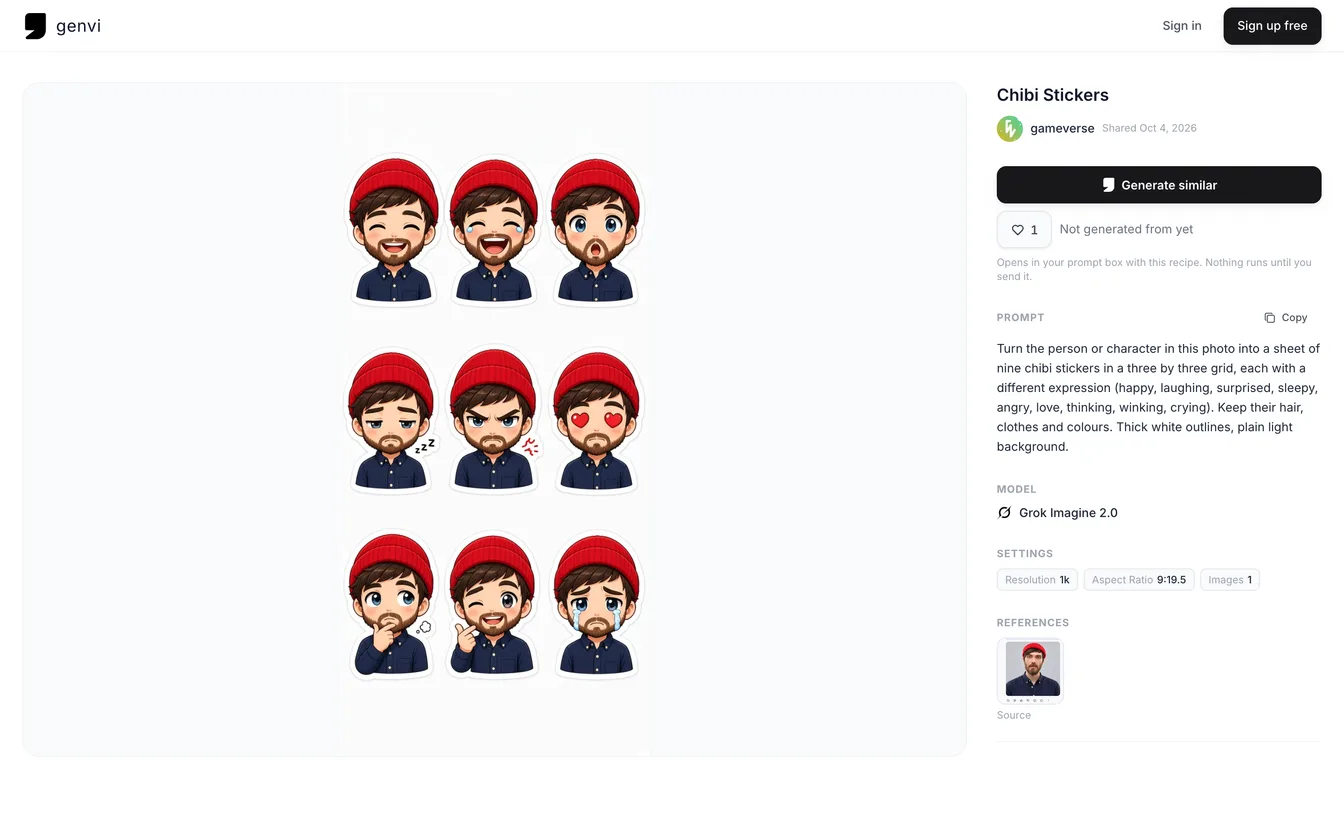
An Explore post shows the prompt (the words used), the model and the settings behind a picture. Here the model is Grok Imagine 2.0. It is the quickest way to see what a model does.
What you will make
A decision, and a habit. By the end, you can pick two or three models for your job. Try them on the same prompt, and keep the picture you like best.
What you need
- A genvi account with credits.
- One prompt that matches your real work. A prompt is the words you type to describe the picture.
Step 1: Decide what the picture has to do
Answer these four questions. They remove most of the choices.
- Do you need to match a picture you already have? This might be a product photo, a face or a style. Then pick a model that accepts reference images, which are pictures you give the AI to copy from. Models differ a lot. GPT Image 2.5 accepts up to 16, Nano Banana 2.1 up to 14 and Seedream up to 10. FLUX 2 Pro takes up to 6, and Grok Imagine 2.0 up to 5. FLUX 2 Flash, Z-Image Turbo and Recraft take none.
- Does the picture have words in it? Pick a model that is good at text, such as Ideogram v3, Qwen Image 3 or Gemini 3 Pro Image.
- What shape should the picture be? GPT Image 2.5 offers 1:1, 16:9, 9:16, 4:3, 3:4, 3:2, 2:3 and 21:9. Nano Banana 2.1 also offers very tall and very wide shapes. Most other models offer the five common shapes.
- How many pictures do you need? For fifty quick sketches, pick a fast, low cost model. For one hero image, you can use a top model.
Step 2: Read the catalog descriptions
These are the catalog's own descriptions, shortened, for the models we pick most often. Use them as a starting point, not a ranking.
| Model | What it is good at | Reference pictures it takes | Picture shapes |
|---|---|---|---|
| GPT Image 2.5 Flare | Fast, high quality, natural light. The default for everyday work | 16 | 8, up to 21:9 |
| GPT Image 2.5 Sunburst | Small, exact changes that keep the subject across many rounds | 16 | See model |
| Grok Imagine 2.0 | Changing pictures and copying styles | 5 | Many, plus auto |
| Seedream v5 Pro | Top model that understands detailed prompts | 10 | 5 common |
| Seedream v4 | Creative and fast | 10 | 5 common |
| FLUX 2 Pro | Sharp, production quality | 6 | 5 common |
| FLUX 2 Flash | Very fast and cheap | 0 | 5 common |
| Z-Image Turbo | Very fast, light, good for ideas | 0 | 5 common |
| Ideogram v3 | Strong with text and lettering | 0 | See model |
| Qwen Image 3 | Strong with text and keeping a person's look | 0 | 5 common |
| Recraft v4.1 Pro | Brand design and vector style | 0 | 5 common |
| Nano Banana 2.1 | Fast making and changing, many references, very wide and tall shapes | 14 | 10, including 1:8 |
The model picker in genvi shows the same facts, with the price next to each model. It also warns you if a model would ignore a picture you attached. Models are added and removed over time, so check the picker for the current list. The October 2026 model refresh covers the latest changes.
Step 3: Run the same subject on several models
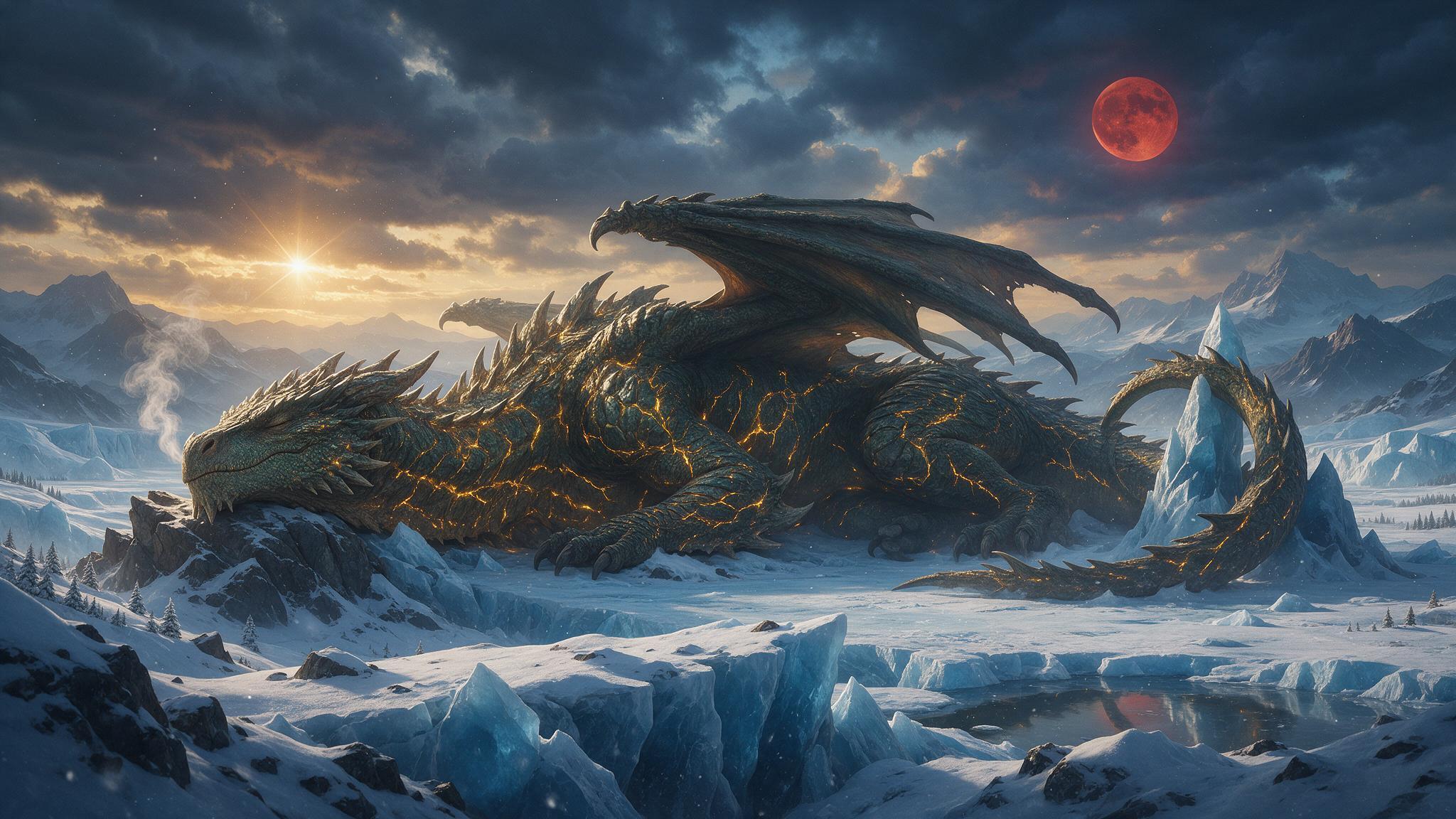
The quickest way to choose is to look. Our own accounts ran a dragon sleeping on a glacier on four models. The prompts are close but not the same, so use these to get a feel for each model, not as a fair test.
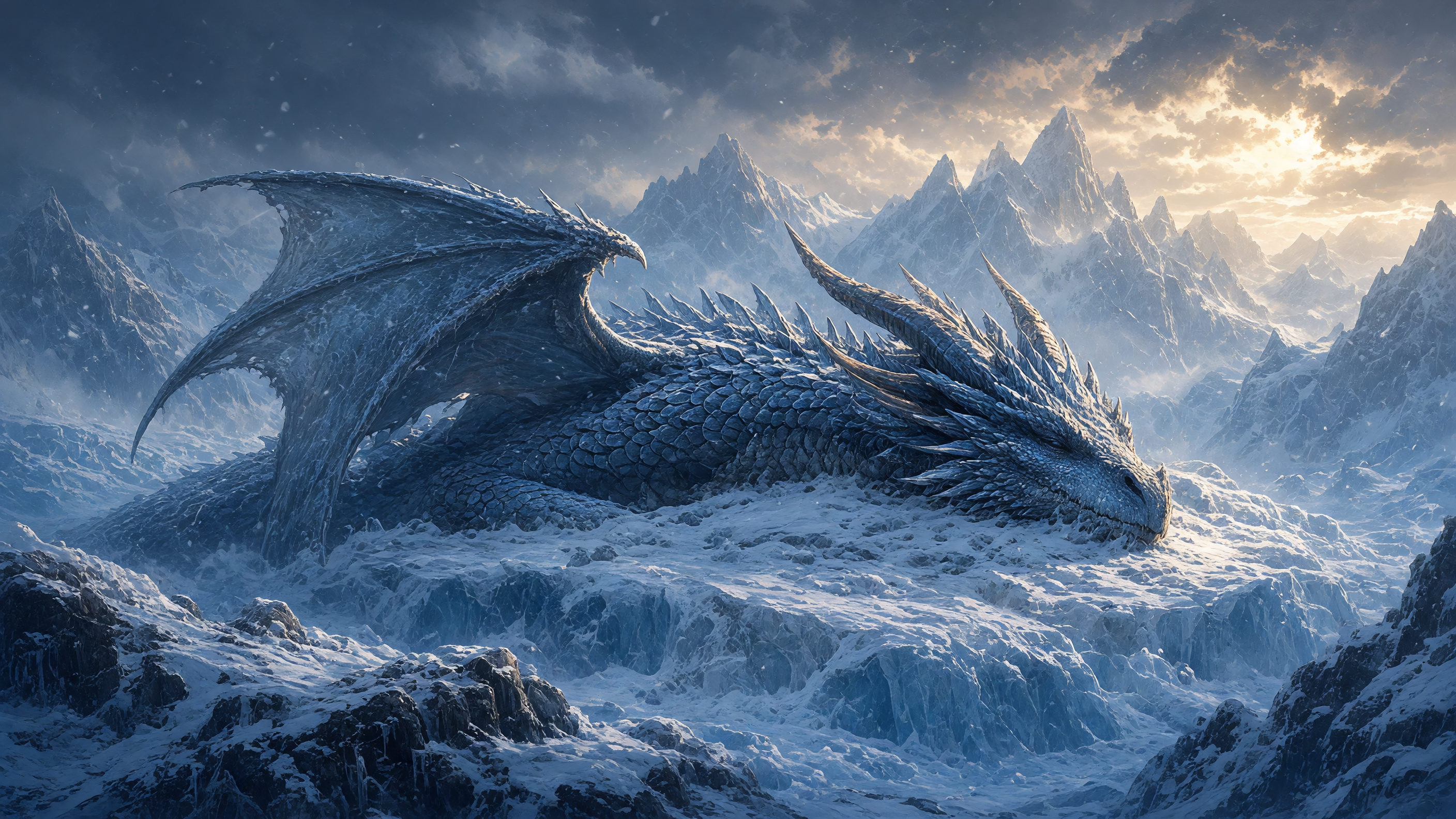
Grok Imagine 2.0: "a dragon sleeping on a glacier, in winter, cinematic concept art, highly detailed, epic wonder; big scale, dramatic light, rich colour".
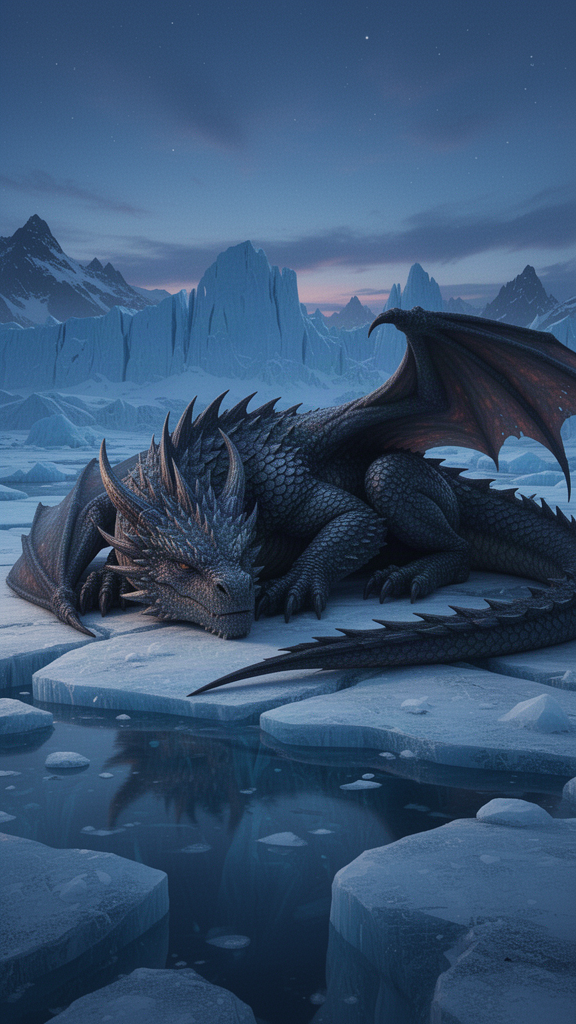
FLUX 2 Flash: "a dragon sleeping on a glacier, at blue hour, cinematic, highly detailed, dramatic lighting".
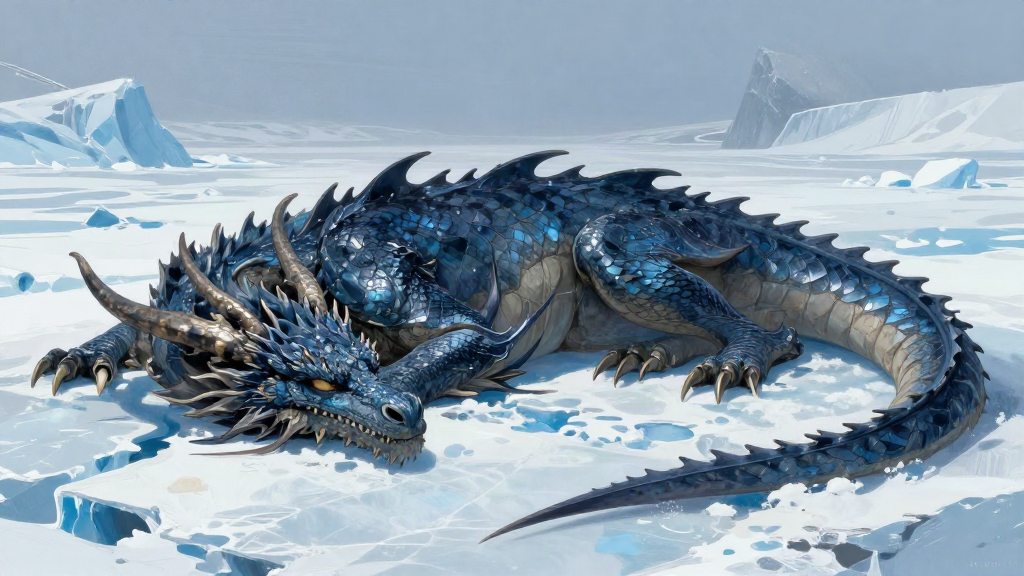
Z-Image Turbo: "a dragon sleeping on a glacier, in winter, concept art, epic scale, rich colour".
To compare models yourself, open Node Studio and add several Image Generation nodes (blocks that each make a picture). Connect the same Text Prompt node to each one and pick a different model on each. Or open any Explore post and click Generate similar to start from its prompt with a model you choose. Use the lowest quality or smallest size while you compare, and keep the one you like.
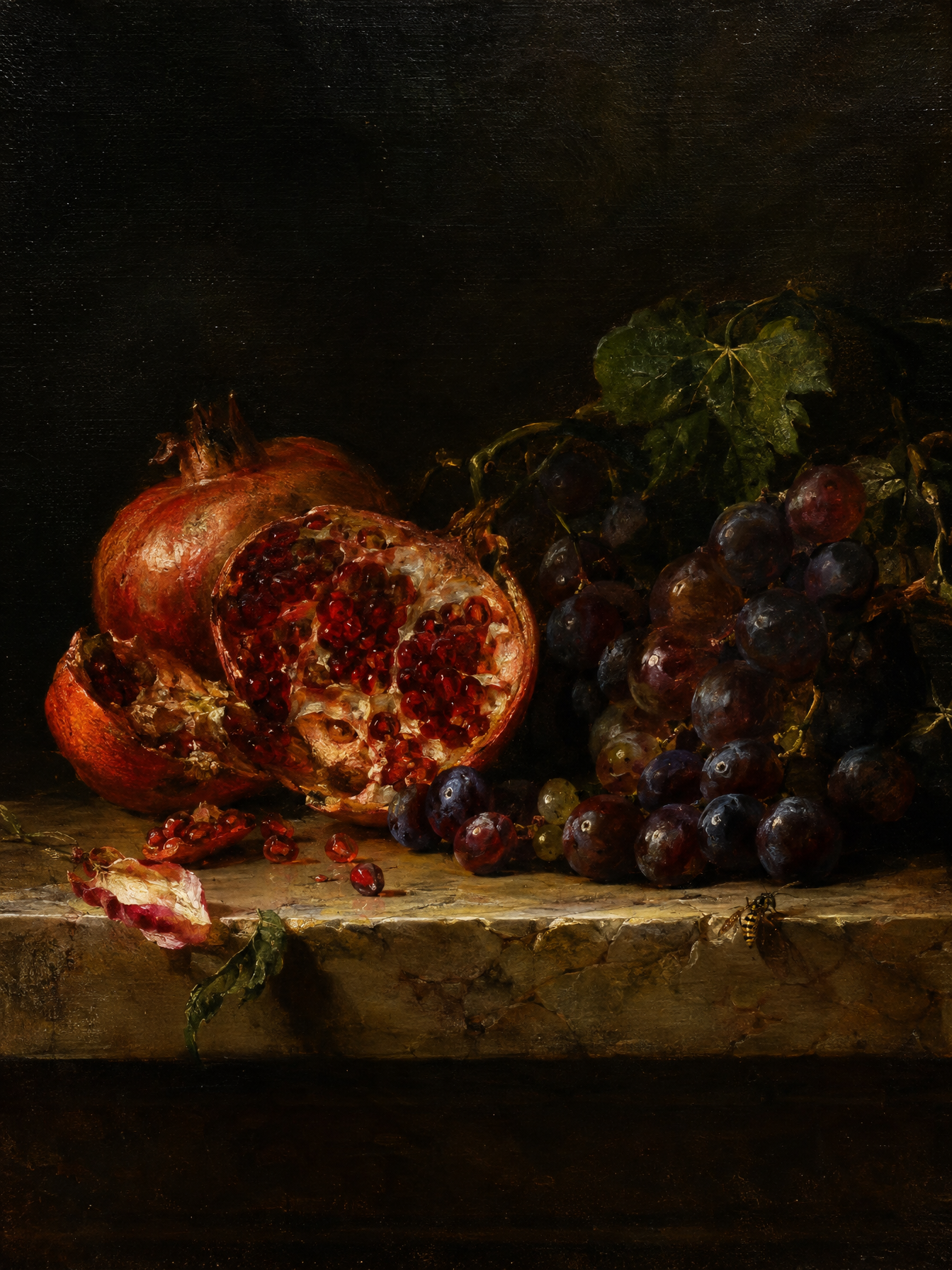
GPT Image 2.5 Flare: split pomegranates and grapes on a marble ledge, in the manner of a classical oil painting.
Step 4: Match the model to the job
- Everyday pictures and quick results: GPT Image 2.5 Flare is the catalog's default for everyday work. It also takes the most reference images.
- Sketches and lots of ideas: FLUX 2 Flash and Z-Image Turbo are very fast. Use them to explore, then run your favourites again on a stronger model.
- Sharp final pictures: FLUX 2 Pro and Seedream v5 Pro are the catalog's top picks.
- Lettering, posters and logos: Ideogram v3, Qwen Image 3 and Gemini 3 Pro Image are good with text.
- Changing a picture you already have: Use GPT Image 2.5 Sunburst for small, repeated changes. Use Grok Imagine 2.0 to change a picture or copy a style. Use Nano Banana 2.1 when you have many reference pictures.
- Brand and vector style work: Recraft v4.1 Pro is made for brand design and vector style.
A good habit is to sketch with a fast model, then make the final picture with a top model. If you want to make a video next, start from the image you chose and follow how to animate a photo with AI.
What it costs
Each model has its own price per picture. You see it in the model picker and before you run. A fast model and a top model can differ a lot in price, which is why sketching first saves credits. Some models change price with size or quality settings. We do not give prices here because the picker is always up to date.
FAQ
Which is the best AI image model overall?
It depends on the job. The catalog calls GPT Image 2.5 Flare the default for everyday work and Seedream v5 Pro a top pick. A poster with text and a character edit need different models. Use the four questions in Step 1.
Can I use the same prompt on every model?
Yes, and you should when you compare. Models respond to prompts in different ways, so a long style description that suits one model may be too much for another.
Do reference images cost extra?
Some providers charge for each picture you attach. Check the price shown before you run. It reflects your settings and attachments.
Why did a model disappear from the list?
Providers retire models over time. genvi moves a retired model's runs to its replacement, so older projects keep working.