October 7, 2026 · Updated November 3, 2026
How to remove a background from an image for free
Remove a background from an image for free in your browser. Drop in a photo, get a see-through PNG back, and keep editing in the Image Composer if you like.
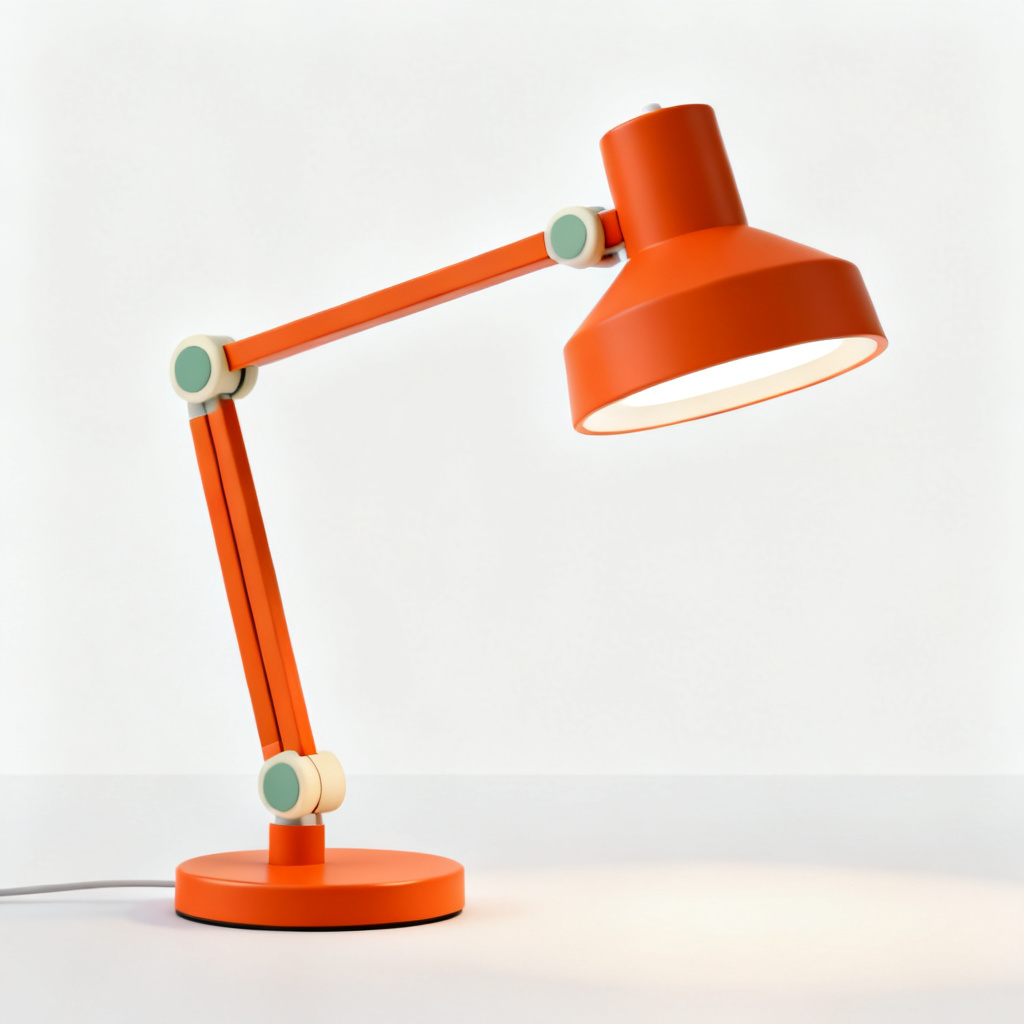
You can remove a background from an image for free, in your browser, in about a minute. This guide shows the quickest way, and a second way for when you want to keep editing the picture.
What you will make
A copy of your picture with the background gone. The subject, such as a product or a person, sits on a see-through background. The file is a PNG, a picture file type that can be see-through. You can place it on a white page, a colour, or another photo.
Option 1: the free Remove background tool
This is the fastest way to remove a background from an image. You do not need credits. You do not even need an account.
It works because the cutting happens on your own computer, not on our servers. Your photo stays with you the whole time.
Step 1: Open the tool
Go to genvi.co/tools/remove-background. You will see a box where you drop your photos. It takes JPG, PNG and WebP files. You can add up to 10 at once, and each one can be up to 25 MB.
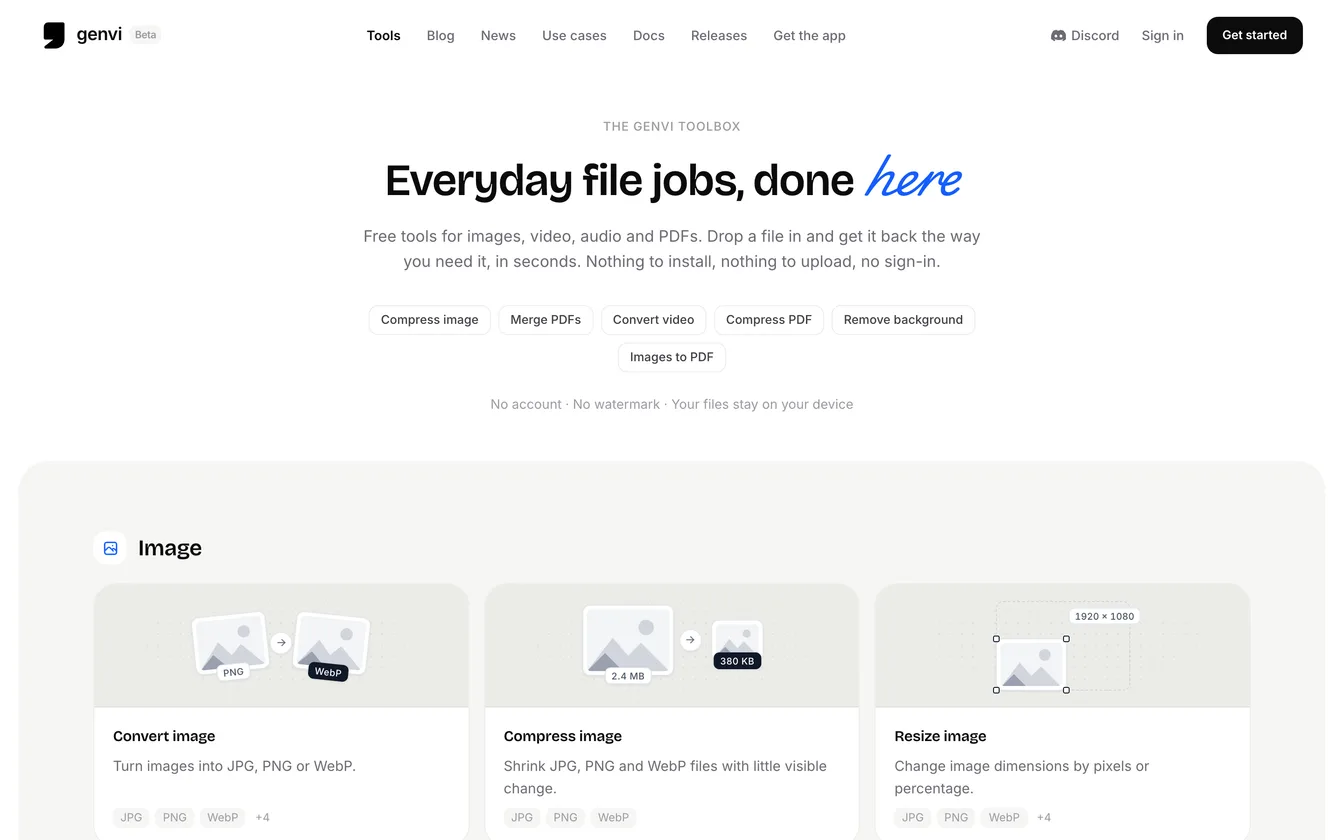
The genvi tools page. Every tool here is free, and the file jobs run in your browser.
Step 2: Choose Anything or People
There are two settings.
- Anything works for products, objects, animals and people. It is the safe pick when you are not sure.
- People is for portraits. It is a smaller download and it takes more care around hair.
Step 3: Press Remove background
Press Remove background. The first time, your browser has to download the cutting model, which is the small program that finds the subject. On a slow connection this can take a minute. After that your browser keeps it, so the next photos start right away.
Step 4: Download your PNG
When it finishes, download each PNG. If you are signed in, you can also save the result to your files in genvi.
Which pictures cut out well
A clear subject on a plain background gives the cleanest edge. Photos like these are a good start.
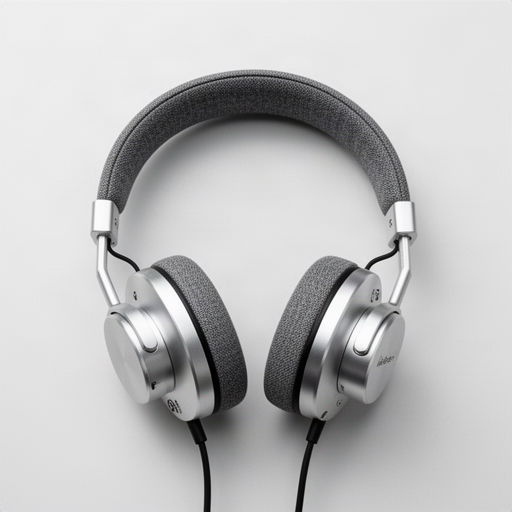
Headphones on a seamless backdrop, made with FLUX 2 Flash. A plain backdrop and a clear outline make an easy cutout.
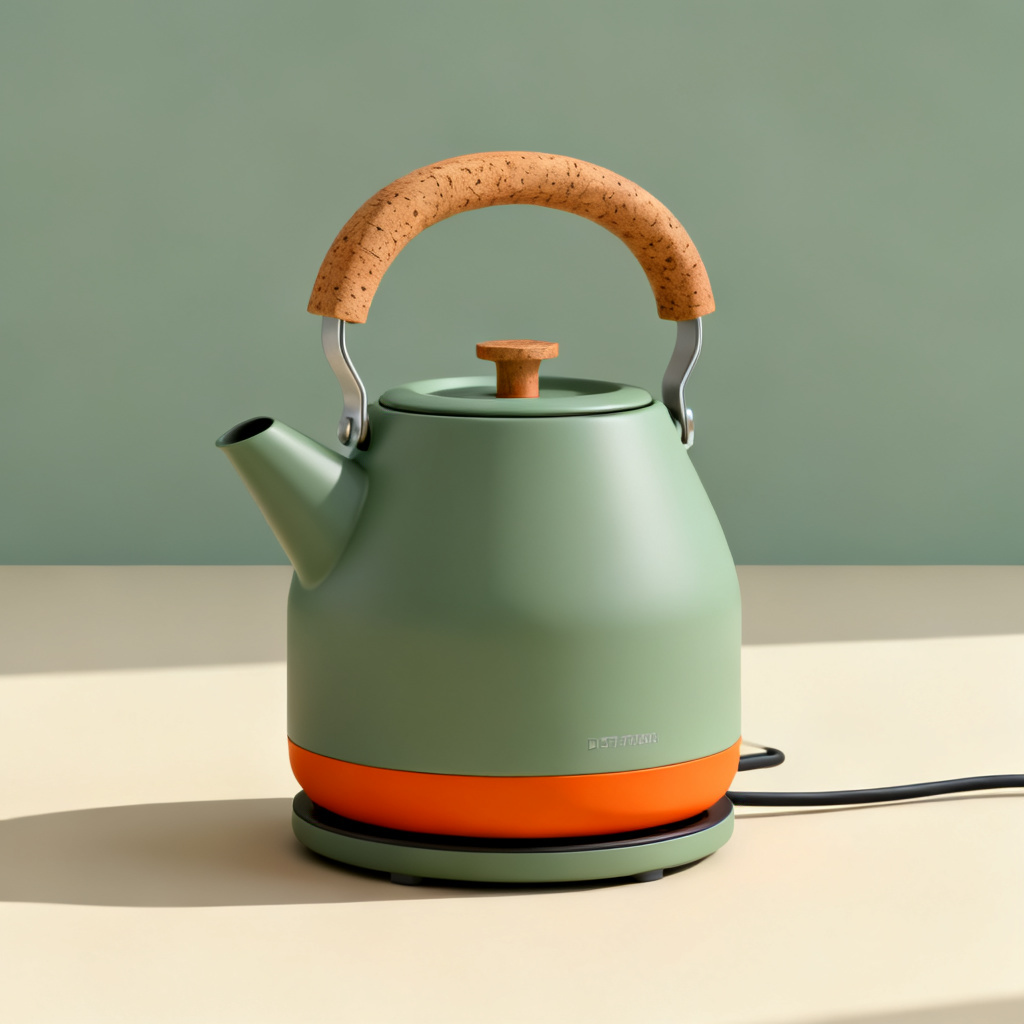
A sage green kettle, made with Seedream v4. The smooth edges separate cleanly from the backdrop.
Some things are harder for every cutout tool. Hair, fur, glass and motion blur can leave rough or missing edges. Look at the result before you use it. If an edge looks wrong, try the other setting, or start from a sharper photo.
Option 2: remove the background in the Image Composer
Use this route when you want to do more than a cutout. Maybe you want to put the product on a new background, add text, or arrange several pictures. The Image Composer is genvi's picture editor. It works in layers, where each picture or piece of text is its own sheet that you can move.
- Sign up and, on the Dashboard, click New Project. Choose Image Composer.
- Add your photo to the canvas. It becomes an image layer.
- Click the image layer to select it.
- In the panel, pick General or People, then click Remove background.
A progress number shows while it works. The cutout replaces the picture on that layer. Undo brings the original back. The first run downloads the model, just like the free tool. Later runs are quick.
Like the free tool, the cutting happens in your browser, not on an AI service. The finished cutout is then saved with your project.
Put the cutout on a new background
A see-through product photo is useful when it sits on something new. Two ideas:
- Place it on a plain colour or white for a shop listing.
- Make a new scene with an AI image model, then put your cutout on top. To choose a model, see how to choose an AI image model.
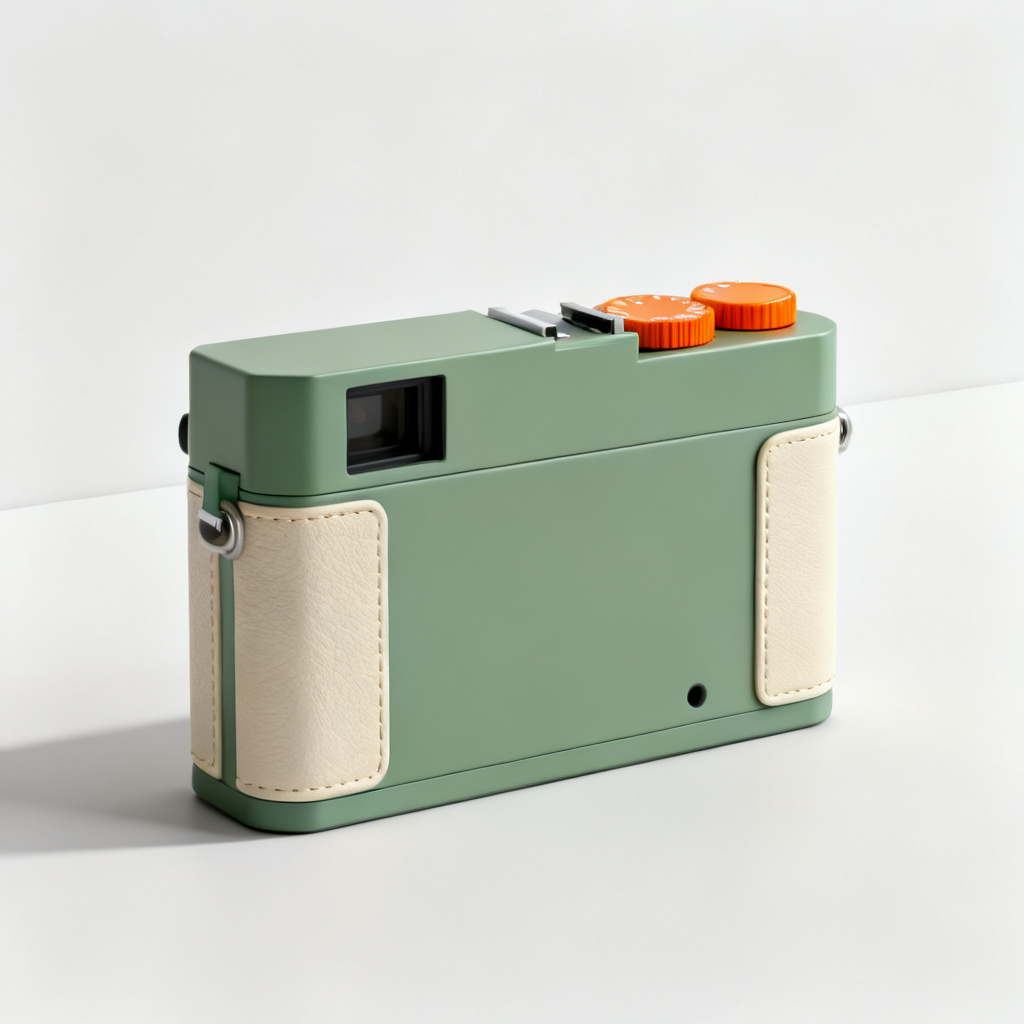
A film camera, made with Seedream v4. After a cutout you could place it on any scene.
If you sell products, you may like how to batch generate product photos and how to make product ads with AI.
Tips for a clean cutout
- Start sharp. A blurry photo gives a blurry edge.
- Use even light. Strong shadows can be mistaken for part of the subject.
- Keep the subject away from the picture edge. A cut-off subject is harder to outline.
- Zoom in to check. Look at hair and corners before you share the file.
- Keep the PNG. If you save as JPG, the see-through part turns into a solid colour.
What it costs
Nothing. Removing a background runs in your browser, so it does not use credits. The free tool does not need an account, and the version in the Image Composer costs nothing too. Credits only come in if you also generate new pictures with an AI model. genvi shows the price of each run before you run it.
FAQ
Is it really free?
Yes. The free tool does not use credits. It runs on your device, so it costs us nothing to give away.
Does my photo get uploaded?
Not to cut out the background. The model is downloaded to your device and the work happens there. If you choose to save a result to your genvi files, that file is stored in your account.
Why is the first run slow?
The model has to download before it can work. After that your browser keeps it and later photos are quick.
Will it work on my phone?
Usually, on a recent phone. It is the heaviest of our tools, because the model and your photo both have to be loaded at the same time. An older phone may give up on a large photo. Try a smaller picture, or use a computer.
What file do I get?
A PNG with a see-through background.