October 8, 2026 · Updated November 3, 2026
How to batch generate product photos with AI
Batch generate product photos with AI in genvi. Write one shared look, list your variations and make up to ten pictures with one click.
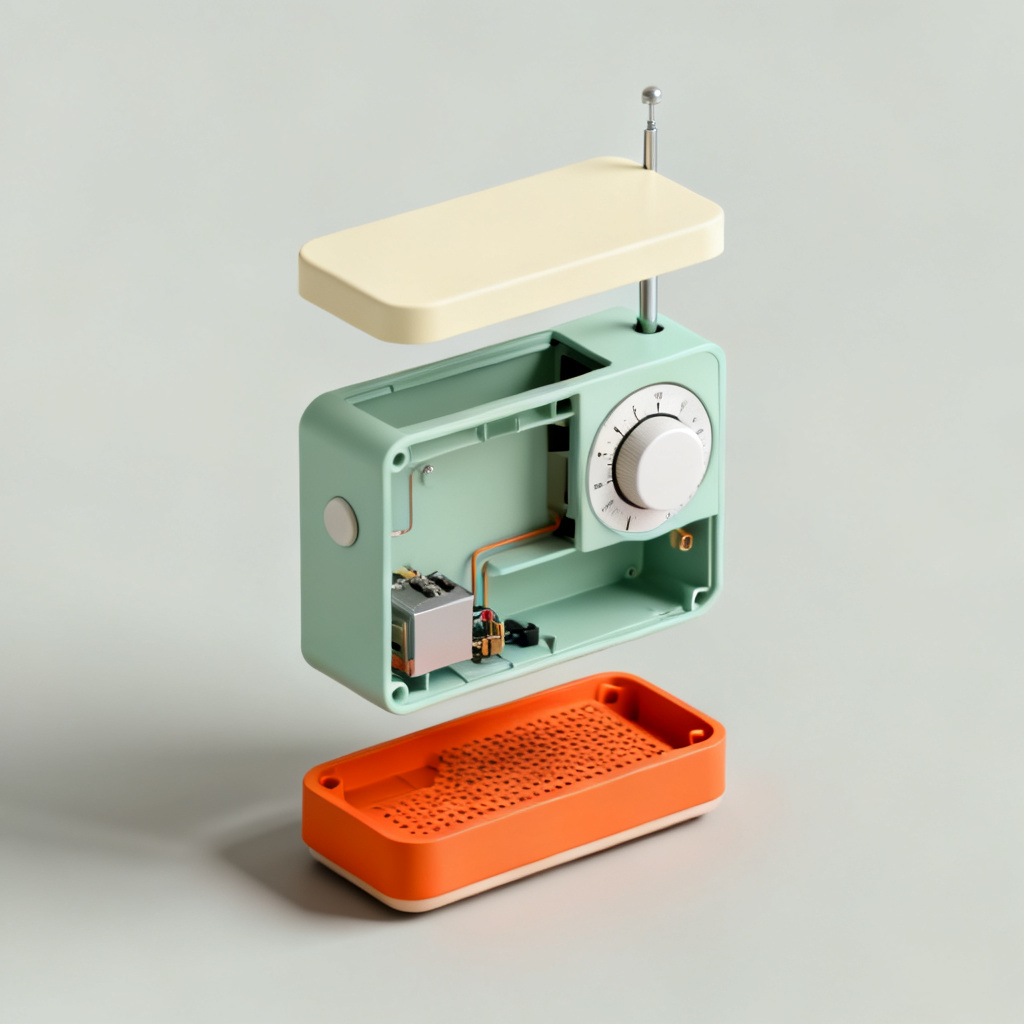
A shop often needs the same product in many colours, places and angles. A photo studio is slow for that. With genvi you write the look once, list the variations, and make every picture with one click. This guide shows you how to batch generate product photos in Node Studio, using a button called Run once per line.
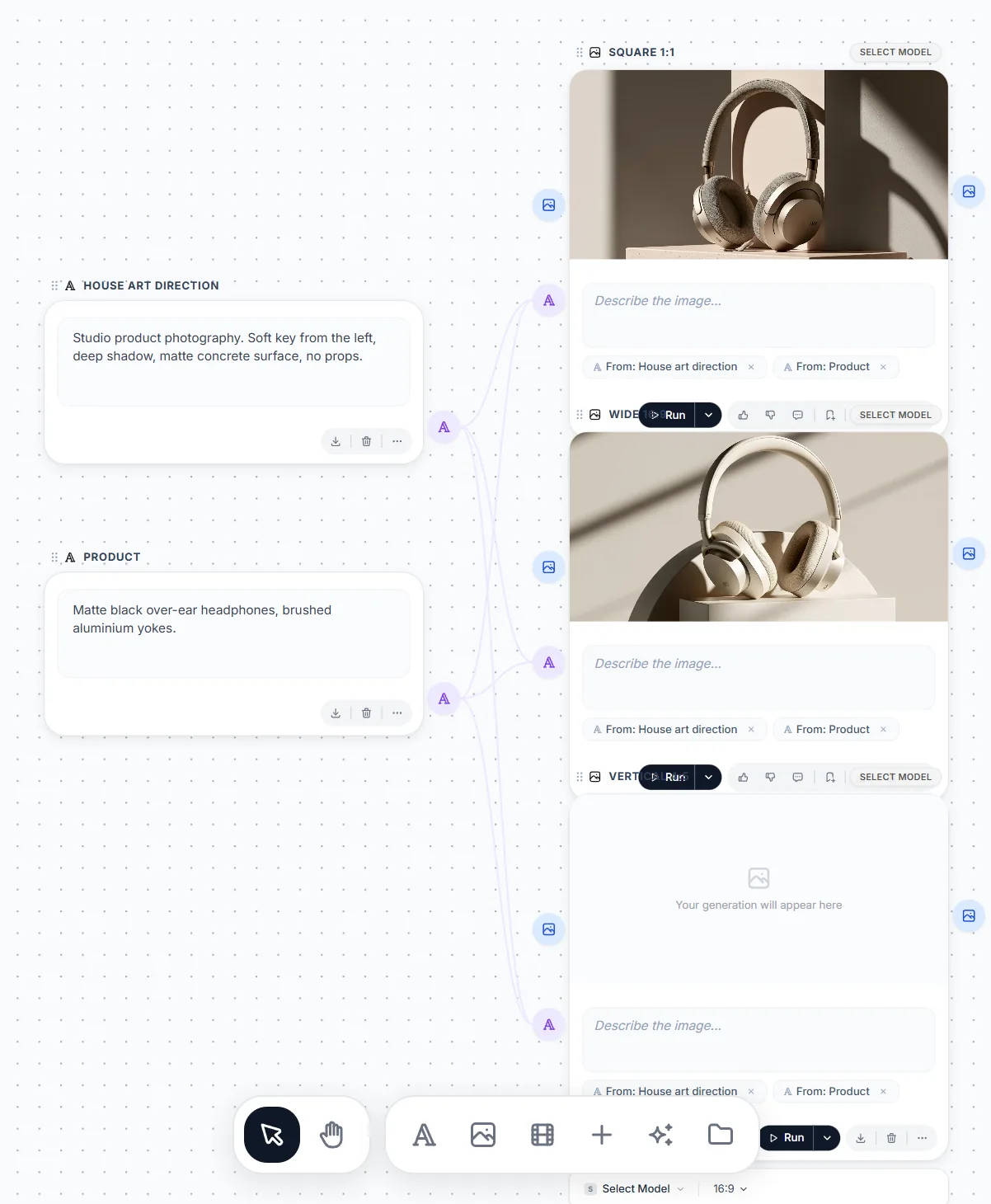
A list of ideas connected to an Image Generation node, run once per line on the Node Studio canvas.
What you will make
Up to ten product pictures from one project. Each picture shows a different version of the same product, and all of them share one look. The example pictures below were made this way by our own accounts on Explore, with five invented products.
What you need
- A genvi account with credits.
- A short description of your product. If you want the pictures to match a real item, also have a photo of it.
- A list of variations. One batch makes up to ten pictures. For more, run another batch.
Step 1: Create a workflow project
On the Dashboard, click New Project, choose Workflow, name it and click Create. An empty canvas opens. On the canvas you add nodes, which are blocks that each do one job, and connect them. If nodes are new to you, the first-workflow page in the docs shows how.
Step 2: Write the shared look
Add a Text Prompt node. This is a block where you type words for the AI (this is called a prompt). Write the part that stays the same in every picture: the surface, the light and the background. Our example used this for every picture:
product design render, matte materials, seamless studio backdrop, calm functional objects in the Dieter Rams spirit; sage, cream and signal orange, precise soft shadowsType
{line} where the changing part should go, for example {line}, product design render, matte materials, seamless studio backdrop. If you leave out {line}, each item from your list is added after your text.Step 3: List the variations
Add a second Text Prompt node and type one variation on each line. A numbered or bulleted list works too. Each line needs at least two words, and repeated lines are removed. For a kettle, your list could be:
- a ceramic electric kettle with a cork handle
- the same kettle in a sage green colourway
- the same kettle in an exploded view
- the same kettle in use on a desk
- the same kettle beside its packaging
You can also add a Text Generation node and ask the AI to write the list for you. Connect it the same way.
Step 4: Add the Image Generation node and wire it up
- Add an Image Generation node.
- Drag from the dot on the right of each Text Prompt node to the prompt dot on the image node.
- Click the model name at the bottom of the node and pick a model (the AI that makes the picture). While you test the look, pick a cheap one. For the final set, pick a stronger one. The price shows next to each model.
To match a real product, add an Image Input node with your product photo and connect it to the image node as a reference picture. Only some models can use a photo: Seedream v4 and v5 Pro take up to 10, and FLUX 2 Flash takes none.
Step 5: Run once per line
- Click the small arrow next to Run at the bottom of the image node.
- Choose Run once per line. It says "N copies, one per line" when it finds your list. It is greyed out if no list is connected.
- A box titled "Run N copies?" shows every line and the total price before anything is spent. Click Run N to go ahead, or cancel.
- genvi makes one copy of the node for each line and runs them all at once. One Undo removes the whole batch.
Every picture is saved to your File Repository, the place where genvi keeps your files.
Batch generate product photos: real results
These pictures were made in one batch each. They share one look, and each line is a different product or view.
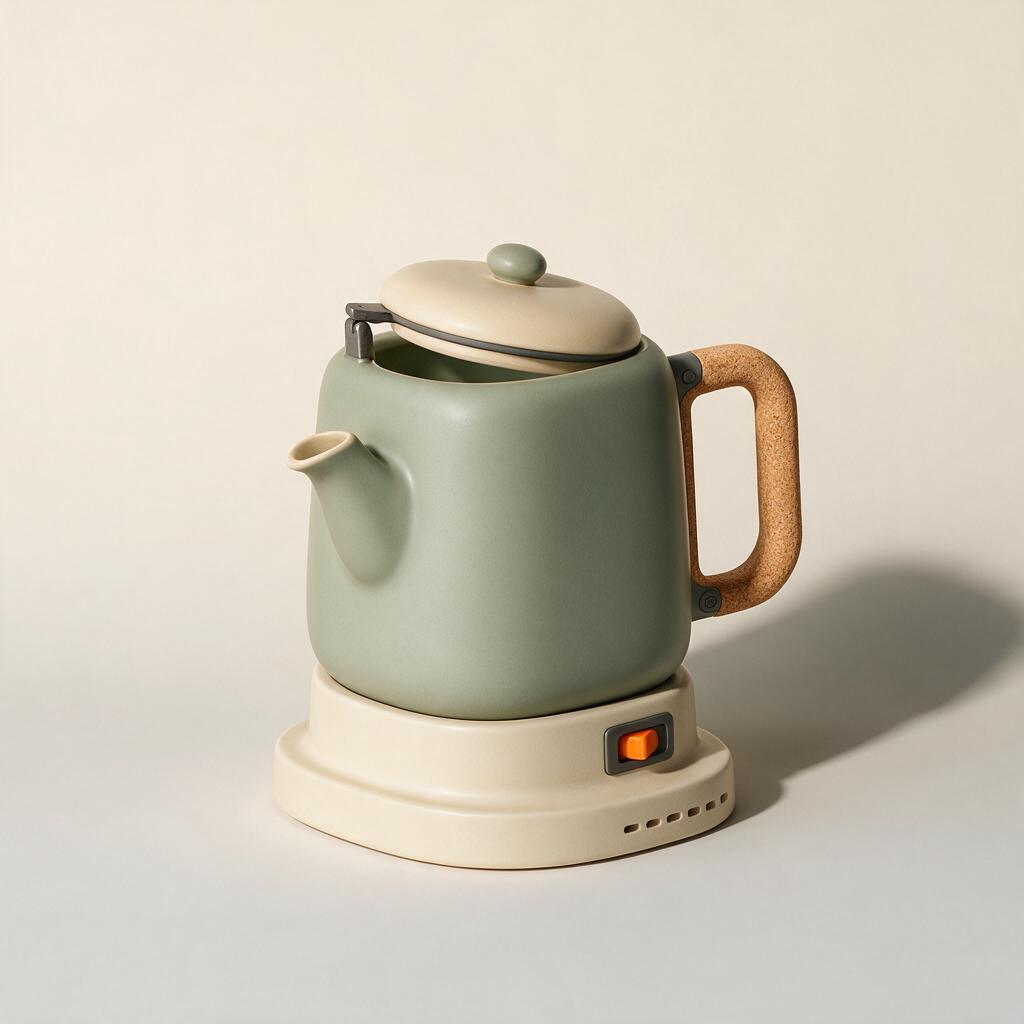
Seedream v5 Pro: a ceramic kettle with a cork handle, in the shared product style.

Seedream v4: aluminium headphones with a fabric headband, same style.
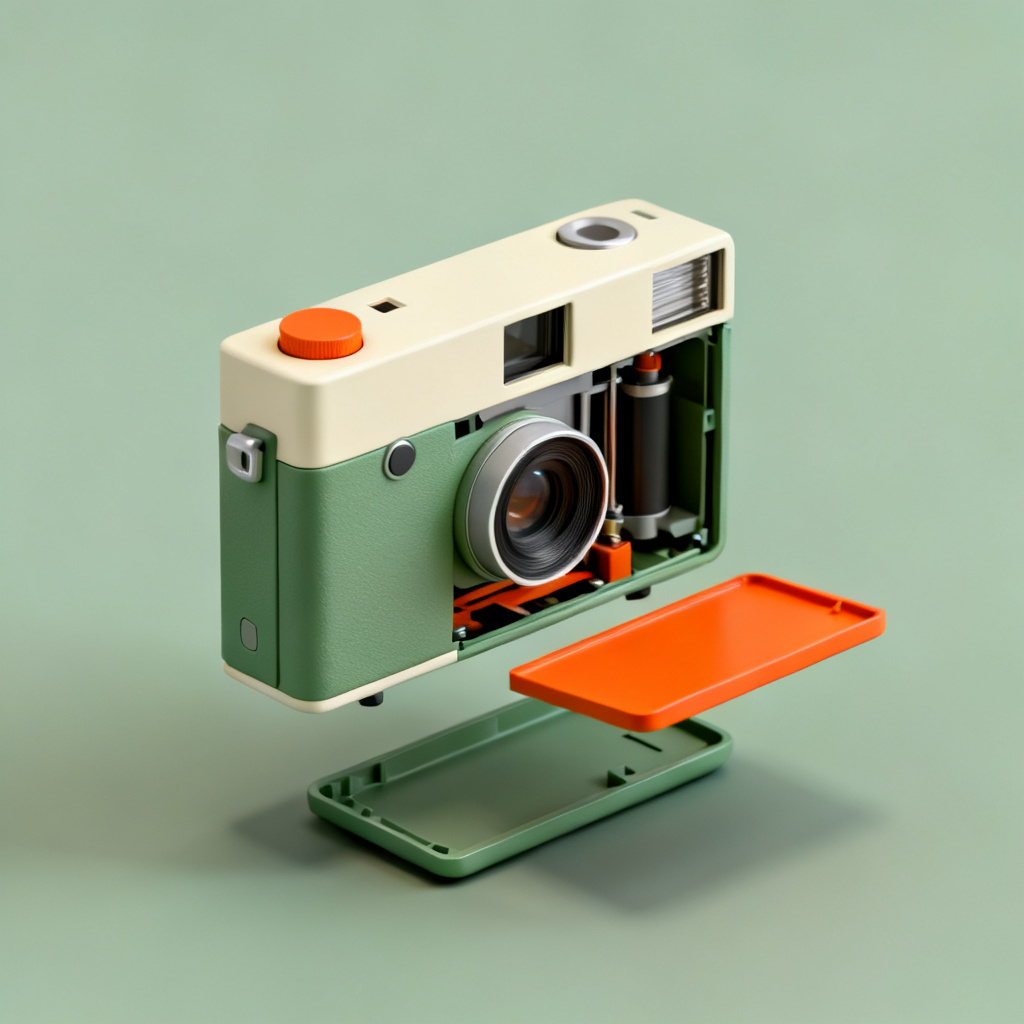
Seedream v4: a compact film camera in sage green, with "in an exploded view" as the one changing phrase.
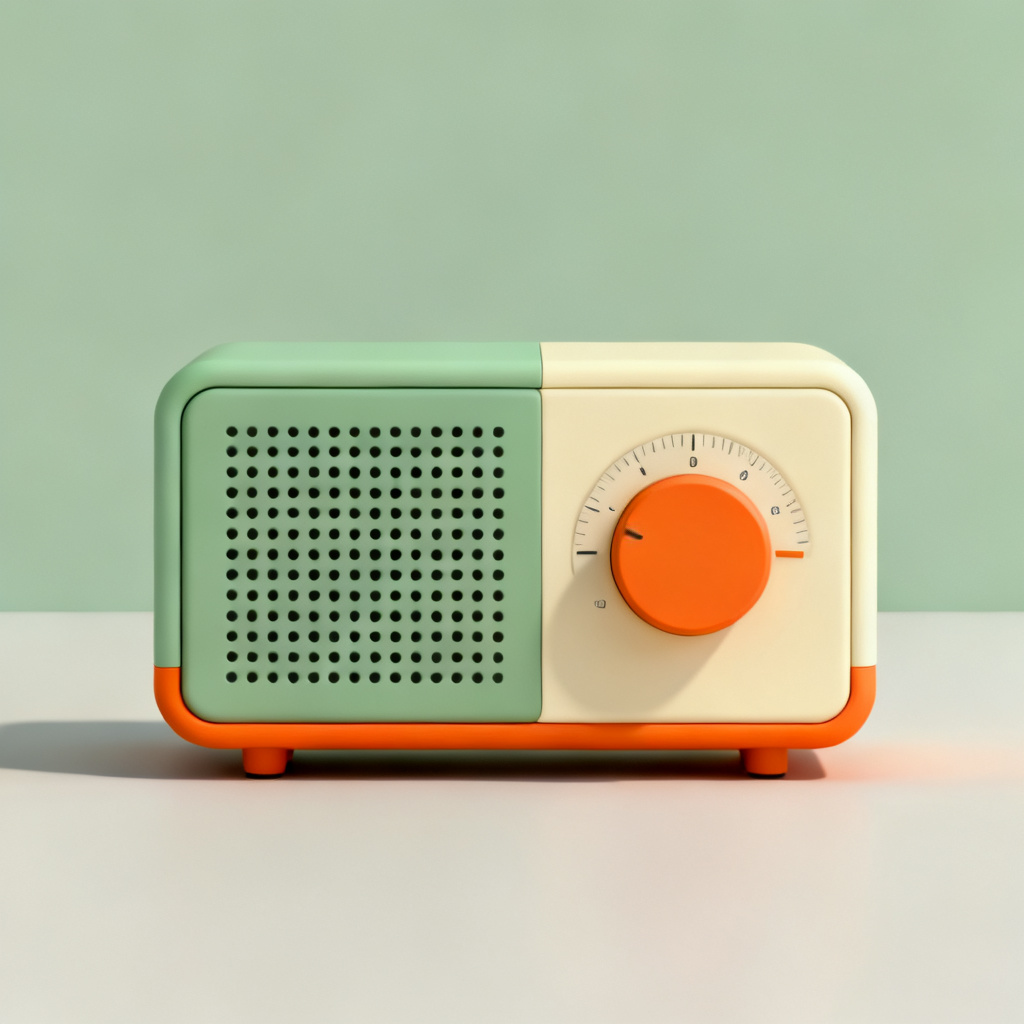
Seedream v4: a minimal pastel radio with a single dial, with "in a sage green colourway" as the changing line.
Tips for consistent product photos
- Keep the shared look the same. This is what makes ten pictures look like one photo shoot. Change only the line.
- Name the change, not the whole scene. "In an exploded view", "beside its packaging" and "in use on a desk" each give a clearly different picture.
- Test one line first. Click Run to make a single picture, check the look, then run the whole list.
- Try two models. Copy the image node, change the model and run both. Prices differ a lot.
- Need more than ten? Replace the list and run again. The limit of ten stops a long pasted text from turning into forty paid runs.
For a bigger project, see how to make product ads with AI, which turns a product into finished ads.
What it costs
Each copy costs the price of one picture on your model, so a batch costs that price times the number of lines. The "Run N copies?" box shows "About N credits in all" before anything runs. It also warns you if your balance is too low. We do not give a fixed price because it depends on the model you pick.
FAQ
How many pictures can one batch make?
Ten. The limit keeps one click from starting too many paid runs. Run again with a new list to make more.
Why is Run once per line greyed out?
No list is connected to the node. Connect a Text Prompt node with several lines, and make sure each line has at least two words.
Can I vary the product photo instead of the text?
Yes. Connect several Image Input nodes to separate Image Generation nodes, then use Run from here to run each branch. Run once per line is only for lists of text.
Where do the pictures end up?
In your File Repository and in the project's assets. You can export them, or use them in the Image Composer or Video Composer.