October 28, 2026
How to make AI product ads in every size
Make AI product ads with genvi: read your brand from your website, pick products and a look, and get each ad in square, story and banner sizes.
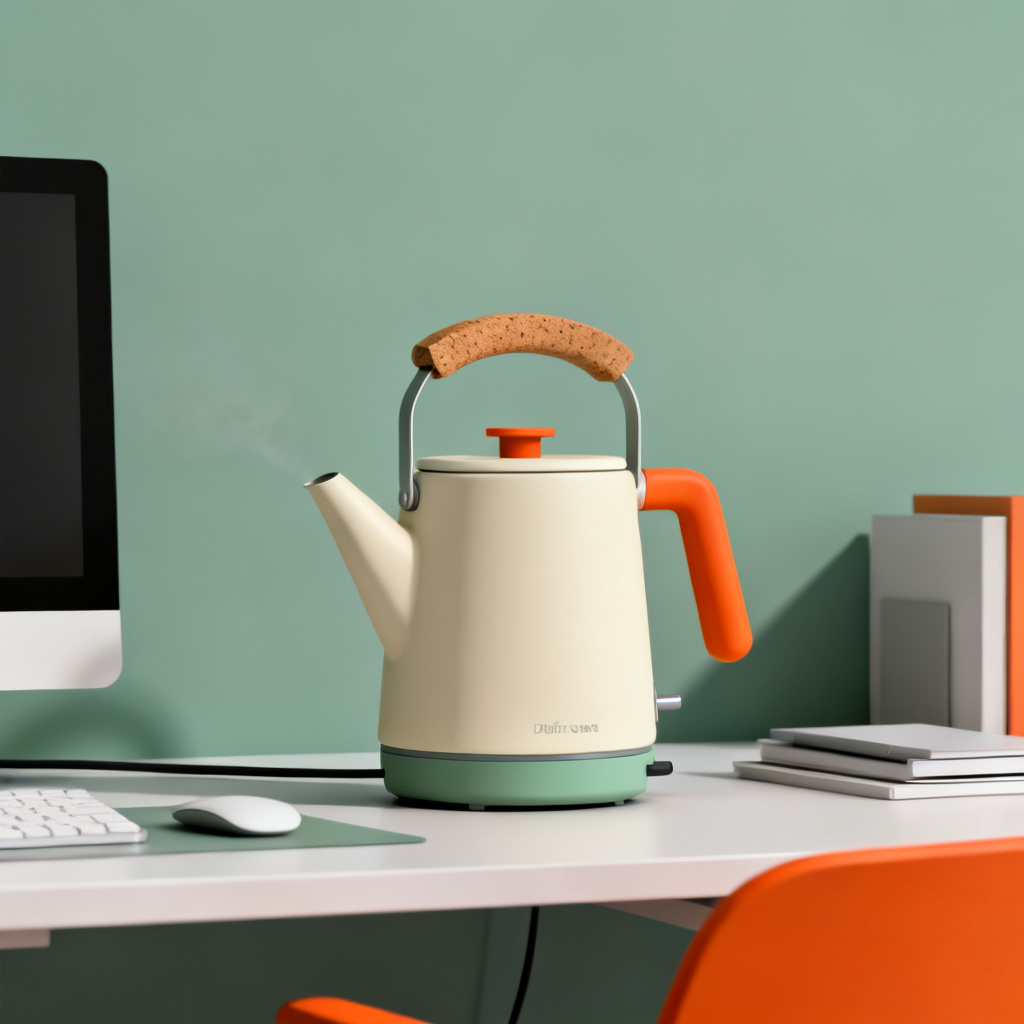
Making AI product ads used to mean one nice picture and a lot of resizing. In genvi, the Ads tool does the repeat work. It reads your brand from your website, uses your product photos, and makes the same ad in every size you need. This guide makes ads for one product. Then it shows how to remake your best ad for the rest of your products.
What you will make: AI product ads in every size
You will end up with a saved brand kit (your logo, colours and tone) and one ad for each product in each size. For example, a square ad for feeds and a tall 9:16 ad for stories. For background, read the announcement. To see how a website is read, see our write-up on brand kits.
What you need
- A genvi account (sign up if needed).
- The address of a brand's website, or a clean photo of your product. A photo on a plain background works best, because the ad is asked to show the product exactly as it looks in the photo.
- Optional: an ad you already like, if you want to use Remake an ad.
Step 1. Open Ads and read your brand
- On the dashboard, open the Formats tab and choose Ads. The Quick starts row also has ad templates: Studio hero, Dark and luxe, In everyday use and Launch banner.
- Under Brand (optional), type the website into the box, for example
brand.com, and press Read. - Wait for the button to stop saying Reading. genvi collects the brand's name, tagline, tone, up to five colours, its logo and up to eight products. The product pictures are copied into your project, so the kit still works if the website changes.
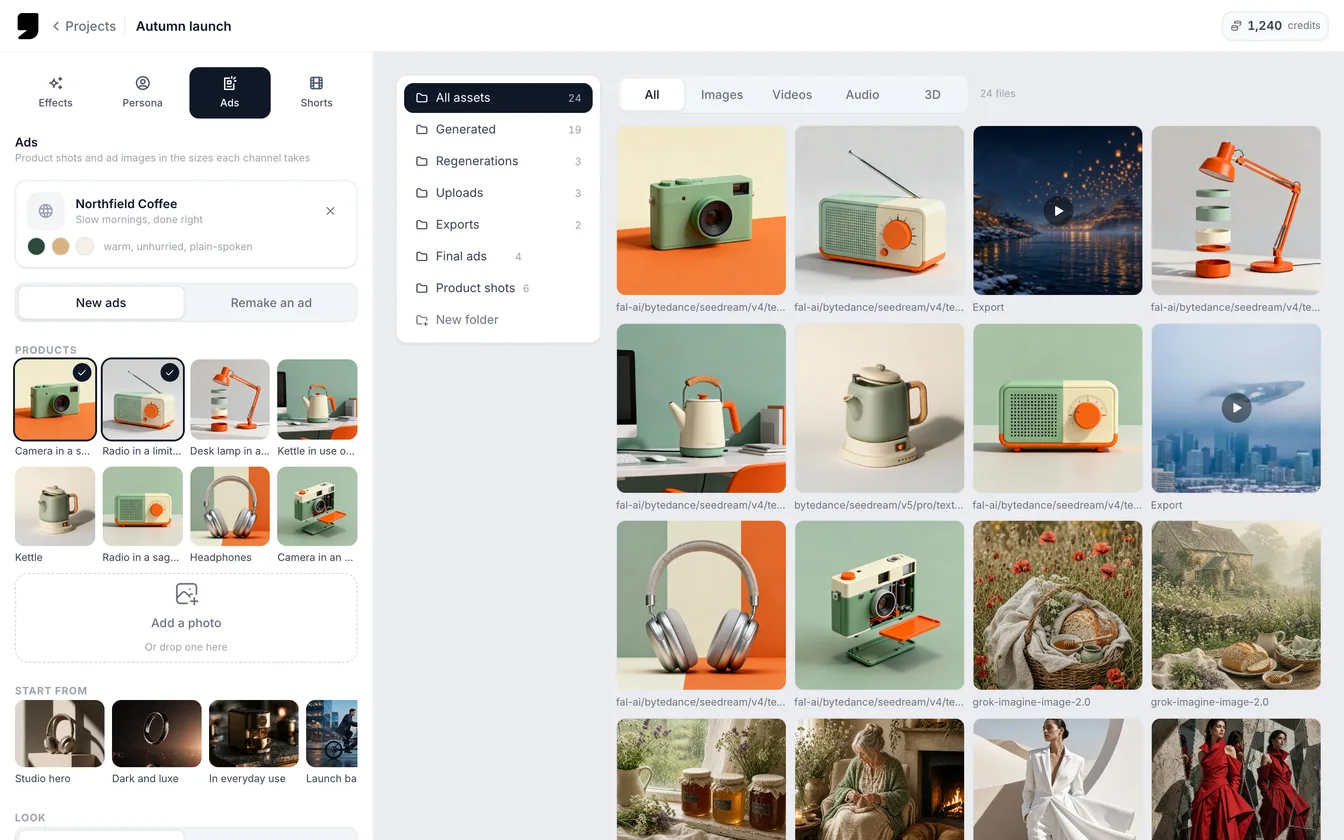
The Ads form with a brand kit read from a website, product pictures to choose from, and the look options.
The kit shows as a card with the logo, colours and tone. If it read the wrong site, press the X labelled Use another brand. You can also skip the brand and add a photo instead.
Step 2. Choose the products
The products found on the site show under Products as tiles with a tick. The first two are already chosen. Click a tile to add or remove it. To add your own product, use the photo box below the tiles. It asks you to say what the product is in a few words, such as "a ceramic pour-over set". That sentence is added to the prompt (the text that tells the model what to make), so be specific.
Step 3. Pick a look, a headline and the sizes
- Under What to make, keep New ads.
- Choose a Look: Studio, Lifestyle, Flat lay, Bold colour or Dark and luxe. Or click a tile under Start from to fill in the form for you.
- Type a Headline (optional), up to 60 characters. It starts with the brand's tagline. Leave it empty and the ad is asked to have no text.
- If the kit has a logo, switch on Put the logo on it. The logo goes in small, in a corner.
- Under Sizes, tick the ones you need. Square 1:1 is for feeds. Story 9:16 is for stories, Reels and TikTok. Landscape 16:9 is for banners and YouTube. Portrait 4:5 is for feed posts. Square and Story are already ticked.
Step 4. Make the ads
The button counts the ads for you. Two products in two sizes reads Make 4 ads, with the credit estimate next to it. (Credits are what you spend on each generation.) Press it. All the ads are made at the same time. Your product photo is used as a guide so the product looks like your product. The ads are saved in the project's assets. If a brand kit is loaded, its colours and tone are used too.
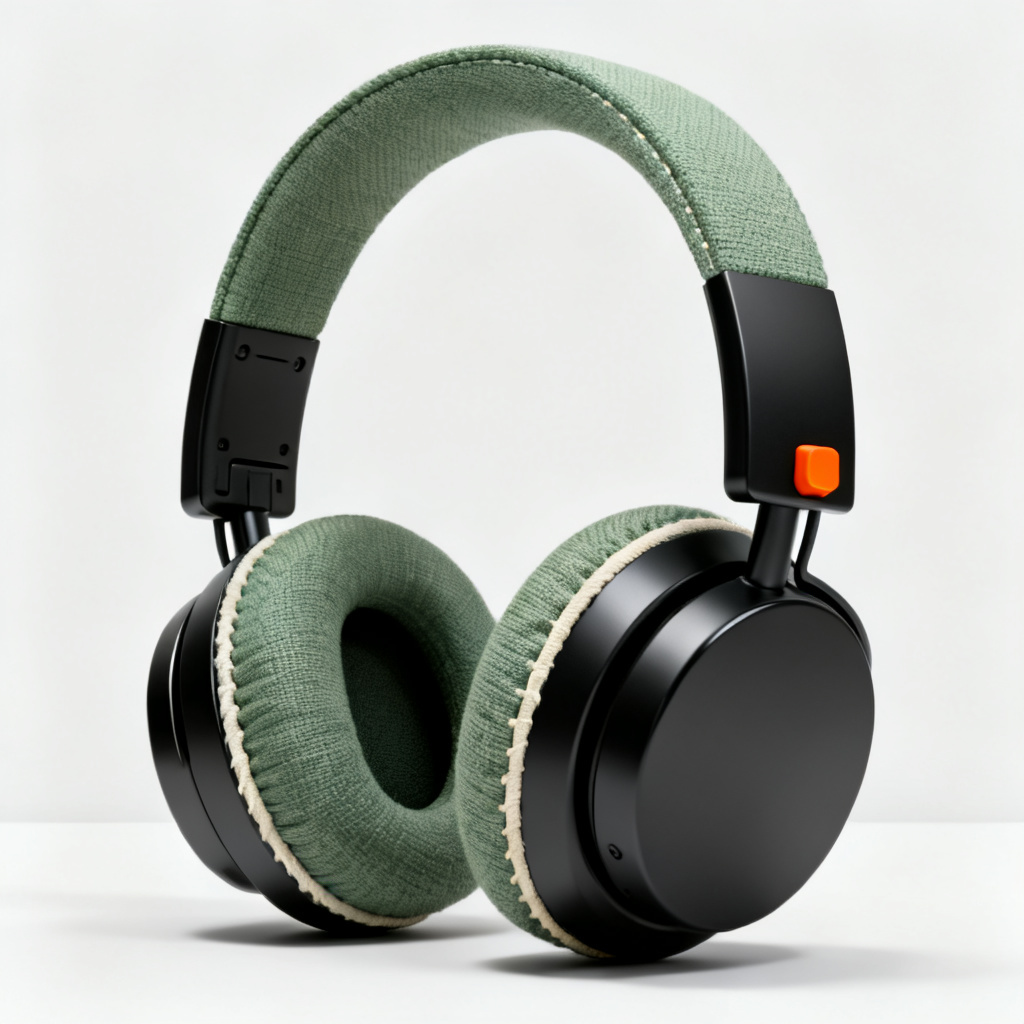
The Studio look: "aluminium headphones with fabric headband, in a limited black edition, product design render, matte materials, seamless studio backdrop." Made with Seedream v4 (Fal).
Step 5. Multiply the ad that works
When one ad does well, switch What to make to Remake an ad. Add the ad you like under The ad to remake. Then tick the products under Products to remake it for. Each product gets the same ad: the same layout, camera angle, lighting, colours and type style, with the words rewritten for the new product. Each product is one run, so ten products means ten runs.
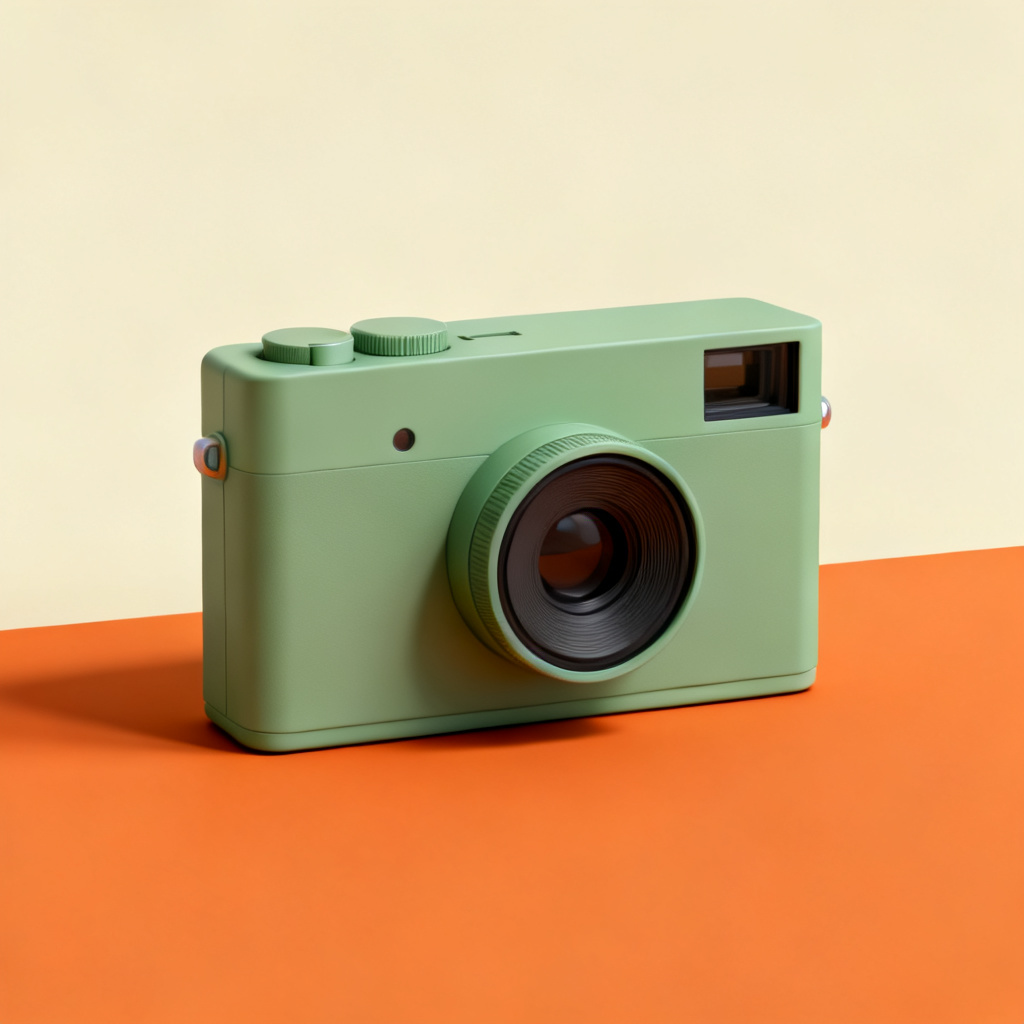
The same setup with a different product: "a compact film camera in sage green, in a sage green colourway." Made with Seedream v4 (Fal).
Tips
- Start with fewer sizes. Every extra size adds to the cost. Make the square ad first, check it, then add the rest.
- Photograph the product plainly. The ad copies the product exactly as it looks in your photo, clutter and all.
- Keep headlines short. Long lines crowd the picture, and image models often misspell them.
- Check the words in every size. The image model draws the words, so read each ad before you use it.
- Everything you choose is saved. Open the project tomorrow and the form is as you left it.
What it costs
The button shows an estimate, about N credits, for all the ads in the batch before you run it. The total depends on how many products and sizes you tick, and on which image model Auto picks. You pay what the button showed. See plans and credits to learn how credits are bought.
FAQ
Does it work without a website?
Yes. Skip the brand box and add a product photo. You lose the colours, tone and logo, but the look, headline and sizes work the same.
How many products can I choose?
A website gives you up to eight products. You can also add photos of your own. Choose as many as you want. Each one adds more ads.
Will the logo be exact?
The logo is added small, in a corner, and the ad is asked to copy it exactly. Check it, because image models can still blur fine lettering.
Can it make video ads?
No, Ads makes pictures. To turn a picture into a moving video, see how to turn a topic into a short video.