October 29, 2026
How to make UGC style ads with AI, honestly
Make AI UGC style ads in genvi: invent a presenter, add a voice, lip sync the clip, cut in product shots, and test three opening lines.

UGC means "user generated content." It is the kind of ad that looks like a real person filmed it on a phone, talking to the camera. AI UGC ads use a made-up presenter instead. They are quick to make and easy to vary. They also come with an honesty problem you need to handle. This guide shows how to make AI UGC style ads in genvi. It also shows how to test different openings, and what to say to your viewers.
What you will make: an AI UGC ad
A 10 second vertical video (9:16, the tall shape of a phone screen). An invented presenter talks to the camera about your product. The video has captions and a few product shots cut in. Then you make two more versions with a different first line, so you can see which one works.
First, an honest warning
A real UGC ad says "I used this and here is what happened." If the presenter is made up, nobody used anything. The US Federal Trade Commission bans fake reviews and testimonials, including ones from people who do not exist. It says so in its 2024 announcement. So do not write lines like "I have used it for six months." Write lines that are true for anyone. Say what the product is, what it does, what it costs, and what is in the box. Our guide on AI voices, consent and labels covers the labelling side.
What you need
- A genvi account. Sign up if needed.
- A clear photo of your product on a plain background.
- A short list of true facts about the product.
Step 1. Write a script that is true and short
People speak about two and a half words each second, so 10 seconds is about 25 words. Use four parts. A hook is the first line, to stop the scroll. Then come the problem, the product and a next step.
Example: "Tired of tangled cables? This desk tray holds all of them. It clips on in a minute. Link below." Every line there is a claim you can back up.
Step 2. Make your presenter with Persona
Persona makes one character appear in many scenes. If you have not used it, read how to make an AI influencer. In short, save a character in References. Then open the Formats tab and choose Persona. Describe a scene, such as "sitting at a kitchen table, holding up a small box, natural window light." Set Framing to Portrait and Shot to Photo. Takes sets how many versions you get, so pick the best one.
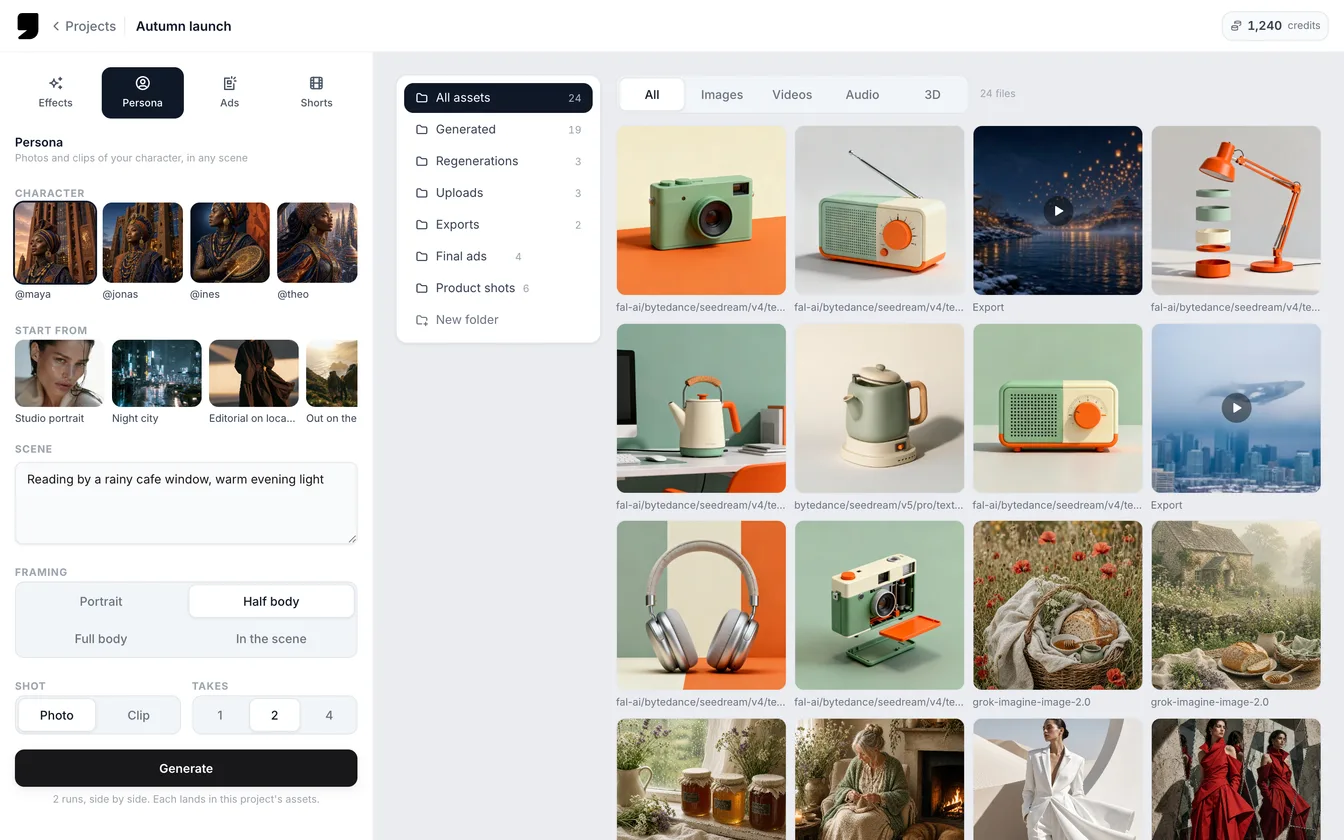
The Persona form: a saved character, a scene, the framing and the number of takes. Choose Photo first, then use the best take as the presenter.
Use an invented person. Do not use a real person's face unless they agreed. Our terms do not allow using a real person without their consent. Viewers may also feel it is wrong when a face is borrowed.
Step 3. Make the voice
In Chat Studio, open the menu that chooses what to create, and pick Voice. Paste your script and pick a voice model, such as ElevenLabs v3 or Kokoro. Listen to it. If a word sounds wrong, spell it the way it sounds and run again. There is more in how to add AI voiceover and captions. genvi does not copy voices, so the voice is a ready-made one.
Step 4. Make the presenter talk
Now join the picture and the voice. Lip sync means moving a mouth to match speech. In Node Studio, add a Lip Sync node. A node is a box you connect to other boxes. Connect your presenter picture and your voice file to it, then choose a model.
- OmniHuman 2 animates the person in a still picture to speak a 4 to 10 second voice track, with matching gestures and expressions.
- MiniMax H3 Max Lip Sync animates a still portrait to speak a 5 to 10 second voice track.
- Kling LipSync starts from a video clip instead of a picture. It re-times the mouth to a new voice track. The clip must be 2 to 10 seconds long.
That is why the script should be short. Each model takes up to 10 seconds of speech. For a longer ad, make several short clips and join them in step 6. See how to lip sync a photo to audio for more.
Step 5. Add product shots
A talking head for 10 seconds feels flat. Cut away to the product two or three times. Open Formats and choose Ads. Add your product photo, then make product pictures. Pick the Story 9:16 size. It is made for stories, Reels and TikTok. The full steps are in how to make AI product ads.
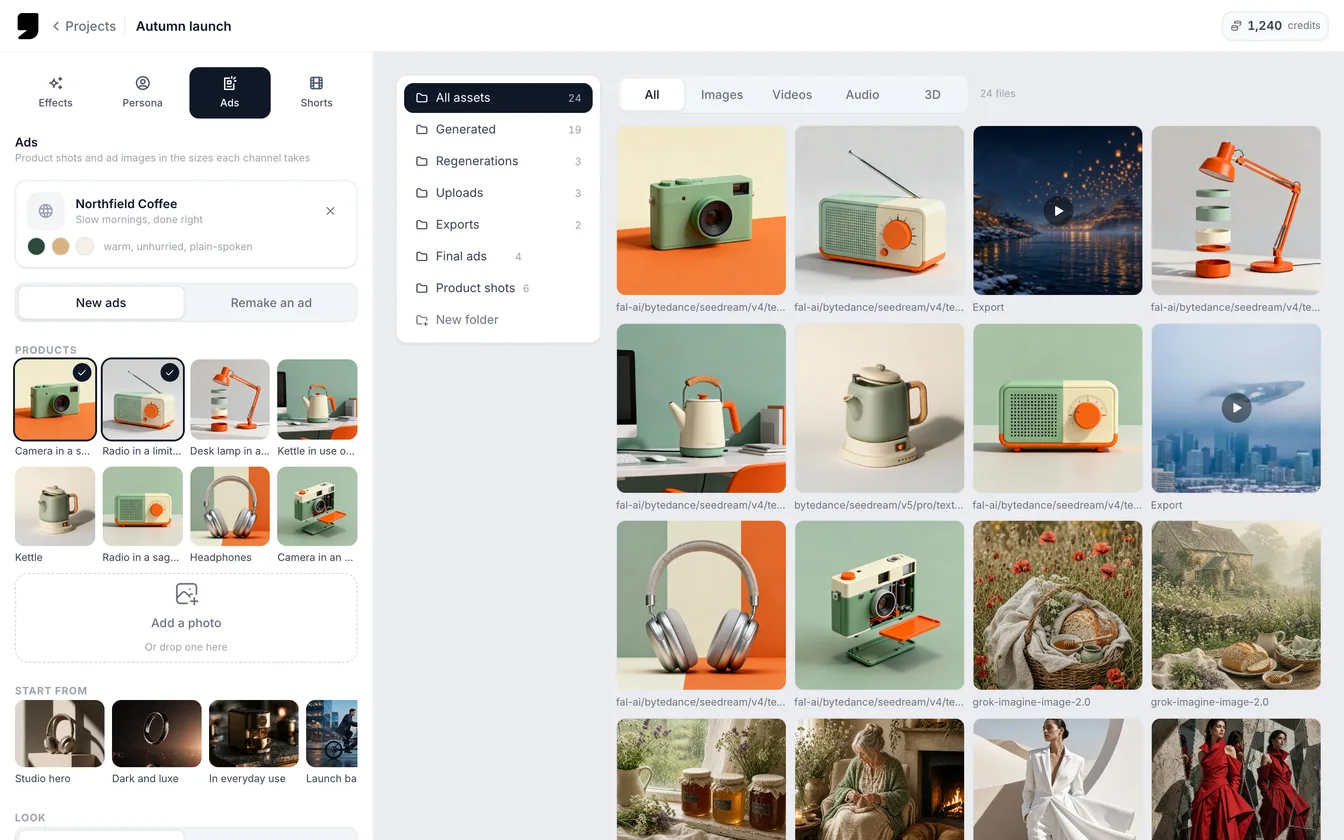
The Ads form reads a brand from a website and makes product pictures in several sizes. The story size is the one for vertical video cutaways.
Step 6. Put it together in the Video Composer
- Create a Video Composer project. Drag your talking clip onto a video track.
- Drag the product pictures onto the track at the moments the presenter names the product.
- Right-click the talking clip and choose Auto Captions. Fix any wrong words, and check the brand name first.
- Click Export and choose the 9:16 shape.
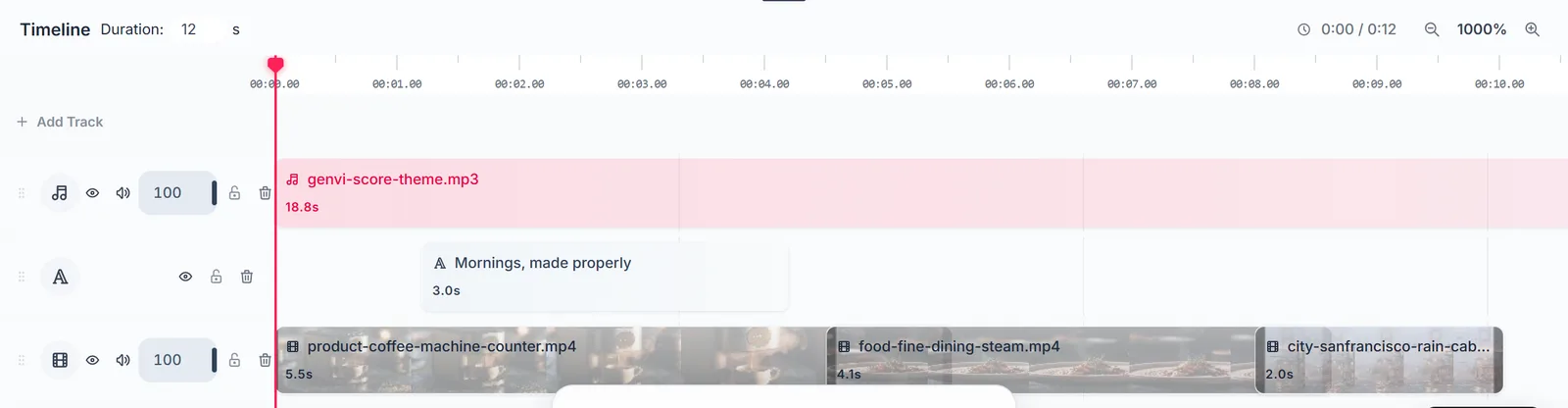
The Video Composer timeline. The talking clip, product pictures, captions and music are rows you can move around.
Step 7. Test the first line
The first two seconds decide whether anyone stays. Keep everything else the same. Then write three different hooks:
- A question: "Tired of tangled cables?"
- A fact: "This tray holds six cables."
- A result: "Here is my desk with no cables showing." (Only if it is true for the picture.)
Make a voice and a clip for each hook. Post all three as small ads, then look at which one keeps people watching. Only the first sentence changes, so any big difference is likely the hook. Keep the winner, and write three new hooks to try against it.
Tell people it is AI
Say so in the post, or in a corner of the video, for example "AI presenter." Platforms are adding their own rules. YouTube asks you to label realistic content that is made or changed with AI. Its help page says that includes making a real person appear to say something they did not. In the EU, Article 50 of the AI Act asks people who publish realistic AI video to say that it is AI. This is general information, not legal advice. See AI voices, consent and labels.
What it costs
Each step is a normal generation: the presenter pictures, the voice, the talking clip and the product pictures. Every one shows its price before you run it. The lip sync clip usually costs the most. Run one test before you make three. See what AI credits are.
FAQ
Is an AI UGC ad real UGC?
No. UGC means a real customer made it. An AI presenter is a way to make an ad that looks like that style. Call it what it is.
Can I use my own face?
Yes, if the pictures are of you. That is usually the most honest option. Add your photos to References as a character.
How long can the ad be?
Each talking clip is up to 10 seconds. Join several clips for a longer ad.
Does genvi post the ad for me?
No. You export the video and upload it yourself.