September 25, 2026 · Updated November 3, 2026
How to lip sync a photo to audio with AI
Turn a still portrait and a voice track into a talking video. Learn which of genvi's three lip sync models to pick and how to run it.

AI lip sync makes a mouth move in time with a voice. This guide shows how to lip sync a photo to audio in genvi. You give it a portrait and a voice. You get back a short video of that person speaking.
What you will make
A talking portrait, up to 10 seconds long. You start with one still picture and one voice track. genvi gives you a video where the face speaks the words.
There is a second job that works the same way. If you already have a video clip, lip sync can change the mouth to match a new voice. We cover both.
What you need
- A clear portrait, or a short video clip. A face looking at the camera works best, because the mouth must be easy to see.
- A voice track of 10 seconds or less. You can make one in genvi from a script.
- A genvi account with credits.
- Permission to use the face and the voice. Use your own picture, or one you have the right to use.
Step 1: Pick the lip sync model
genvi has three lip sync models. Two start from a still picture and one starts from a video.
- MiniMax H3 Max Lip Sync. Starts from a still portrait. Your voice track must be between 5 and 10 seconds. It makes the video at 768p, a clear but modest picture size.
- OmniHuman 2. Also starts from a still picture of a person. Your voice track must be between 4 and 10 seconds. It adds matching gestures and emotion, so the person does more than move their lips.
- Kling LipSync. Starts from a video clip of 2 to 10 seconds, at 720p to 1080p. It changes the mouth in that clip to match a new voice.
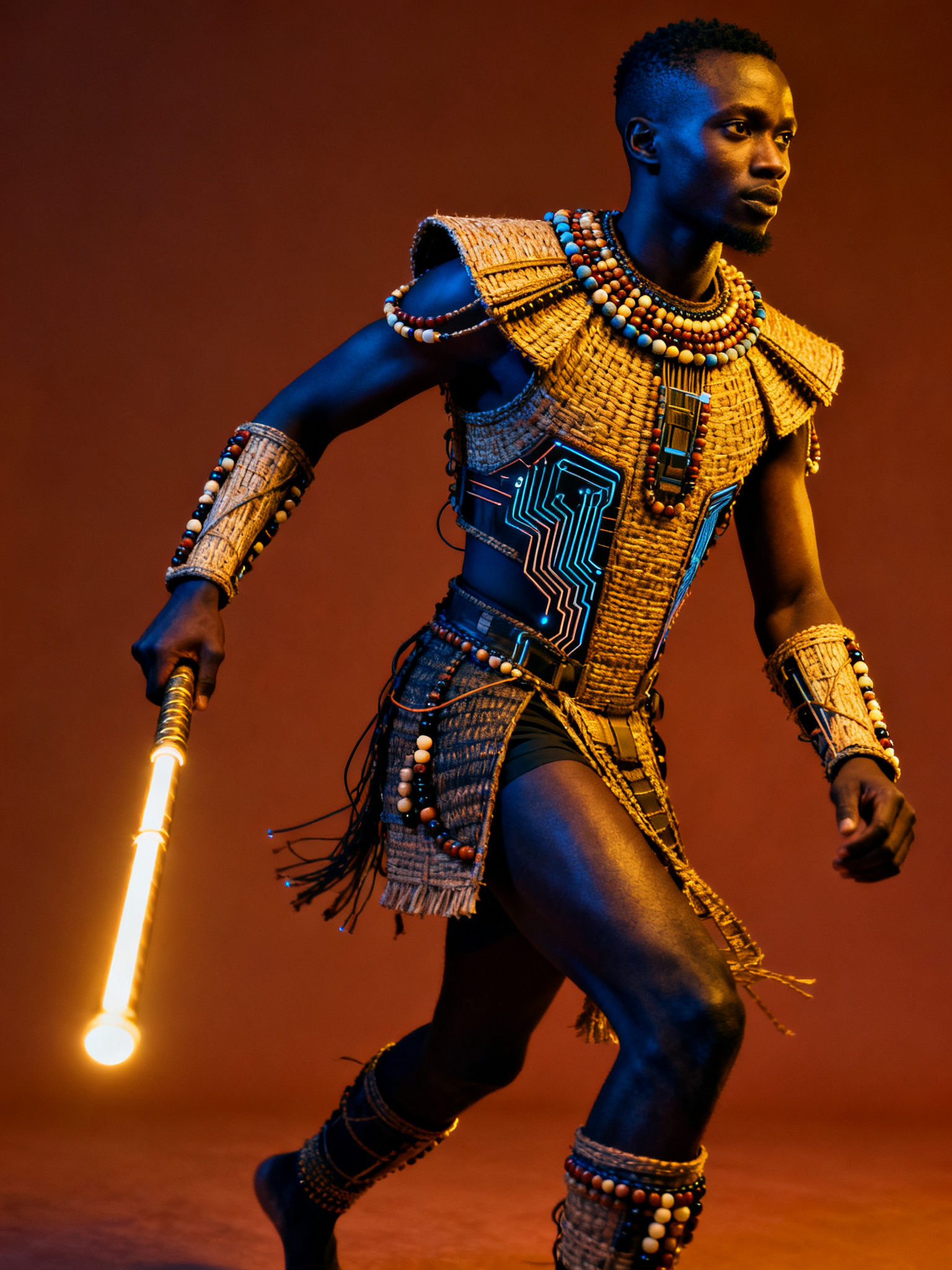
A portrait made with Seedream v4. For a talking video, a calm, front-facing picture is easier than a busy action pose.
If you only have a photo, pick MiniMax H3 Max or OmniHuman 2. If you already have a clip, pick Kling.
Why would you use Kling? Some video models make people speak in a voice of their own. If every clip of one character has a different voice, Kling lets you put one voice on all of them. To keep the face the same across clips, see how to keep a character consistent in AI video.
Step 2: Make the voice
Open a Node Studio project. This is genvi's canvas, where each block does one job and you connect blocks together. You can also make the voice in Chat Studio and use it later.
- Add a Text block and type what you want said. Keep it short. People speak about 2.5 words each second, so 10 seconds is about 25 words.
- Drag a line out of it and add a Text to Speech block.
- Choose a voice model and a voice. Then click Run.
There are many voice models, such as ElevenLabs v3, Gemini voices, Kokoro and OpenAI TTS-1. Each has its own list of voices. The Gemini ones have names like Kore, Puck and Charon. Kokoro is the cheapest way to try a script. You see the price before you run.
Listen to the result. Check that it is 10 seconds or less, and long enough for the model you picked. For more on voices, see how to add AI voiceover and captions.
Step 3: Add your picture
Add an Image Upload block and put your portrait in it. If you want to make the portrait first, use an Image Generation block. A tip for that: ask for a face looking at the camera, with the mouth visible and plain lighting.
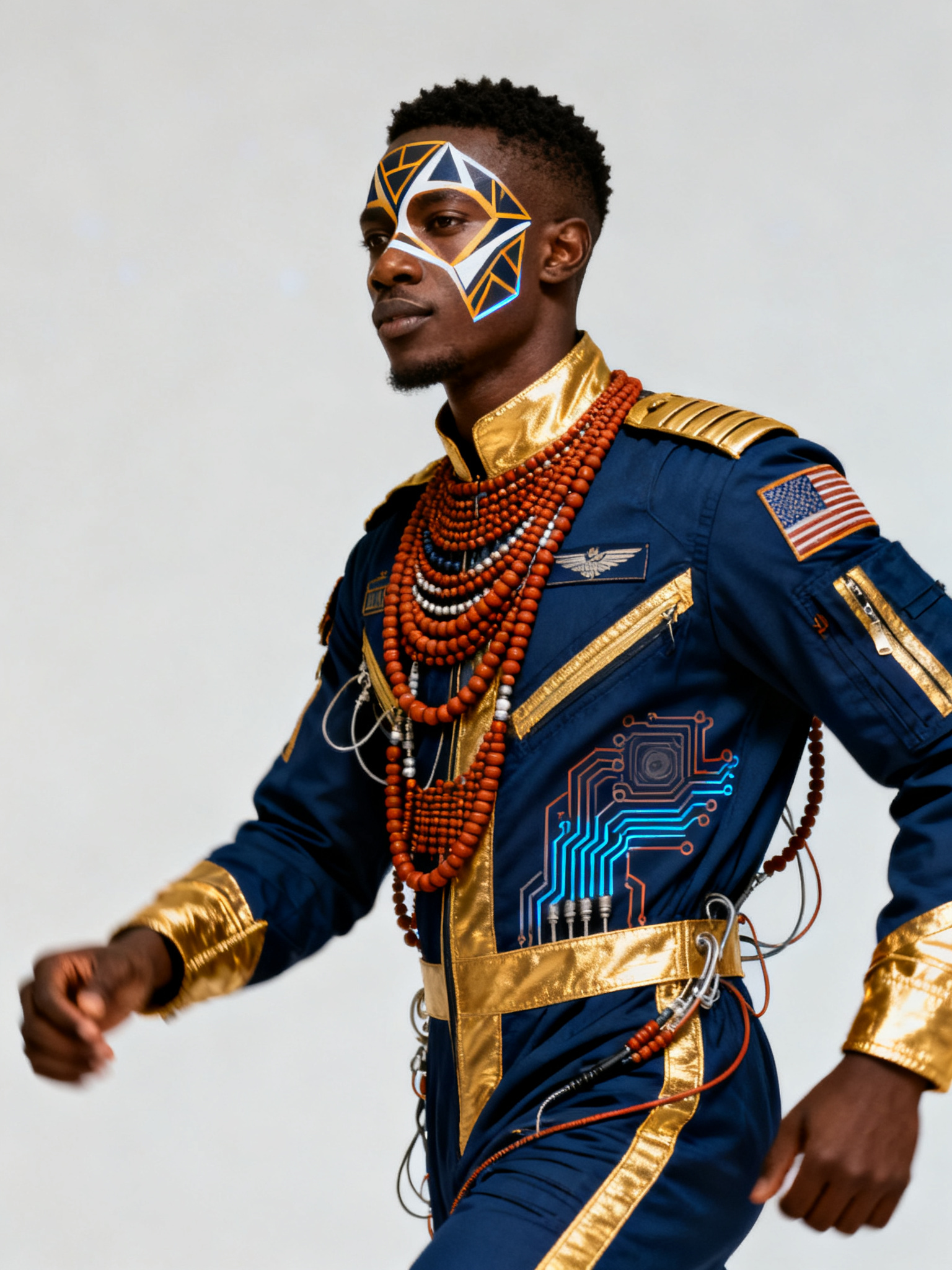
A portrait made with Seedream v4. A clear, well-lit face like this is a good starting still.
Step 4: Add the Lip Sync block
Drag a line out of your Text to Speech block and choose Lip sync. The Lip Sync block has three inputs: Video, Image and Speech. Speech is the only one it always needs.
- Connect the voice to Speech.
- Connect your portrait to Image for MiniMax H3 Max or OmniHuman 2. Connect a clip to Video for Kling.
- Click the block and choose the lip sync model.
Step 5: Run it and watch
Click Run. The price is shown before it starts. If the run fails, your credits come back.
genvi measures your voice track first. If it is shorter or longer than the model allows, the run will not start. The 10 second limit keeps the price fixed, so there are no surprise charges.
When the video is ready, watch it with the sound on. Check three things: does the mouth match the words, does the face still look like the person, and does the voice suit the face?

A portrait made with Grok Imagine 2.0. Seen from the side, the mouth is only partly visible. A lip sync model has far less to work with here.
Tips for a better result
- Front view. The more of the mouth you can see, the better.
- One person in the picture. With many faces, the model may animate the wrong one.
- Short and clear voice. Leave out long pauses at the start and end.
- Try cheap first. Test your script with Kokoro, then switch to a richer voice for the final one.
- Make longer videos in pieces. The limit is 10 seconds per run, so cut a long script into short lines and join the clips in the Video Composer.
Join the clips and add captions
When you have several talking clips, put them in the Video Composer, our video editor. Drag them onto a track one after another. Then right-click a clip and choose Auto Captions to add the words on screen. The steps are in our voiceover and captions guide.
What it costs
Lip sync costs a flat price per run, and the price depends on the model. Kling is the least expensive of the three. MiniMax H3 Max and OmniHuman 2 cost more, because they make a whole video from a still. The voice is a separate generation with its own price. genvi shows each price before you run it.
FAQ
Can I use my own recording?
You can connect your own audio file to Speech, as long as it fits the length limit of the model you picked. Try a short one first to check the result.
Can I lip sync a photo of anyone?
Only use faces you have the right to use, such as your own or a character you made. Do not make a real person say things they never said.
Why is my video only 10 seconds?
All three models have a 10 second limit. Make several short clips and join them.
Which model should I start with?
For a photo, try OmniHuman 2 if you want natural gestures, or MiniMax H3 Max if you want a plain talking face. For an existing clip, use Kling.
Does it work with cartoon characters?
We have not tested every style. Try a short test with your character before you plan a whole video.