September 30, 2026 · Updated November 3, 2026
How to make a children's book with AI
Make a children's book with AI: save one hero so it looks the same on every page, lay out the pages in the Image Composer, and export one PDF.
A children's book needs two things to work. The first is a story a child wants to hear again. The second is a hero who looks the same on every page. Making a children's book with AI is now easy for the first part and tricky for the second. This guide shows how to make a children's book with AI in genvi. You will keep one hero that stays the same, lay out the pages yourself, and get a file you can share or print.
What you will make: an AI children's book
You will make a short picture book. Each page has one picture and a few lines of text. At the end you will have one PDF file with all the pages in order. We do not cover where to publish it. Each shop or printer has its own rules, so read theirs before you upload anything.
What you need
- A genvi account (sign up).
- A short story. Eight pages is a good size for a first book.
- An hour or two.
Step 1. Write the story in short pieces
Write one or two sentences for each page. Under each, write one line about what the picture shows. For example: "The hedgehog posts a letter. Picture: a hedgehog in autumn leaves holding a letter." Keep the hero the same on every page and keep the places few. A small world is easier to draw again and again.
Step 2. Make your hero and save it
The main problem with AI picture books is that the hero changes. The face, colour or coat shifts from page to page. Fix it before you make any page.
- Make several pictures of your hero until one looks right. Describe the art style in the prompt too, for example "picture book illustration, gouache, whimsical, warm". (Gouache is thick, matte paint.)
- Open References on the dashboard and choose New reference.
- Name it. A short name, such as
hedgehog, is filled in for you. You type it after@later. - Pick the kind Character, add your best pictures, and choose Make primary on the one you like best.
- Write what never changes: "a small brown hedgehog with a green scarf and round glasses". Leave out poses and places, because those change on every page.
If you would rather not write the description yourself, Write with AI can read your pictures and draft one. It costs credits, and the price is shown on the button first. Our post define a character once explains why this works.
You can also make a Character Sheet in Node Studio. It shows one character from several sides and with several faces, in one picture. It is a good first reference. For video, the same idea is in how to keep a character consistent in AI video.
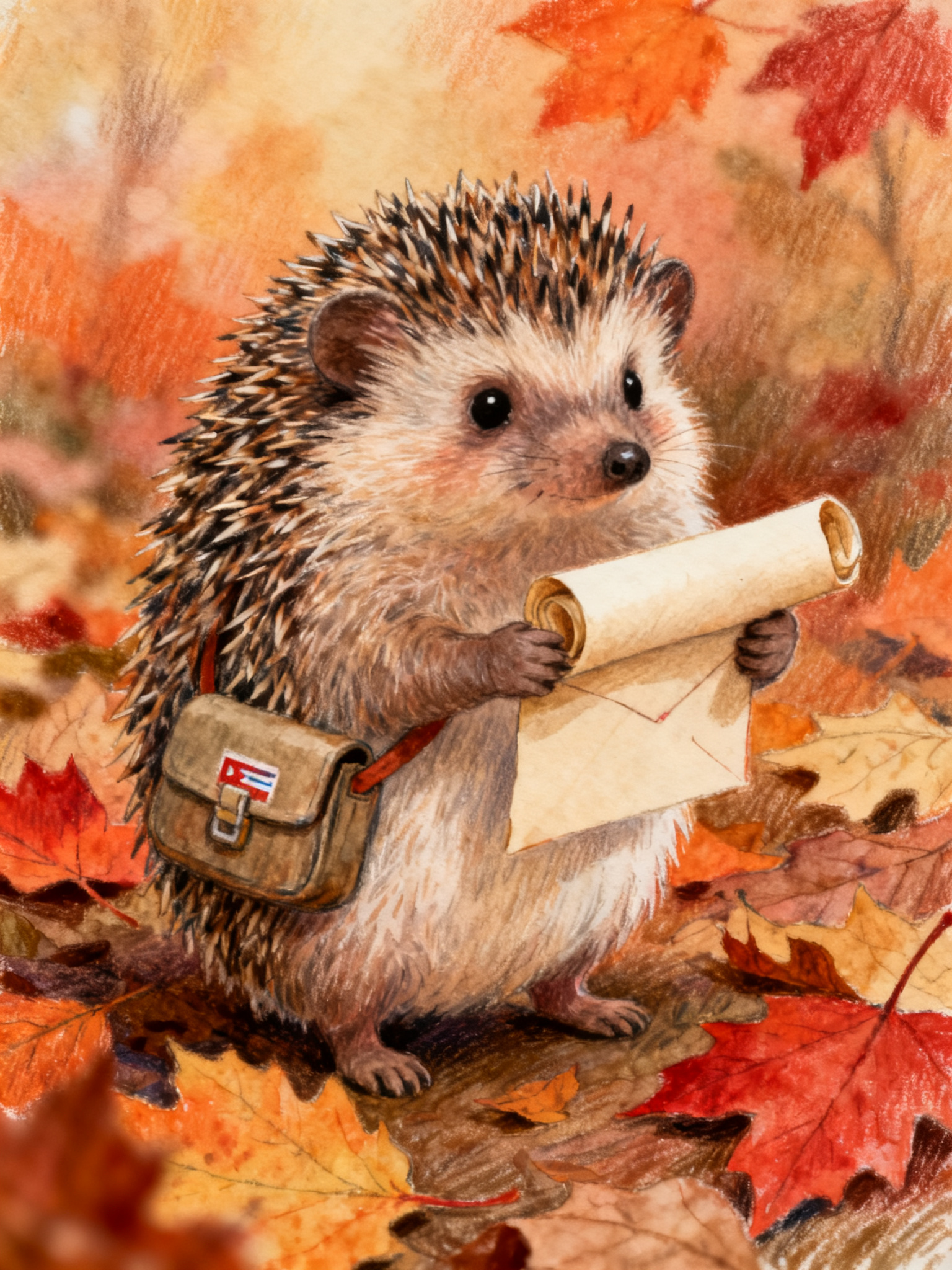
A hedgehog delivering letters in autumn leaves, storybook style. Made with Seedream v4 (Fal).
Step 3. Make each page picture
Open Chat Studio or the AI panel in the Image Composer. Type
@ and pick your hero from the list, then describe the scene. For example: @hedgehog posts a letter in a red postbox, wide shot, storybook illustration. genvi adds your description word for word, and adds the pictures you saved as reference images. A Using row shows which references it found before you send.Three habits keep the book looking like one book:
- Repeat the same style words on every page.
- Vary the shot: wide, close, from above. Pages should not all look alike.
- Make two or three tries per page and keep the best one.
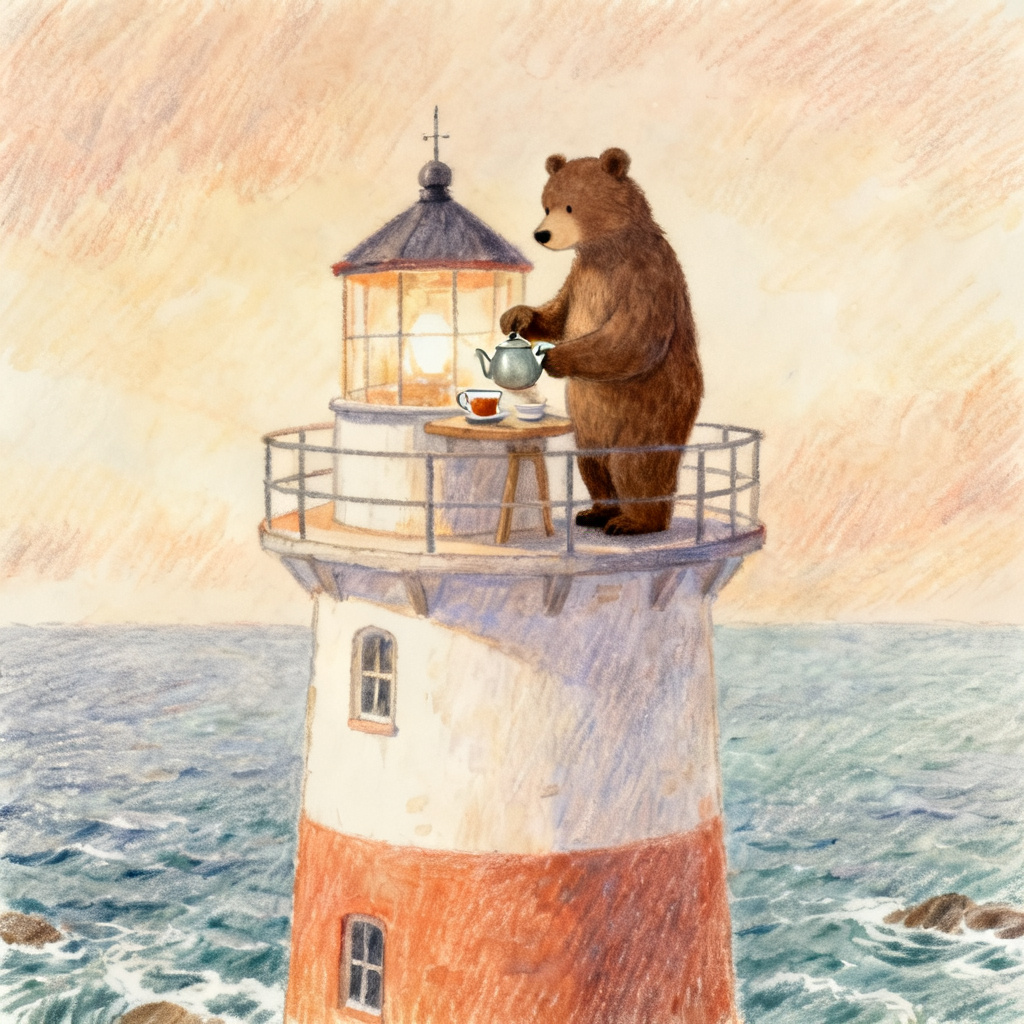
A bear keeping a lighthouse, making tea at the top. Made with Seedream v4 (Fal).
Step 4. Lay out each page in the Image Composer
The Image Composer is a layer-based editor. A layer is one thing on the page, like a picture or a block of text, that you can move without touching the rest. Make one project per page.
- Create a project and choose Image Composer. The document setup window opens first. Set the size and the background colour. Use the same size for every page.
- Add your picture as a layer, then drag a corner to fit it. The picture keeps its shape while you drag a corner. Hold Shift to change its shape.
- Choose Text and type the page's words. Pick a large, clear font. Put the text on a calm part of the picture, or on a soft shape behind it.
- Check the page next to the one before it. Text should sit in the same place.
Leave a clear margin around the edges. If you plan to print, ask your printer for its size and margin rules first.
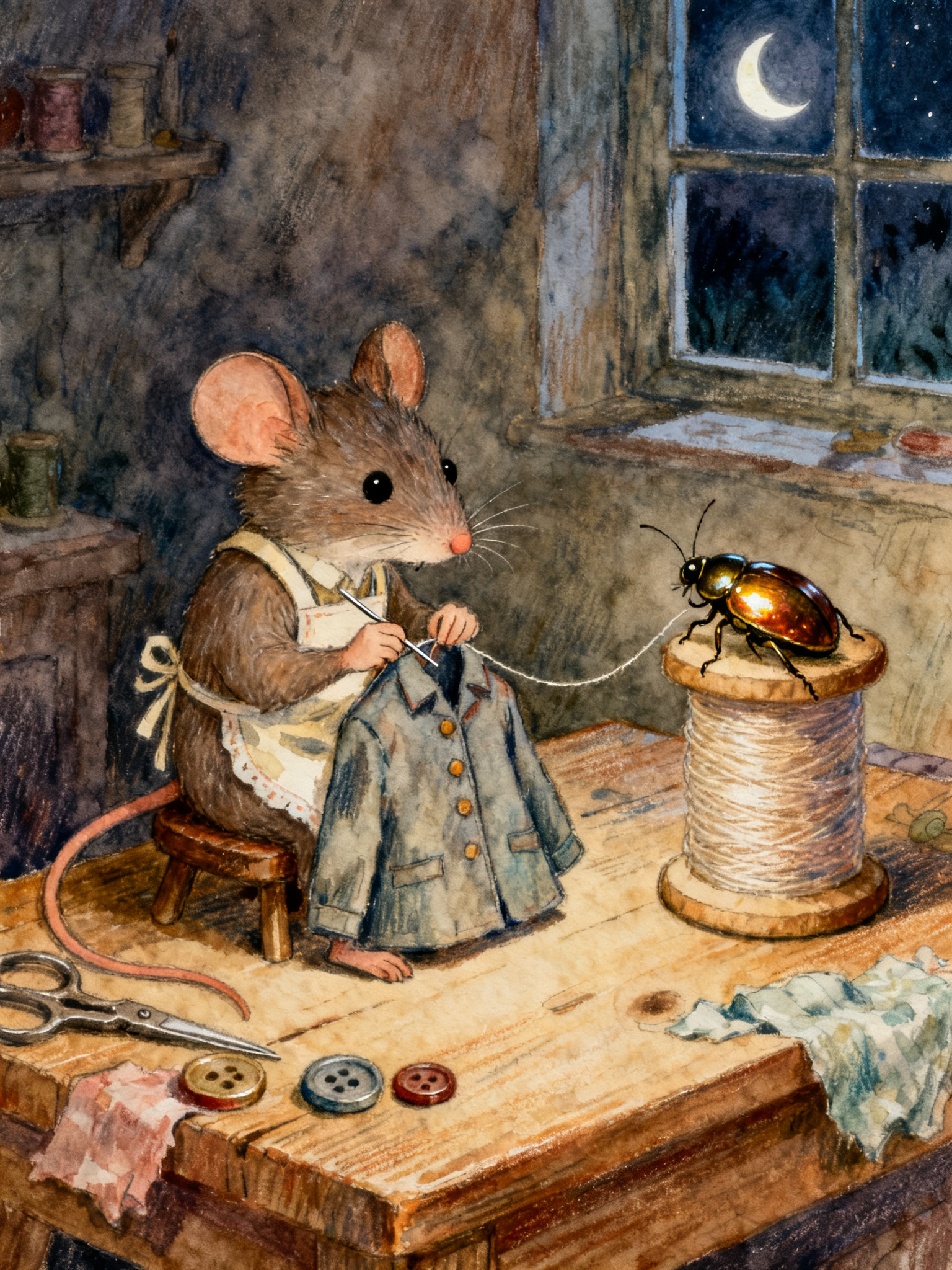
A mouse tailor sewing a coat for a beetle, at night. Made with Seedream v4 (Fal).
Step 5. Export the pages and join them
Press Export in the top toolbar. Choose a format such as PNG or PDF. Choose a scale (0.5x, 1x, 2x or 3x), and the window shows the exact output size before you save. A bigger scale is sharper, which matters if you print.
Then join the pages into one book. The free Images to PDF tool takes your page pictures. You put them in order, and it gives you one PDF with one picture per page. If you exported each page as its own PDF, Merge PDFs does the same job. Your pictures stay on your computer while you work.
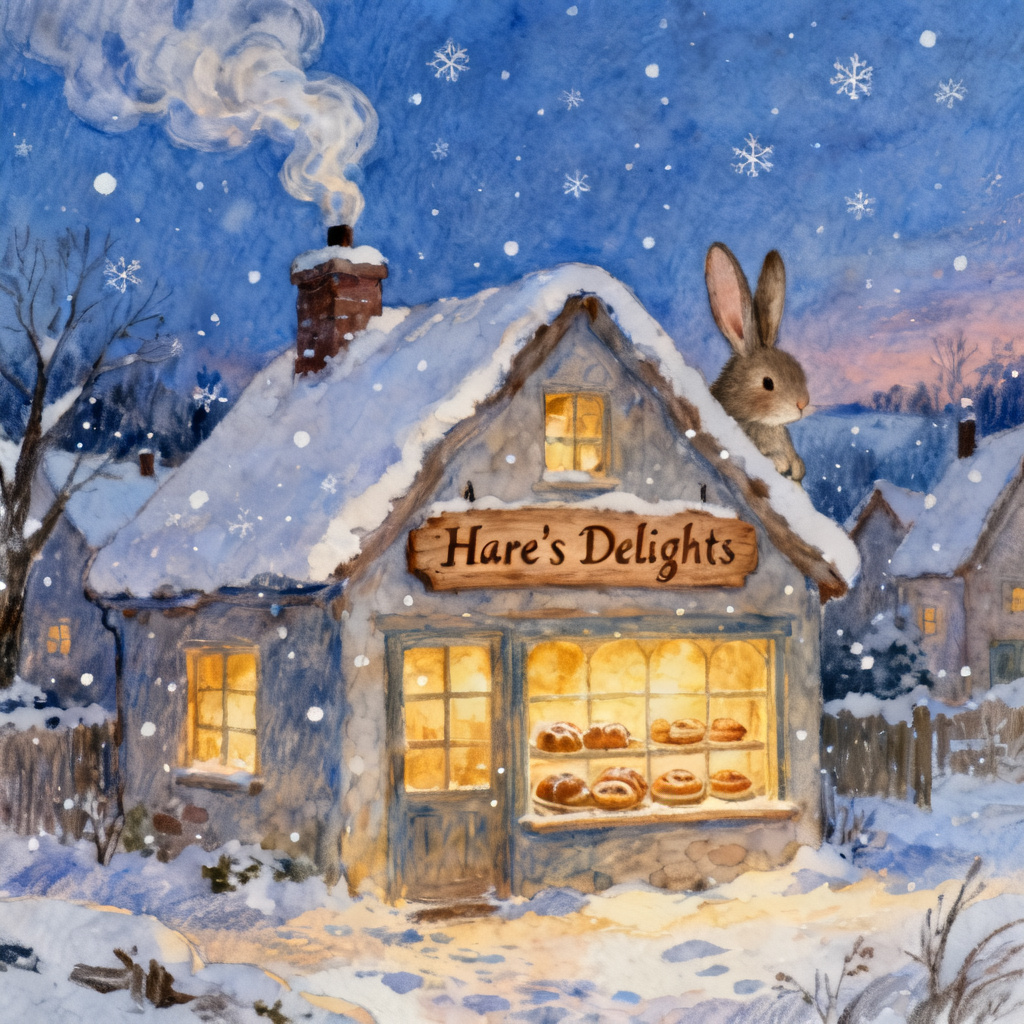
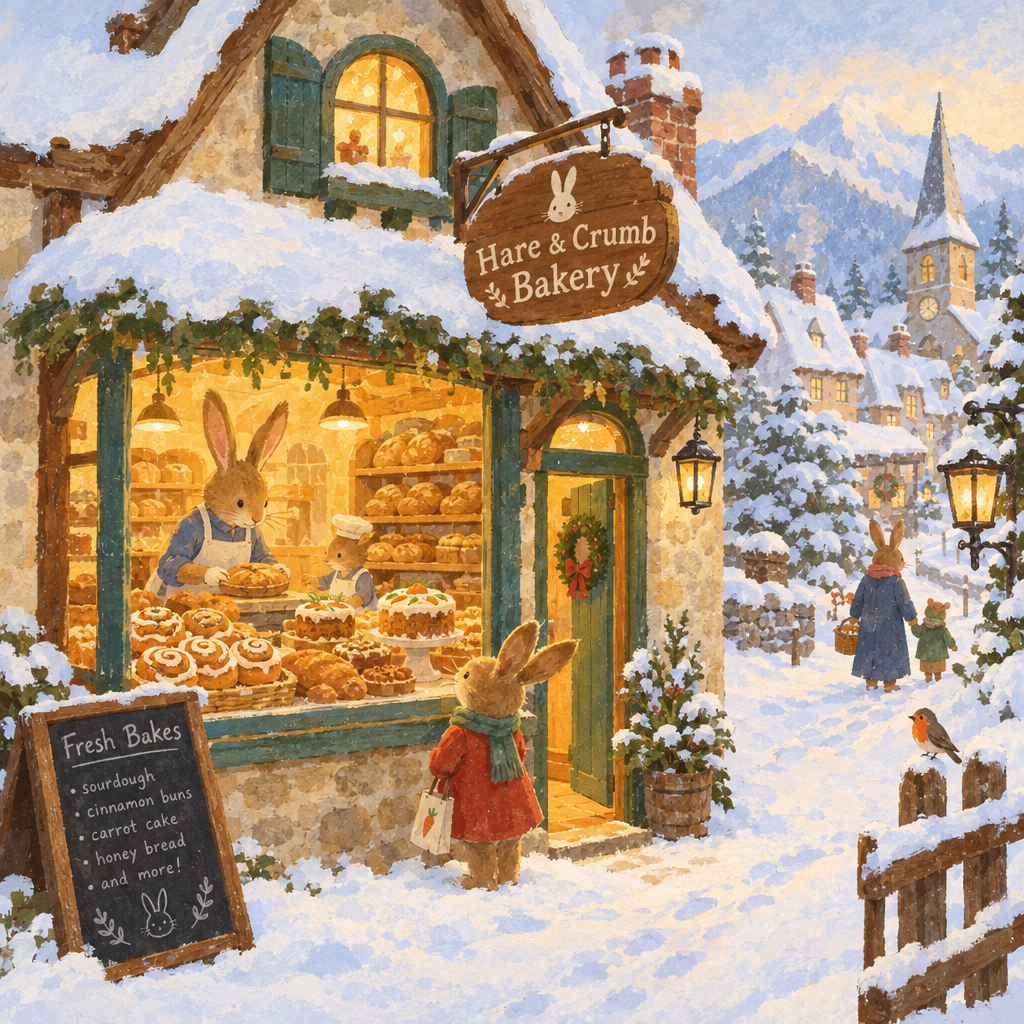
A rabbit bakery in a snowy village, at blue hour. Made with Seedream v4 (Fal).
Tips
- Read the book aloud. Cut any line that is hard to say.
- Check every page for odd details. Hands, extra fingers and strange text in the picture can slip in. Run the page again or fix it in the editor.
- Keep a list of your style words. Paste them into each prompt.
- Test a page before the whole book. Do one hero page and one scene page first.
What it costs
Each image model has its own price, and genvi shows it before you run. A book of eight pages with two or three tries each is 16 to 24 runs. So try a cheaper model while you plan, then use your favourite for the final pages. The free tools above are not charged. See plans and credits.
FAQ
Can I sell my AI children's book?
Rules differ between shops, printers and countries, and they change. Read the rules of the place you plan to sell on. We have not checked any store's rules for this guide. For the use of AI pictures in general, see can you use AI images commercially.
Will the hero look exactly the same?
Close, not perfect. A reference makes the hero much steadier than a plain prompt. You may still need to run a page again.
Can I add a voice to read the story?
Yes. See how to add AI voiceover and captions to make a read-aloud video of your book.
Do I need to draw?
No. You write the story and choose between the results.