October 25, 2026 · Updated November 3, 2026
How to use Veo 3.1 on genvi, and what to pick now
Google retired Veo 3.1 on 22 October 2026. See what that means on genvi, what Veo offered, and how to make the same kind of clip with sound today.

If you searched for how to use Veo 3.1, here is the plain answer first. Google switched Veo 3.1 off on 22 October 2026. genvi still shows it in the model list, marked as retired, and a Veo run now goes to a different model. This guide explains what Veo 3.1 was, what happens when you pick it, and how to get the same kind of clip today.
What happens when you pick Veo 3.1 on genvi
genvi listed three Veo 3.1 models: Lite, Fast and Standard. They are all still in the model list, marked as retired. If you run one, the work is done by Grok Imagine Video 1.5 Lite, a quick, low-cost model from xAI that also makes sound. So you get a clip, but it is not made by Veo.
The price shown is the one for the Veo model you picked. In the model list, that price is higher than the price of Grok Imagine Video 1.5 Lite at every picture size. If you want that kind of clip, pick Grok Imagine Video 1.5 Lite directly and compare the two prices before you run.
What Veo 3.1 offered
It helps to know what people liked about Veo, so you can find it elsewhere. On genvi it had three tiers, listed below. A reference picture is a photo you give the model so it can copy a face, an object or a look.
- Lite: fast and cheap, 720p only, no reference pictures.
- Fast: a middle tier, 720p or 1080p, up to 3 reference pictures.
- Standard: the best quality, up to 4K, up to 3 reference pictures.
All three made sound together with the picture. They made clips of 4, 6 or 8 seconds and nothing in between, in wide (16:9) or tall (9:16) shapes. A clip at 1080p or 4K, or one that used reference pictures, was always 8 seconds.
The same clip today, step by step
- Open a project. Make a new project, then add a Video Generation node. A node is one box on the canvas, the work area, that does one job.
- Choose a model. For a quick clip with sound, pick Grok Imagine Video 1.5 Lite. For more cinematic motion, pick Kling Video v3 Pro (see below).
- Write a prompt. A prompt is the text that tells the model what to make. Use the recipe in the next section.
- Set the frame shape and length. The shape is the width to height ratio, such as 16:9 for wide. Grok Imagine Video 1.5 Lite accepts 1 to 15 seconds and shapes like 16:9, 9:16 and 1:1. Start at 5 or 6 seconds.
- Read the price. It is shown on the node before you run.
- Run and review. If a run fails, its credits are given back.
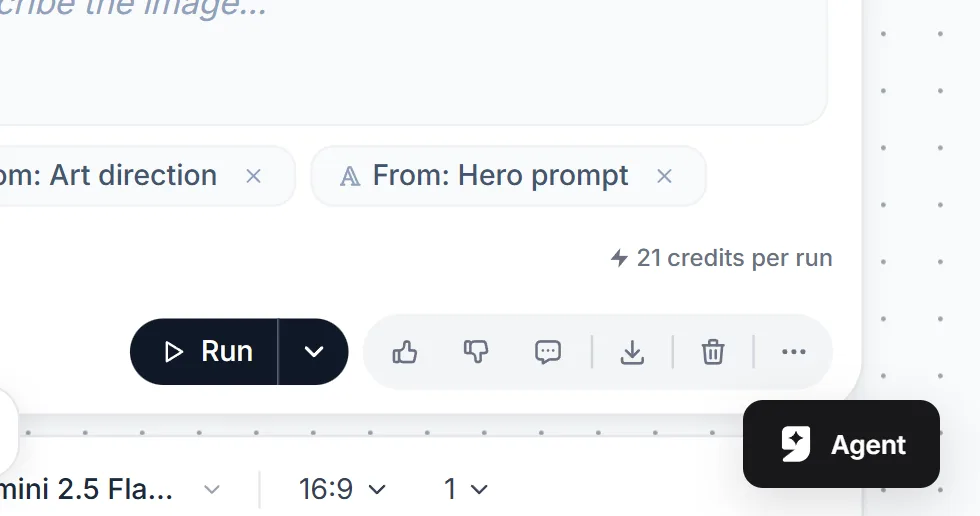
Every video node shows its price before you run it.
How to write a prompt for sound clips
Models that make sound can use words about sound. Whatever model you use, a good clip prompt has five short parts. They are the subject, what it does, where it is, how the camera sees it, and the look. Then add one line about what we hear.
- Subject and action: "a barista pours steamed milk into a cup".
- Setting: "in a small cafe, early morning".
- Camera: "slow push in".
- Look: "warm light, shallow depth of field".
- Sound: "quiet cafe, milk hissing, soft jazz in the background".
Put it together as one line. If someone should speak, write the words they say in quotation marks, and say who says them. We have not run these exact lines, so use them as a starting point. Change one thing at a time and keep the winning version. The full method is in how to write AI video prompts.
Models with sound you can pick today
| Model | Clip length | Why pick it |
|---|---|---|
| Grok Imagine Video 1.5 Lite | 1 to 15 seconds | Quick and low cost, with sound, one start picture |
| Kling Video v3 Pro | 3 to 15 seconds | Cinematic motion, with sound made along with the picture |
| Kling Video v3 Standard | 3 to 15 seconds | Sound made with the picture, at a lower price than Pro |
| LTX-2.5 Pro | 6, 8 or 10 seconds | Picture and sound made together, at 720p or 1080p |
| FLUX 3 Max Video | See the model list | Built to follow your prompt closely, with sound made with the picture |
Here is a frame from a clip made with Kling Video v2.6 Pro, an earlier Kling model. Kling Video v3 Pro and v3 Standard are the ones in the table.

Kling Video v2.6 Pro. Prompt: "a whale gliding through clouds above a city, cinematic, highly detailed, dramatic lighting".
Our Seedance vs Kling vs Veo guide compares the families by job, and the Kling guide goes deeper on that family.
Joining clips in the Video Composer
Veo clips were at most 8 seconds long, so you would join several into one finished video. That still works with any model. Send your clips to the Video Composer, put them on the timeline and add music or a voice track.
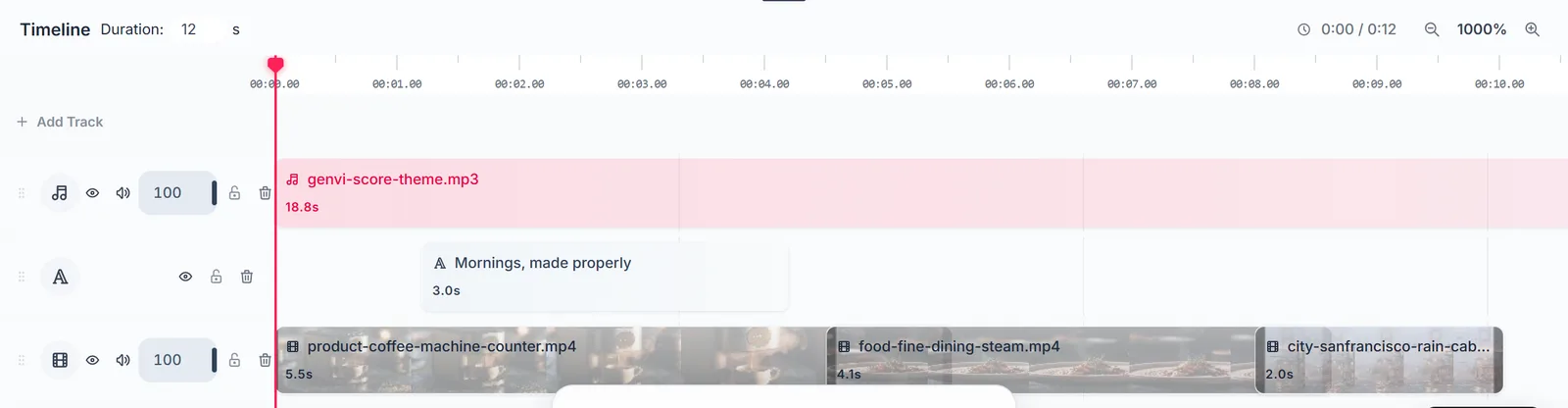
The Video Composer timeline. A track is a lane, a clip sits on it, and the red playhead marks the current time.
What it costs
Video costs credits for each second of the clip. Longer clips and higher sizes cost more, and the exact total is shown before you run. We do not list credit numbers here because they change with the provider. Free accounts get 150 credits a month. What are AI credits explains how it adds up.
Questions people ask
Can I still use Veo 3.1 with my own Google key?
The model list marks Google's Veo 3.1 models as retired, which means Google no longer runs them, even with your own key. A key is a password that lets genvi use your account with a provider. Pick another model.
Why does my Veo run not look like Veo?
Because it was not made by Veo. Since Google retired the model, genvi sends those runs to Grok Imagine Video 1.5 Lite.
Will Veo come back?
We do not know. Google named a newer model as the successor, and genvi does not support it yet. We will say so when it does.
What should I use for a clip with talking?
Pick a model with sound made along with the picture, and put the spoken words in your prompt. For a photo that must speak your exact recording, use one of genvi's lip sync models, which match a mouth to a voice track.