October 16, 2026 · Updated November 3, 2026
How to write AI video prompts that move the way you want
Learn to write AI video prompts with a simple five part recipe: subject, action, setting, camera and look. Real genvi clips show what each change does.
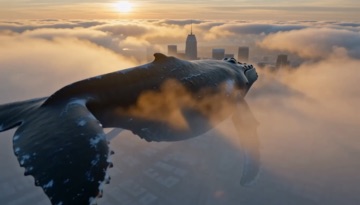
Good AI video prompts are short, clear, and about movement. A prompt is the text you type to tell the model what to make. A video model already knows what a whale or a river looks like. What it needs from you is what happens, how the camera sees it, and what the light is doing. This guide gives a simple recipe that works across genvi's video models. Real clips from the house accounts on Explore show what each change does.
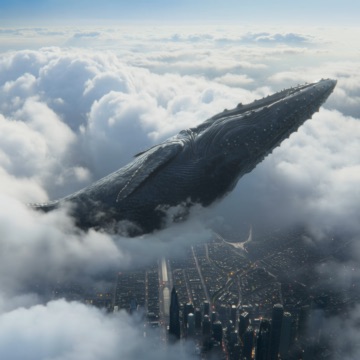
Kling Video v2.6 Pro, prompt: "a whale gliding through clouds above a city, cinematic, highly detailed, dramatic lighting".
What you will make
You will learn a prompt recipe you can reuse, and the habit of changing one thing at a time. At the end you can write a video prompt for any subject. You can try it on two or three models and tell which words made the difference.
What you need
- A genvi account with credits. Credits are what you spend on each generation. Short test clips keep the cost low.
- A video model. Any of them works. Use the Video Generation node on the canvas, the Video kind in Chat Studio, or the AI panel in the Video Composer.
Structure your AI video prompts
Write the prompt in this order. Use one short phrase for each part, separated by commas.
- Subject. The one thing the clip is about: "a whale", "lanterns", "a barista".
- Action. What it does: "gliding through clouds", "rising over a river". Use an -ing word. A clip is movement, so the action word matters most.
- Setting. Where and when: "above a city", "at night", "in winter".
- Camera. How we see it: "from far away", "slow push in", "low angle". Name one camera move, not three.
- Look. The style and light: "cinematic", "dramatic lighting", "highly detailed".
The clip below uses this recipe and nothing more. The caption under each picture is the whole prompt.
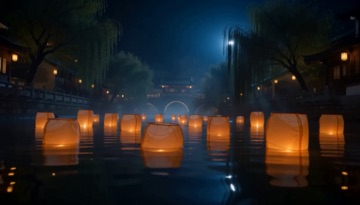
MiniMax H3 Max Turbo, prompt: "lanterns rising over a river at night, after rain, cinematic, highly detailed, dramatic lighting".
Change one thing at a time
The house accounts on Explore make the same subject again and again, changing a single phrase: "in winter", "at dawn", "from far away". Every clip keeps its prompt on its Explore page, so you can read exactly what was asked.

Grok Imagine Video 1.5, prompt: "lanterns rising over a river at night, from far away, cinematic concept art, highly detailed, epic wonder; big scale, dramatic light, rich colour".

Grok Imagine Video 1.5, prompt: "a whale gliding through clouds above a city, at dawn, cinematic concept art, highly detailed, epic wonder; big scale, dramatic light, rich colour".
Copy this habit. If you change the subject, the camera and the light all at once, you cannot tell which change helped. Change only the setting, run it, then change only the camera. On the canvas, duplicate the Video Generation node and edit one phrase in the copy. Both clips stay on screen so you can compare.
Describe movement, not a picture
- Say what moves. "Lanterns rising" gives the model a direction. "Beautiful lanterns" gives it nothing to animate.
- Say what the camera does. If you want the scene to stay still while the camera moves, say so. If you want the camera fixed, say "static shot".
- Skip what the model already guesses. Quality words such as "highly detailed" help a little. A whole paragraph of them does not.
- Start from an image when the look matters. If you already have the exact first picture of the clip, give it as a start frame. That is the picture the video starts from. Then write only the movement. See how to animate a photo with AI.
When someone speaks
If you want a person to speak, follow a few rules, or the line quietly fails. genvi checks for these and shows a hint under the prompt:
- Put the exact words in double quotes, after who says them:
She says: "...". - Keep the line to about 2.5 words per second of clip. That is about 20 words for 8 seconds. Split longer lines across clips.
- Give the person one action while speaking. Let them talk first and act on the last word.
- Use first names only. A first and last name together looks like a real person, and the model may refuse.
- End with "No subtitles, no captions, no on-screen text". Without it, the model may print the line on the picture.
- Use a model that speaks. In genvi that is the Veo 3.1 family. Other models move the lips without saying the words.
Pick the model after the prompt
Once the prompt works, try it on a second model. Models differ in how they move and in what they accept. Grok Imagine Video 1.5 takes a start frame, an end frame and up to seven reference images (pictures that guide the result). Kling Video v3 Pro advertises built-in sound. MiniMax H3 Max Turbo is described in the catalog as having the lowest rate per second. Run a short clip on each and keep the one you like. The October 2026 model refresh lists what changed in the model list.
What it costs
Video is priced per second of video, so the length changes the price most. The model picker shows the rate, and the bottom of the node and the chat box show the estimate for your settings before you run. We do not list fixed prices here because they depend on the model, resolution (picture size) and length. Test prompts with short, low quality clips, then make the one you like at full quality.
FAQ
How long should a video prompt be?
One line is usually enough. The clips above used between 12 and 25 words. Add more only when a result is missing something specific.
Do negative prompts work?
A negative prompt tells the model what to leave out. It is not a separate box on every model. Say it as a positive where you can, for example "static shot" instead of "no camera movement". The one negative that helps is the no subtitles line on talking clips.
Why does the same prompt look different on another model?
Each model learns differently and has its own habits for movement and framing. That is why running one prompt on two models is the fastest way to learn what a prompt is really doing.
Can I see the prompt behind an Explore clip?
Yes. Open any post on Explore to see its prompt, model and settings. Use the Generate similar button to start from it.