October 28, 2026
How to make YouTube thumbnails with AI
Make an AI YouTube thumbnail in genvi: set the 1280 by 720 size, generate the picture, add the words as text, and export. Plain steps.
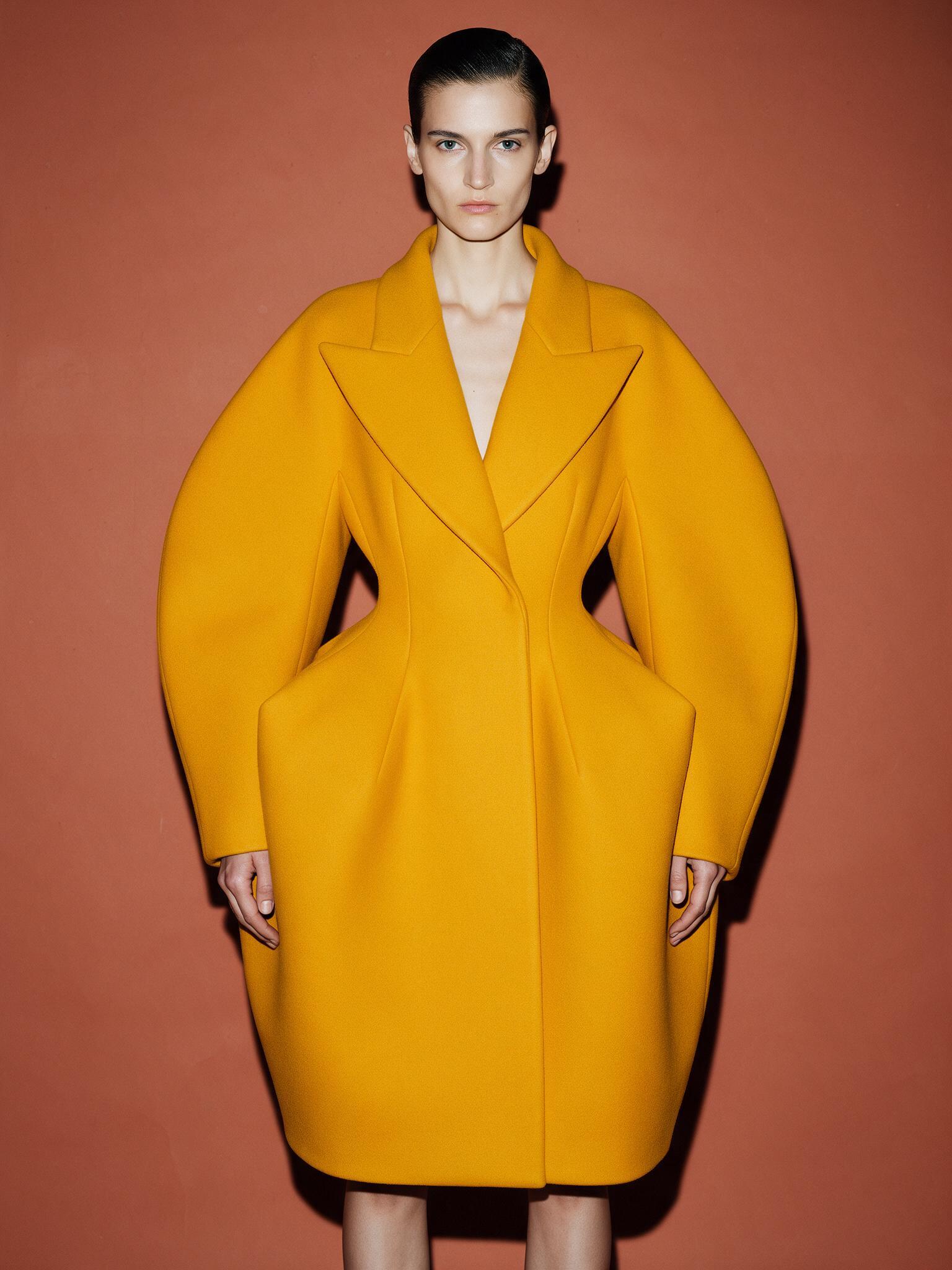
A YouTube thumbnail has one job: make a stranger want to click. It is a small picture with a big subject and a few big words. This guide shows how to make an AI YouTube thumbnail in genvi. You make the picture with an AI model. Then you add the words yourself, so the spelling is right. Last, you save it at the right size.
What you will make: an AI YouTube thumbnail
One picture, 1280 by 720 pixels. Pixels are the tiny dots that make up a picture. That is the standard 16:9 shape, wide like a TV. The picture has a strong subject on one side and a short title on the other. Its look is plain and clear, so it still reads when it is shrunk to the size of a stamp. You will also make two or three versions, so you can test which one people click.
What you need
- A genvi account. Sign up if you do not have one.
- Your video title, and three or four words that sum it up. Aim for three words or fewer on the thumbnail.
- Optional: a photo of yourself or your product, if you want it in the thumbnail. Only use pictures of people who agreed.
Step 1. Open the Image Composer at the right size
- On the Dashboard, start a new project and choose Image Composer.
- Click Document at the top of the screen. This opens the canvas setup. The canvas is the blank page you design on, and you choose its size here.
- Pick YouTube Thumbnail, 1280 by 720. It is in the group called Covers & Banners.
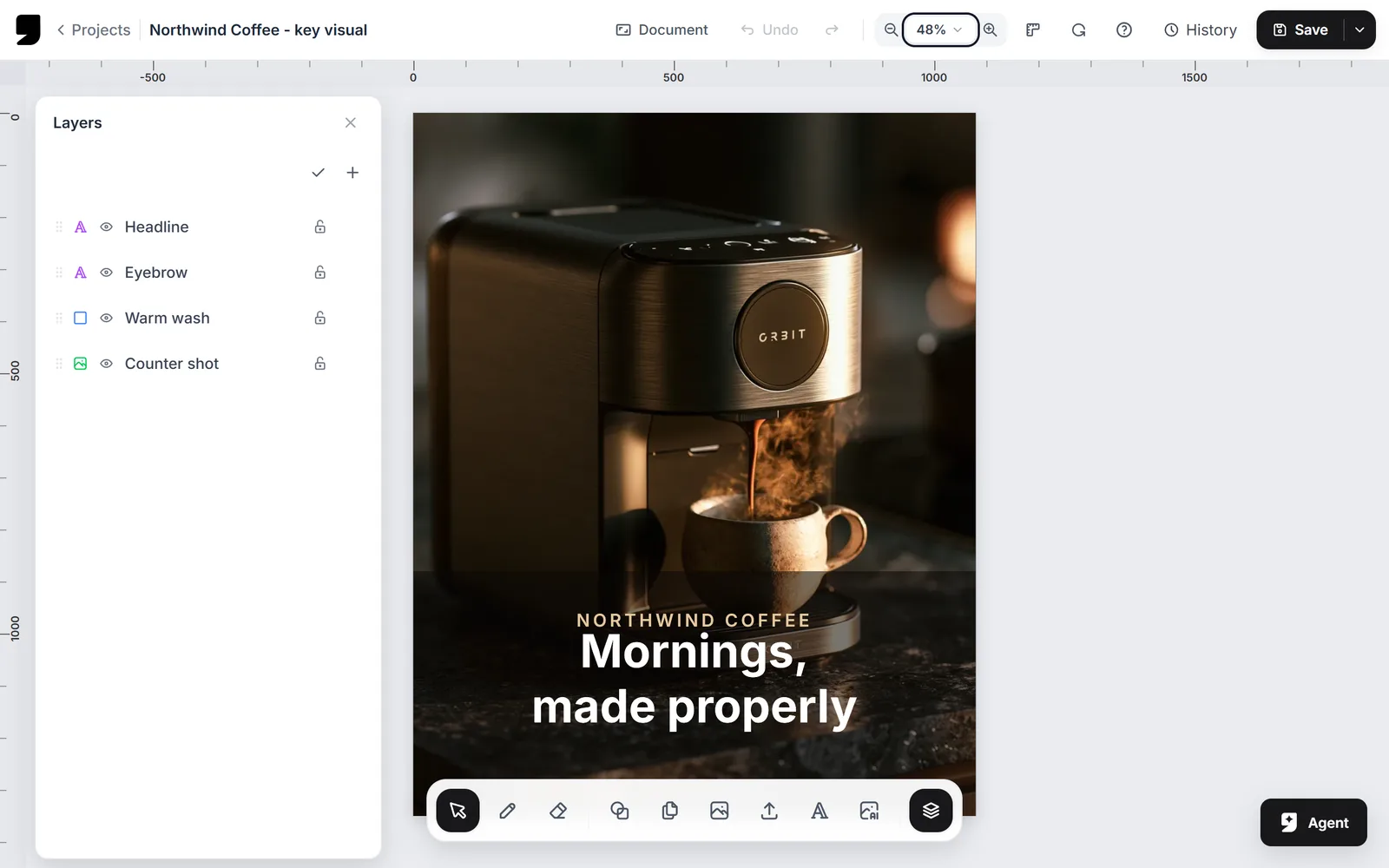
The Image Composer. The picture and each line of text are separate layers, so you can change one without touching the rest.
Step 2. Make the main picture with an AI model
A thumbnail picture should be simple. Use one subject, strong colour, and plenty of empty space where the words will go. Open the AI panel. Its button is labelled AI. Write what you want and pick a model. You can also make the picture in Chat Studio and add it to the canvas from your files.
Write the prompt like a camera note: who or what, what they are doing, the background and the light. For example: a surprised man holding a tiny robot, bright yellow background, big empty space on the right, bold colours, sharp focus. Ask for the empty space on purpose, because that is where your title goes.
Which model should you pick? For a picture with no words in it, use a general model such as Seedream v5 Pro or GPT Image 2.5 Flare. If you want the AI to draw the words too, choose a model built for lettering. genvi describes Ideogram v4.5 as made for "posters, logos and designs with accurate typography." Even so, always read every letter. For more on choosing, see how to choose an AI image model.
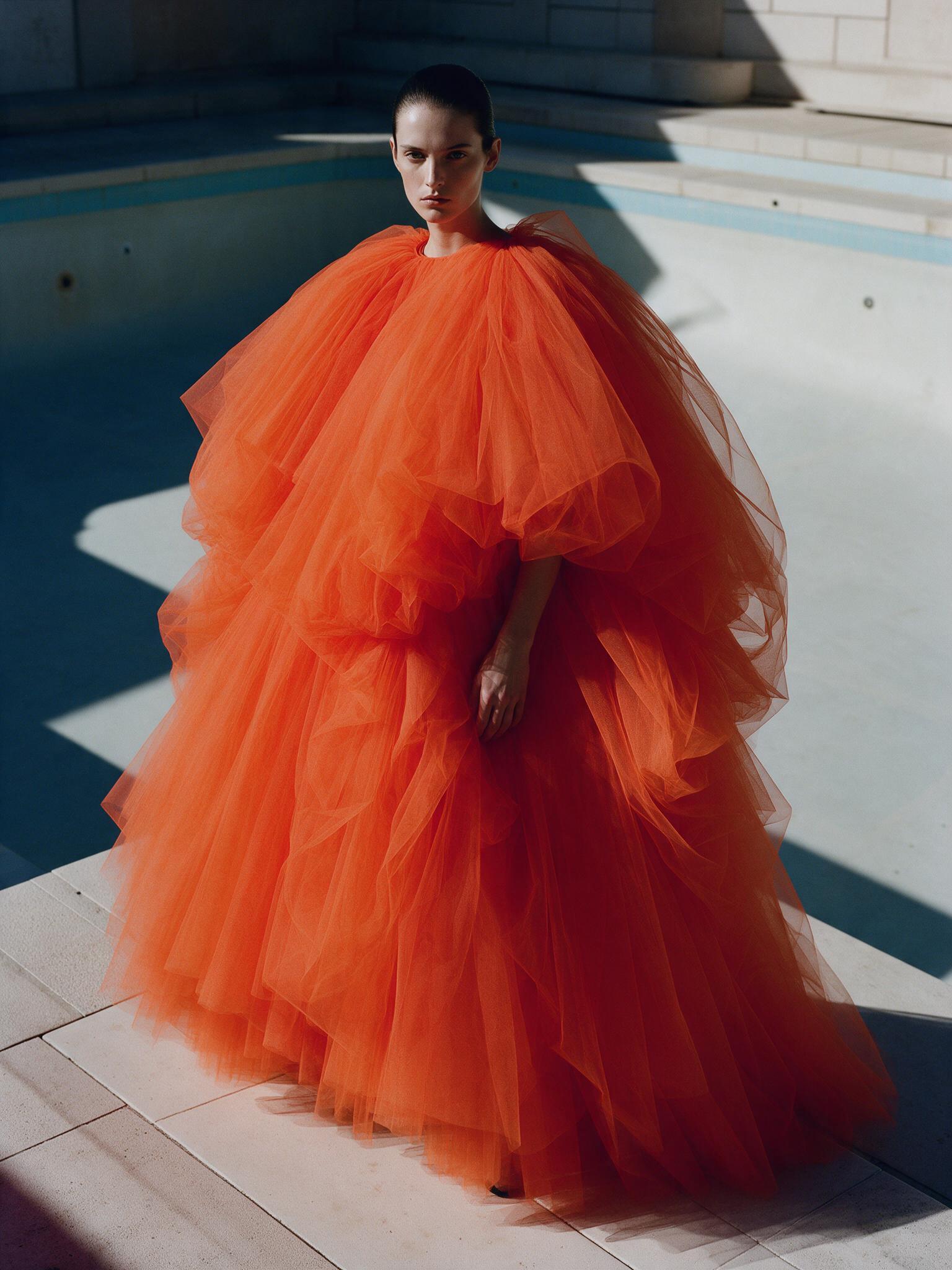
A bold subject, one strong colour and room around it, made with Seedream v5 Pro. A picture like this leaves space for a title.
Step 3. Add the words yourself
AI models are better at pictures than at spelling. The safest way to get perfect words is to add them as a text layer.
- Click the Text tool and click the canvas. Type your title.
- Open the text settings and choose a heavy, simple font. Make it big. Three words in large letters beat seven in small ones.
- Use a light colour on a dark spot, or a dark colour on a light spot. Text effects can also help the words stand out.
- Keep the words away from the bottom right corner. YouTube puts the video length there.
If the picture behind the words is busy, add a shape layer between the picture and the text. A shape layer is a flat block of colour. A dark rectangle that is partly see-through works well. Keep the text above it.
Step 4. Cut out a face or a product (optional)
A cut-out person in front of a bright background is the classic thumbnail look. Add your photo as a layer. Select it and choose Remove background. That runs in your browser. You can also use the free Remove background tool. Then place the cut-out on top of your AI background.
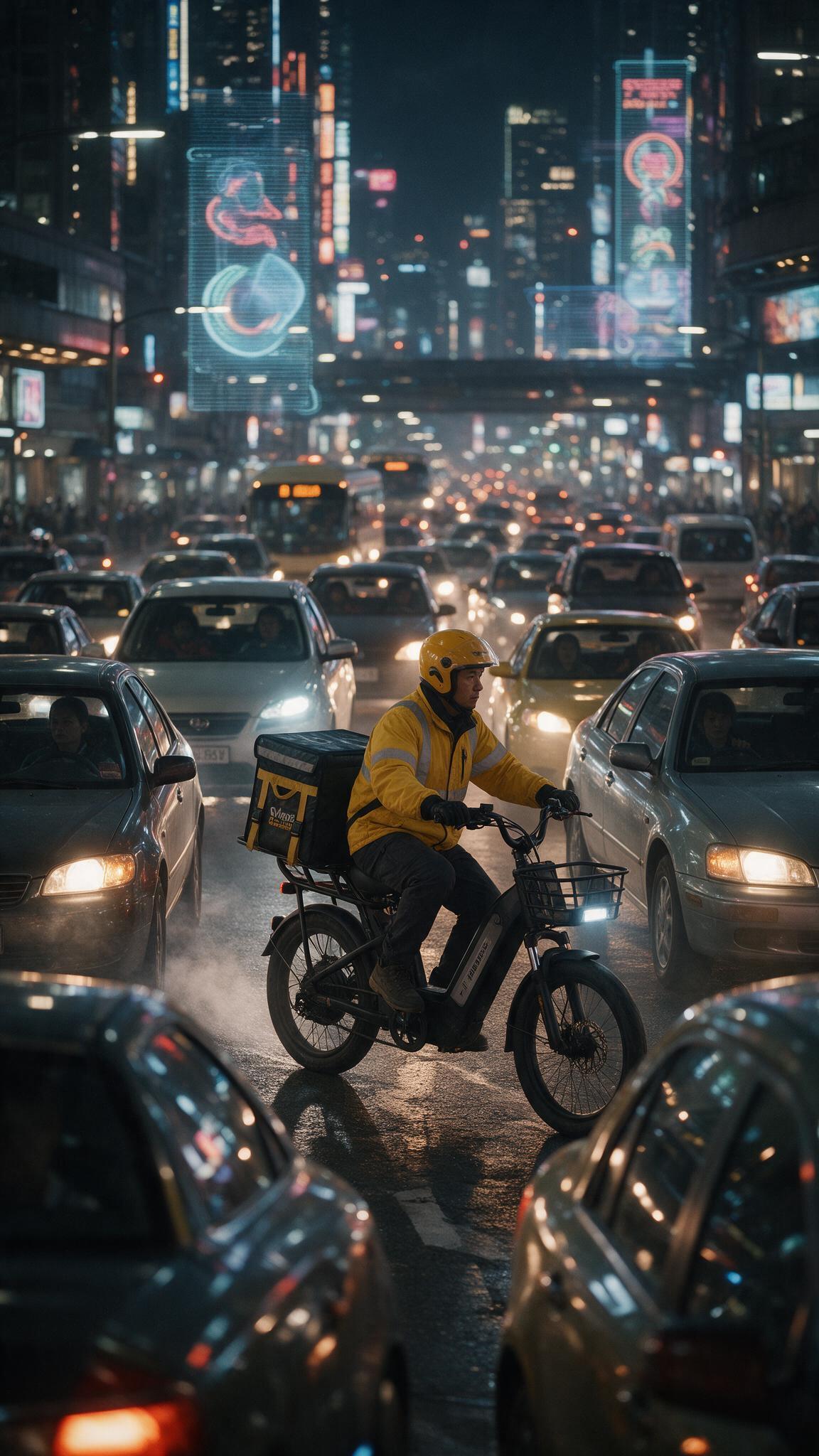
An action scene with a strong centre, made with Seedream v5 Pro. Pictures with one clear shape hold up when they are shrunk.
Step 5. Check it small, then save
- Zoom the canvas out to about the size of your thumb. Can you still read the words and see the subject? If not, make the text bigger and cut small detail.
- Click Save to keep the project, so you can come back and change the words later.
- Export it as a PNG or JPG. The Image Composer can export both.
- Upload it as the custom thumbnail in YouTube Studio.
Make two versions and test them
The best thumbnail is the one people click, and that is hard to guess. So make a second version with one change: a different colour, a different face, or three different words. Export both. Use one for a few days, then swap and compare the clicks. Check whether YouTube Studio offers a thumbnail test for your channel.
Tips
- One idea only. If you need to explain it, it is too much.
- Faces help, but only with permission. Do not use a real person's face unless they agreed.
- Match the title. The thumbnail and the title should say different things that fit together, not the same words twice.
- Tell the truth. If the thumbnail shows something realistic that never happened, YouTube may ask you to label it. See the guide on AI voices, consent and labels for the rules.
- Check the rights. See can you use AI images commercially.
What it costs
Only the AI pictures have a price, and the price shows before you run it. A fast, low cost model is fine for trying ideas. You can use a stronger one for the final. What AI credits are explains how it adds up.
FAQ
What size is a YouTube thumbnail?
genvi's preset is 1280 by 720, the 16:9 shape. Keep the file small, and check YouTube's help page for its current limits.
Can the AI write the words in the picture?
Some models are built for it, such as Ideogram v4.5, and they do better than most. They can still make mistakes, so read every letter or add the words as text.
Do I need to say that my thumbnail is AI?
YouTube asks you to label realistic content that could mislead people, mainly in the video. Do not make a thumbnail that shows something false. When in doubt, be clear.
Can I make a thumbnail on my phone?
genvi has apps for iPhone and Android, and the Image Composer is there too. See the apps page.