October 29, 2026
How to make TikTok and Reels videos with AI
Make tall 9:16 videos for TikTok and Reels with AI: let Shorts build one from a sentence, or make the clips and cut them yourself.

Short videos for TikTok and Instagram Reels are tall, quick and full of sound. You do not need a camera or a crew to make one. This guide shows two ways to make TikTok and Reels videos with AI in genvi. You can let Shorts build a whole video from one sentence. Or you can make the clips yourself and cut them in the Video Composer.
What you will make: an AI TikTok video
You will make a tall (9:16) video, the shape of a phone screen. It can have moving clips, a voice, music and captions. It exports as a file that most apps accept. We will not promise how any app treats it. Each app changes its rules, so check the current ones before you post.
What you need
- A genvi account (sign up).
- An idea you can say in one sentence.
- Chrome or Edge on a computer for the final export, because that step runs in your browser.
Way 1. Let Shorts build it for you
Shorts is the quickest route. You type a topic. Then genvi writes the script, makes a picture or clip for each scene, and adds a voice, music and captions. It hands you an editable video. It has its own full guide: how to turn a topic into a short video with AI. Here is the short version.
- On the dashboard, open Formats and choose Shorts.
- Write your Topic. Give it an angle: "Why octopuses are smarter than they look" works better than "octopuses".
- Pick a Look from Cinematic, Documentary, Anime, 3D cartoon, Noir or Storybook.
- Choose the Length: 15, 30 or 45 seconds.
- Under Shape, choose 9:16. This is the tall shape for TikTok and Reels.
- Choose Stills for a quick, cheap draft, or Moving clips for the real thing.
- Press Make the short. The button shows about how many credits it will use.
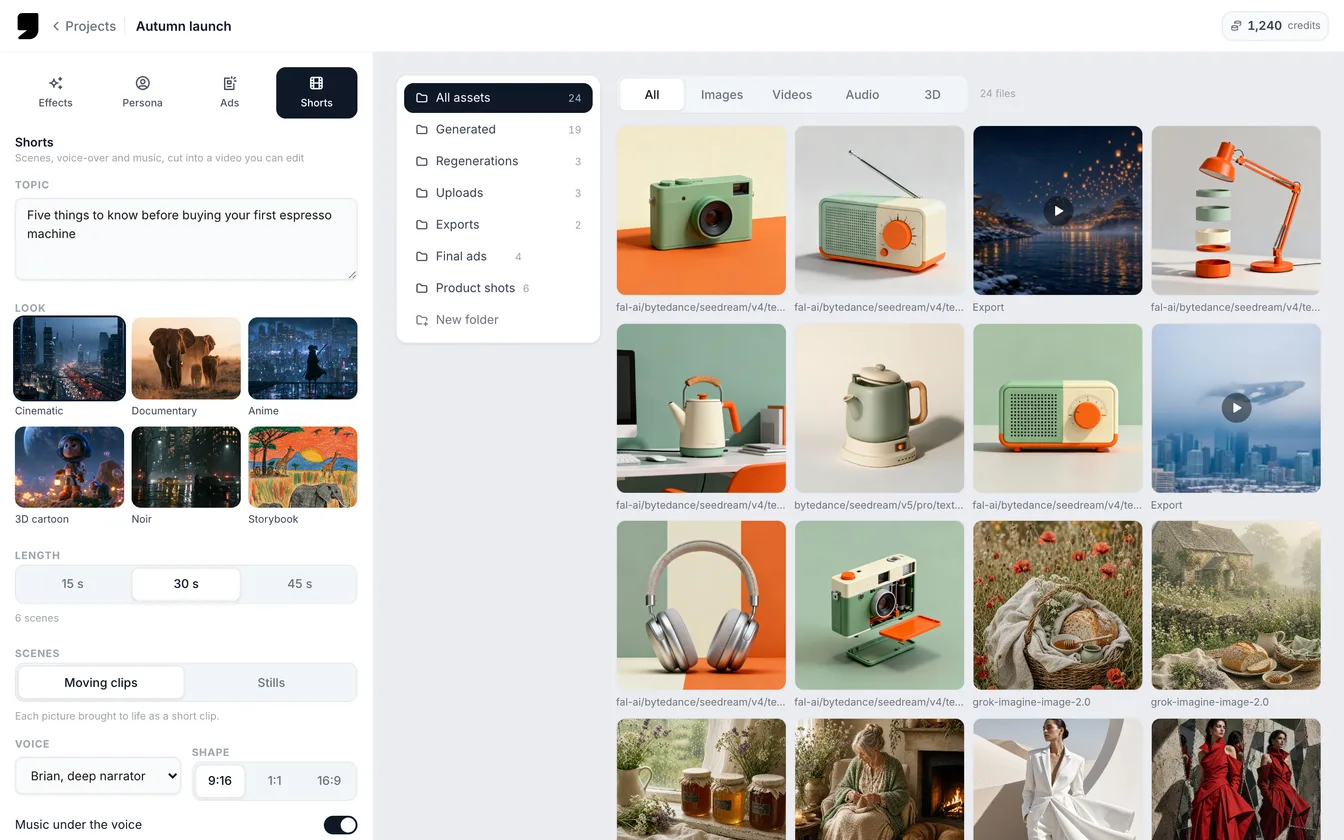
The Shorts form: topic, look, length, scenes, voice and shape.
When it is done, press Open in Video Composer. The video appears on a timeline, where you can change every part.
Way 2. Make the clips yourself
Choose this when you want full control of every shot.
Step 1. Plan three to five shots
Short videos work best with one clear idea. Write the hook (the first second that stops the scroll), two or three shots that deliver it, and a last shot that closes the idea. Put the hook first. Do not save the best shot for the end.
Step 2. Make a picture for each shot
Make each picture in a tall shape. Many models let you choose the aspect ratio (the shape of the picture) in their settings, so set it to 9:16 before you run. A still picture first gives you more control than going straight to video. It is also cheaper to test. Save your main character as a reference. A reference is a saved set of pictures and notes that keeps it the same across shots: see define a character once.
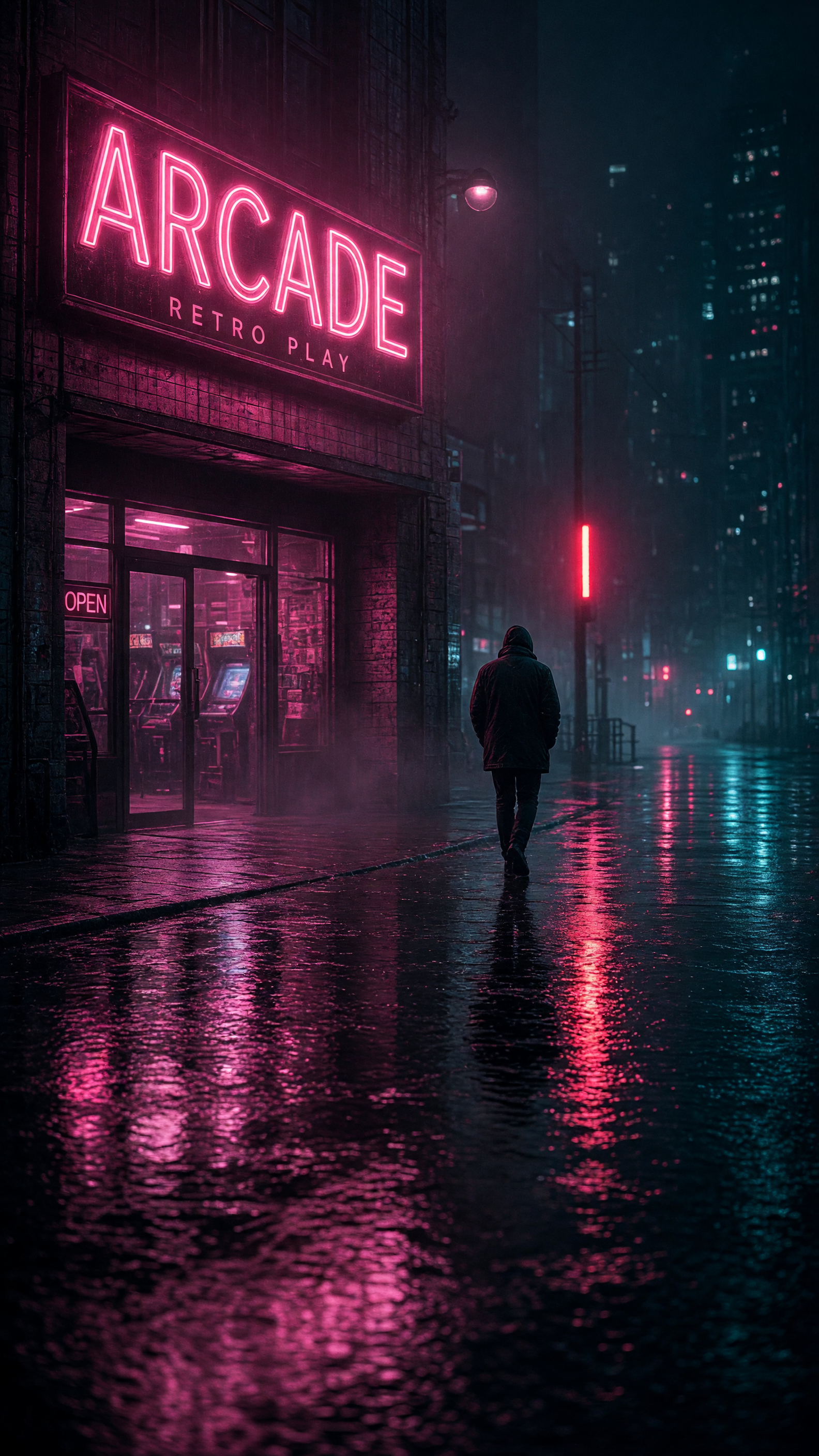
A retro arcade entrance spilling pink light onto wet pavement. Made with Grok Imagine 2.0.
Step 3. Turn the pictures into clips
Use a model that turns a still picture into a short moving clip. Ask for one simple move: a slow push forward, a head turn, wind in the grass. Busy motion tends to go wrong. Our guides on animating a photo and writing prompts for AI video go through the details.
Step 4. Cut it in the Video Composer
Create a project and choose Video Composer, or send your clips there with Open in Video Composer. Drag your clips from your files onto the timeline (the row that holds your clips in order). Drag the ends of a clip to trim it. To cut a clip in two, move the playhead (the line that shows the current time) to the cut. Right-click and choose Split at Playhead. Keep shots short. A cut every two to four seconds keeps a short video moving.
Step 5. Add a voice and captions
Many people watch with the sound off, so captions help. Add a voice with a speech model, and add the words as text. Our guide how to add AI voiceover and captions shows each step. Keep important words away from the very top and the very bottom of the frame, because apps put buttons and their own captions there.

A rooftop lunch in the first snow. Made with FLUX 2 Flash (Fal).
Export for TikTok and Reels
Click Export in the top toolbar. Choose 9:16 as the aspect ratio, and a resolution of 720p, 1080p or 4K. The window shows the exact pixel size it will write. Export runs in your browser, so keep the tab open until it finishes. The file downloads and is also saved in your Exports folder.
The file is normally an MP4, which most apps accept. If your browser cannot save the sound the usual way, genvi saves an MKV instead, and many social apps will not take that. Chrome or Edge avoids the problem. If you do get an MKV, the free Convert video tool changes it to MP4 in your browser.
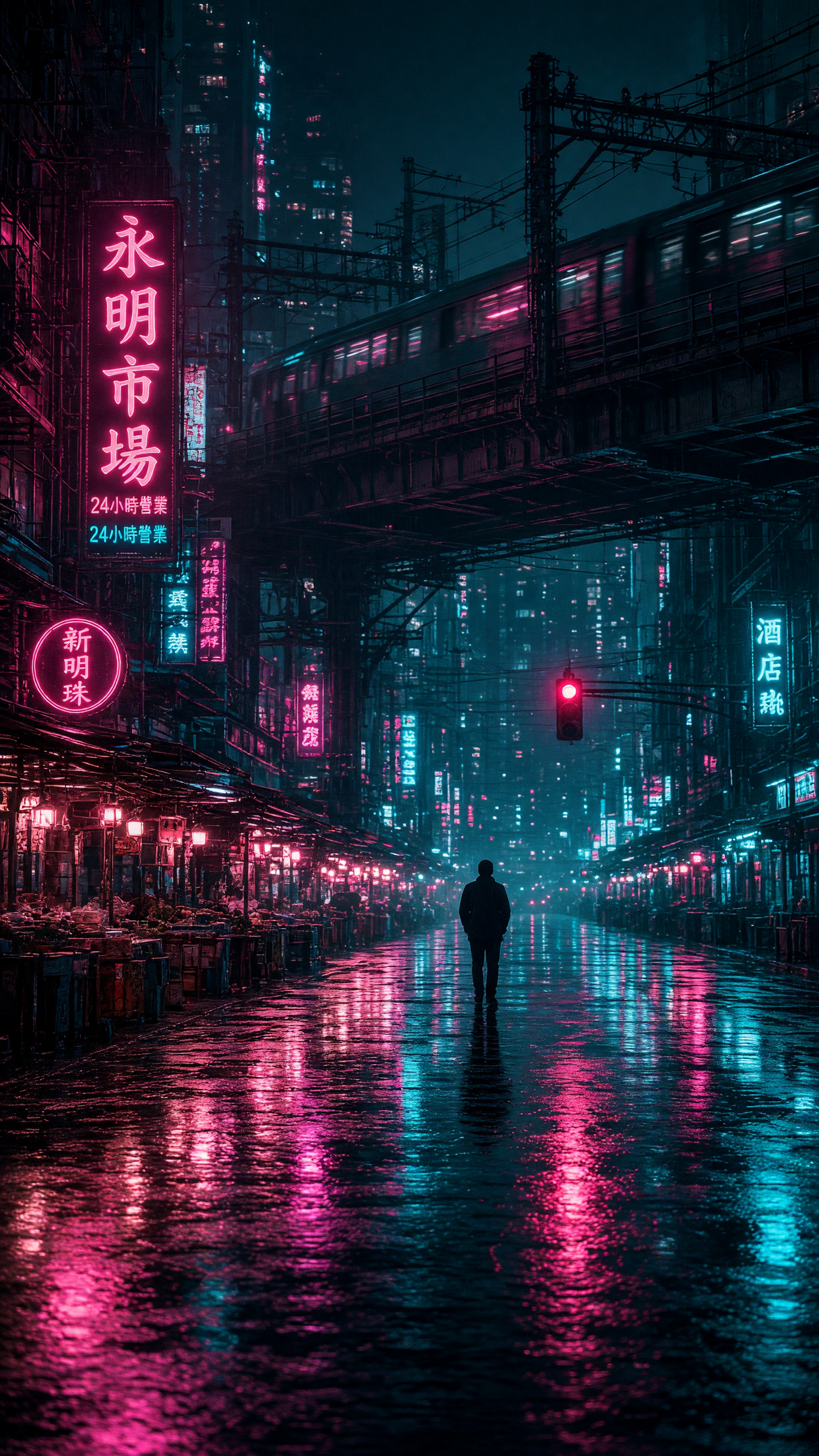
Elevated trains over a neon-lit market street. Made with Grok Imagine 2.0.
Tips
- Draft on stills. Check the story, voice and look before you pay for moving clips.
- One idea per video. If you need two sentences to explain it, make two videos.
- Keep the same look. Reuse the same style words in every prompt.
- Do not name real living people. Shorts is built to leave them out of its pictures.
What it costs
Moving clips cost the most, and stills cost far less. The price is shown before you run, on the button in Shorts and beside each model elsewhere. Export in the Video Composer runs in your browser and does not use generation credits. See plans and credits.
FAQ
Can I make 9:16 videos on my phone?
Our iPhone and Android apps are listed on the apps page, with what each one can do today.
How long can the video be?
Shorts makes 15, 30 or 45 seconds. In the Video Composer you decide, but check the length limits of the app you post on.
Do I need to say it is AI?
Rules differ by app and country, and they are changing. Read the current rules of the app you post on.