October 6, 2026 · Updated November 3, 2026
How to upscale an image with AI (Real-ESRGAN or Topaz)
Make a small picture larger with an AI image upscaler. Choose Real-ESRGAN or Topaz in genvi, set the size, and check the result.
An AI image upscaler makes a small picture bigger and adds fine detail so it does not turn soft or blocky. This guide shows how to upscale an image with AI in genvi, and how to pick between the two upscalers it offers.
What you will make
A larger copy of one of your pictures. You can double the size, or go four times larger. The result is a new file. Your original stays as it was.
What you need
- A picture. It can be one you made in genvi or one you upload.
- A genvi account with credits. Upscaling is not one of the free file tools, so each run uses credits.
First, a fair warning about upscaling
An upscaler cannot find detail that was never in your picture. It guesses. The guesses are often good, and they make edges and textures look sharper. But they are still guesses. A face can come back looking a little different, and small text can come back wrong.
So start with the best picture you have. A clean small picture upscales well. A blurry, heavily squashed one does not become sharp.
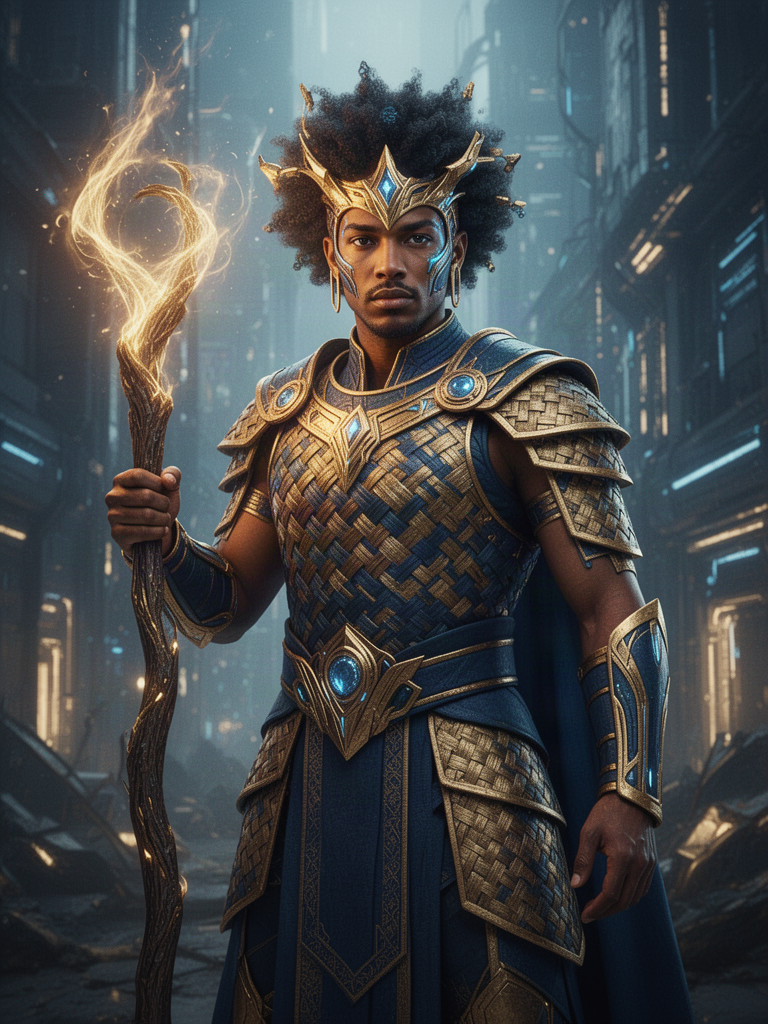
A portrait made with FLUX 2 Flash. Woven armour and metal are fine details, which an upscaler helps keep crisp at a larger size.
Step 1: Pick your upscaler
genvi has two AI upscalers for images. Pick by what the picture needs.
- Real-ESRGAN. A simple upscaler. You can enlarge by 2, 4 or 8 times. It has a Face Enhancement switch for pictures of people. It costs less than Topaz.
- Topaz Image Upscale. An upscaler from Topaz Labs. It sharpens, removes noise (the grainy speckle in a photo) and treats the main subject with extra care. You can keep the size the same (1), double it (2) or go four times larger (4). Face Enhancement is on by default. You can save the result as JPEG or PNG. It costs more than Real-ESRGAN.
A simple rule: use Real-ESRGAN for everyday jobs and drafts. Use Topaz when the picture matters, such as a print or a hero image on your site.
Step 2: Open an Upscale node
Upscaling lives in Node Studio. This is genvi's canvas where each block does one job and you connect blocks together.
- On the Dashboard, click New Project and choose Node Studio.
- Add an Image Upload block and put your picture in it. A picture you just generated can skip this step: connect its block straight to Upscale.
- Drag a line out of the picture block and choose Upscale. This adds an Upscale block that is already connected.
The Upscale block starts on Real-ESRGAN at 4 times with Face Enhancement off. You can change all of it.
Step 3: Choose the model and the size
Click the Upscale block. Pick Real-ESRGAN or Topaz Image Upscale in the model list. Then set the scale factor, which is how many times larger the picture should be.
A bigger factor is not always better. Four times larger means sixteen times as many pixels, which are the tiny dots a picture is made of. That is a lot of guessing. If you only need to fit a screen or a page, 2 times is often enough.
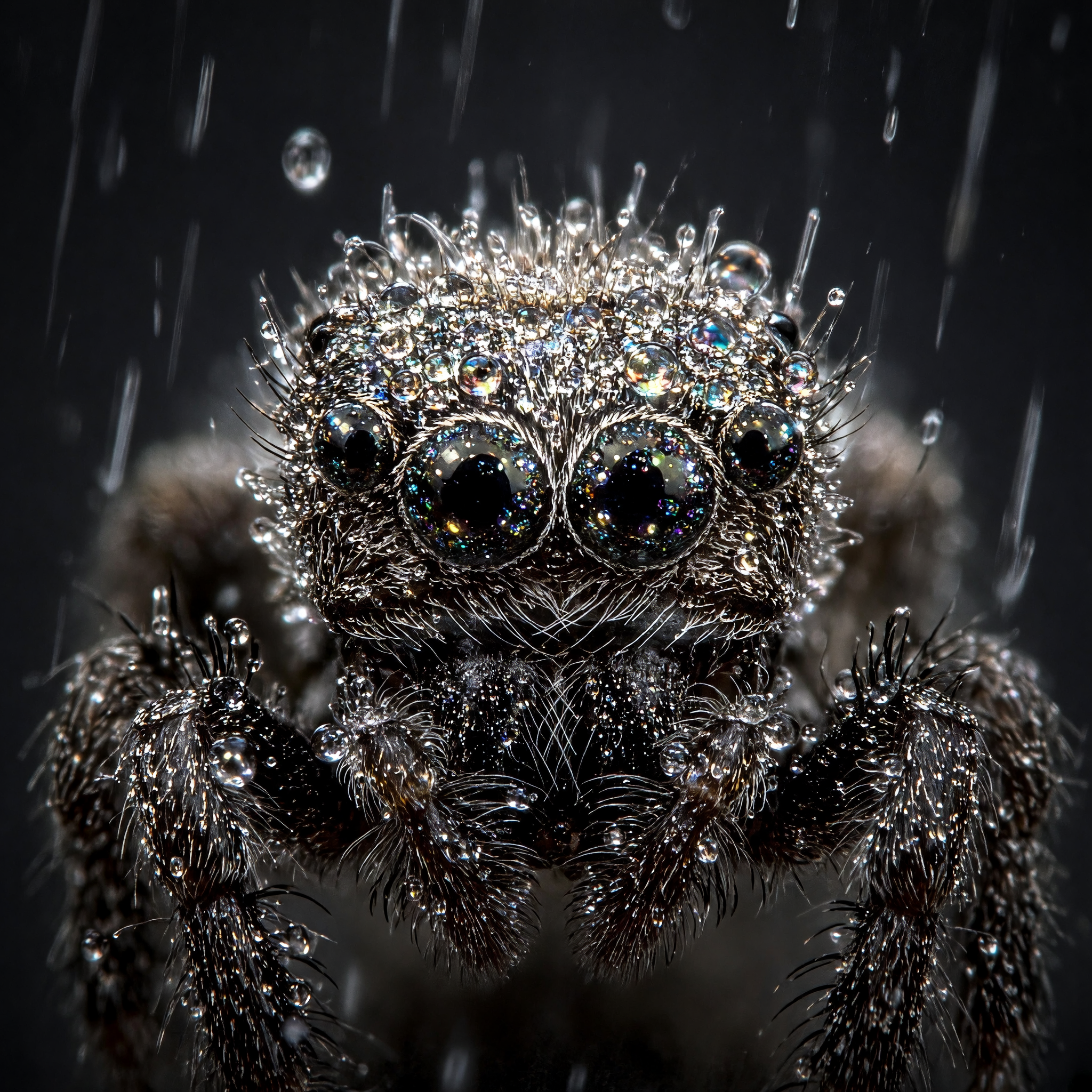
A macro picture made with Grok Imagine 2.0. Dew and tiny hairs show how much fine detail an upscaler has to handle.
Step 4: Turn on Face Enhancement for people
If your picture has a face in it, try the Face Enhancement switch. It gives faces extra care while the picture grows. Turn it off for pictures with no people, such as a landscape or a product. Check faces afterwards, because this is where the guessing shows most.
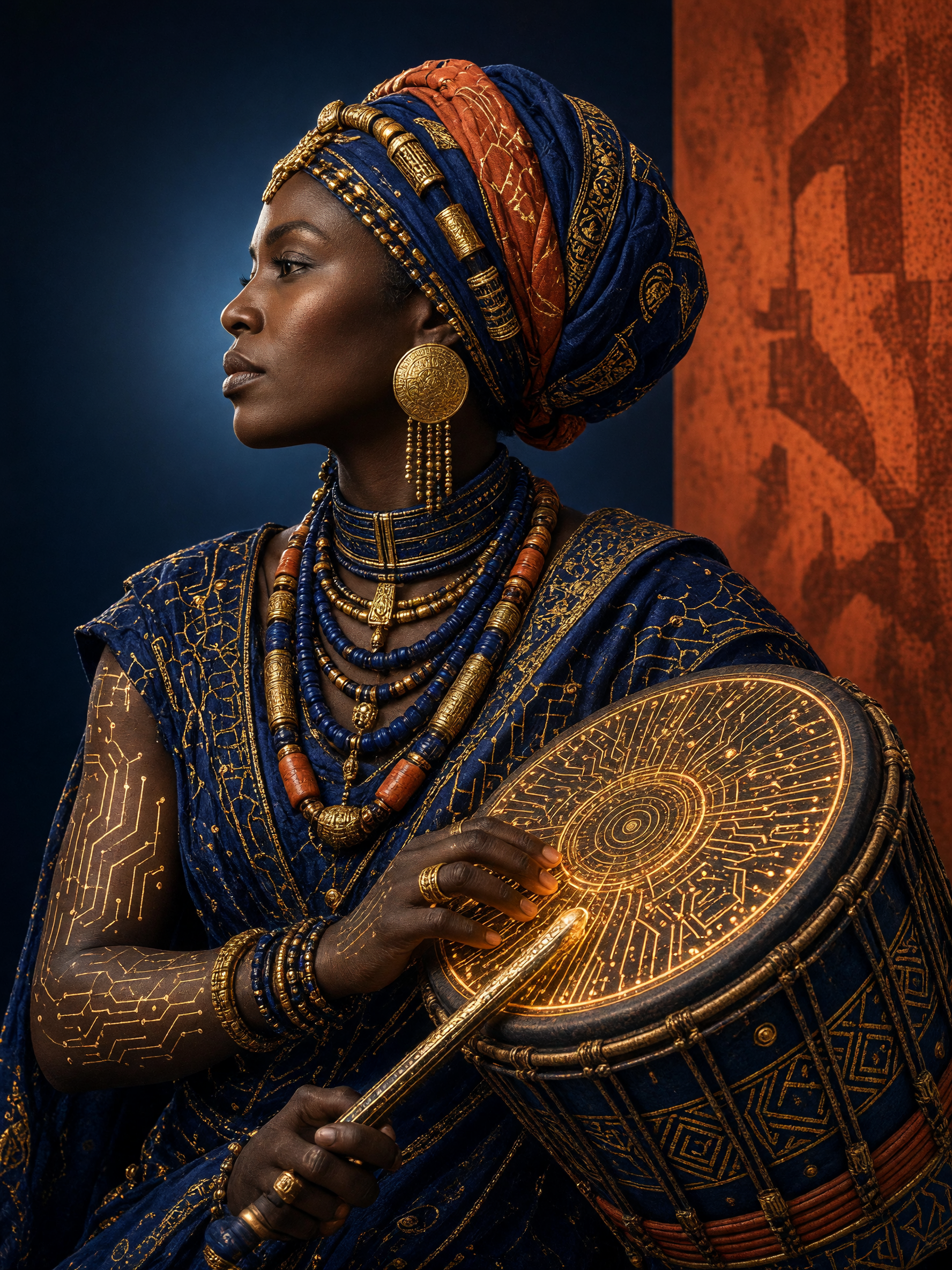
A portrait made with Grok Imagine 2.0. When a picture has a face, compare it with the original after upscaling.
Step 5: Run it and compare
Click Run on the Upscale block. You see the price before it runs. If it fails, your credits come back.
When the new picture appears, look at it next to the original. Zoom in on three places: a face or main subject, a patch of texture such as hair or fabric, and any text. If something looks off, change the model or the scale and run again.
Step 6: Download and use it
Open the new picture and save it. If you need a specific file type, the free Convert image tool changes it to JPG, PNG or WebP. To shrink the file for a website, use Compress image.
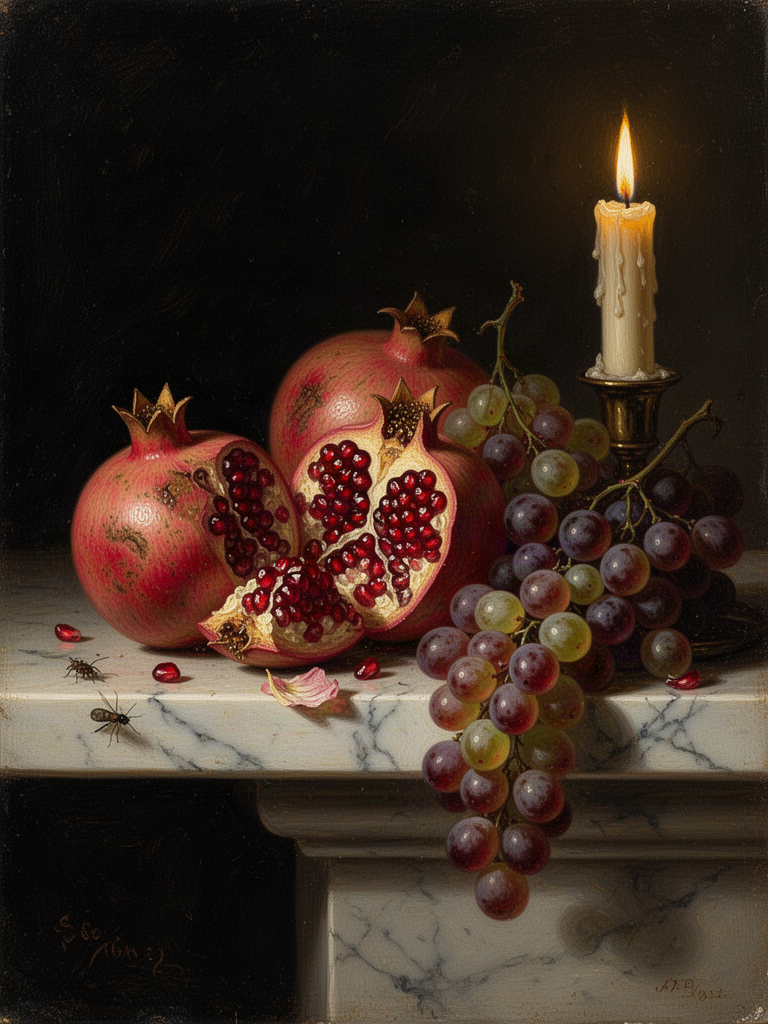
A still life made with FLUX 2 Flash. Glossy fruit and soft shadows are a good test of whether an upscaler keeps smooth gradients clean.
Another route: generate it larger
Sometimes it is better not to upscale at all. If you are still making the picture, pick a model and a size that give you the detail from the start. For help, read how to choose an AI image model.
What about video? genvi also lists Topaz Video Upscale. It can output 720p, 1080p or 4K, and 30 or 60 frames a second (the number of still pictures shown each second). A very small video will not turn into true 4K, so start from the best clip you can.
If your picture came from a photo you want to bring to life, see how to animate a photo with AI.
Tips
- Fix first, upscale last. Crop and edit the picture before you enlarge it, so you do not pay to enlarge parts you will cut.
- Try 2 times first. It is cheaper and often enough.
- Keep the original. If the upscale changes a face, you can go back.
- Save as PNG when you will edit more. JPEG shrinks the file but loses a little each time you save.
What it costs
An upscale is a normal generation, and the price depends on the model you pick. Real-ESRGAN is the cheaper one and Topaz Image Upscale costs more. genvi shows the exact price before you run. If a run fails, the credits come back.
FAQ
Is there a free image upscaler in genvi?
Not yet. The free tools at genvi.co/tools convert, compress, resize and clean up files. AI upscaling needs a model running on a server, so it uses credits.
What is the difference between resizing and upscaling?
Resizing just stretches the same dots, so a bigger picture looks soft. AI upscaling adds new, believable detail while it stretches.
Which is better, Real-ESRGAN or Topaz?
Topaz does more, with sharpening, noise removal and extra care for the main subject, and it costs more. Real-ESRGAN is the simpler, cheaper one. Try both on one picture and keep the one you like.
Can I upscale a picture that was not made in genvi?
Yes. Upload it with an Image Upload block and connect it to Upscale.
Why does the upscaled face look different?
The upscaler guessed the missing detail. Turn Face Enhancement on or off, try the other model, or use a smaller scale.