October 12, 2026 · Updated November 3, 2026
How to make an AI music video with genvi
Make an AI music video in genvi: create a song, create matching clips, then line them up with the beat in the Video Composer and export.

An AI music video has three parts: a song, a set of short video clips, and an edit where the picture changes on the beat. genvi can make the song and the clips for you. The Video Composer is where you put them together. This guide makes a 30 second AI music video from one line of text.
What you will make: an AI music video
You will end up with a 30 second video. It has a song you made and about six clips that change on the beat. You choose where every cut goes. For a real example from our team, read a music video cut to the beat.
What you need
- A genvi account (sign up).
- An idea for the song, such as its mood, and an idea for the pictures, such as a place or a story. One sentence for each is plenty.
- Chrome or Edge, because the finished video is saved (exported) from your browser.
Step 1. Make the song
Open a Chat, or add a Music Generation node in a Node project. (A node is a box on the canvas that does one job.) Describe the music: the style, how fast it is, and the instruments. This text is called a prompt. Here are real prompts from the Music and sound filter on Explore, all made with Lyria 3 Clip:
- "synthwave, 100 bpm, gated reverb drums, analog arpeggios, warm bass"
- "outrun, 130 bpm, pulsing bass, heroic lead synth, half-time feel"
- "epic orchestral trailer music, drums, choir, rising strings"
Lyria 3 Clip makes a 30 second MP3 song from your text, which fits a 30 second video. If you want a longer song, genvi also has ElevenLabs Music and MiniMax Music 3. A longer song means a longer video, and it costs more. Put a speed in your prompt, because you will cut to it. Speed is counted in bpm, which means beats per minute.
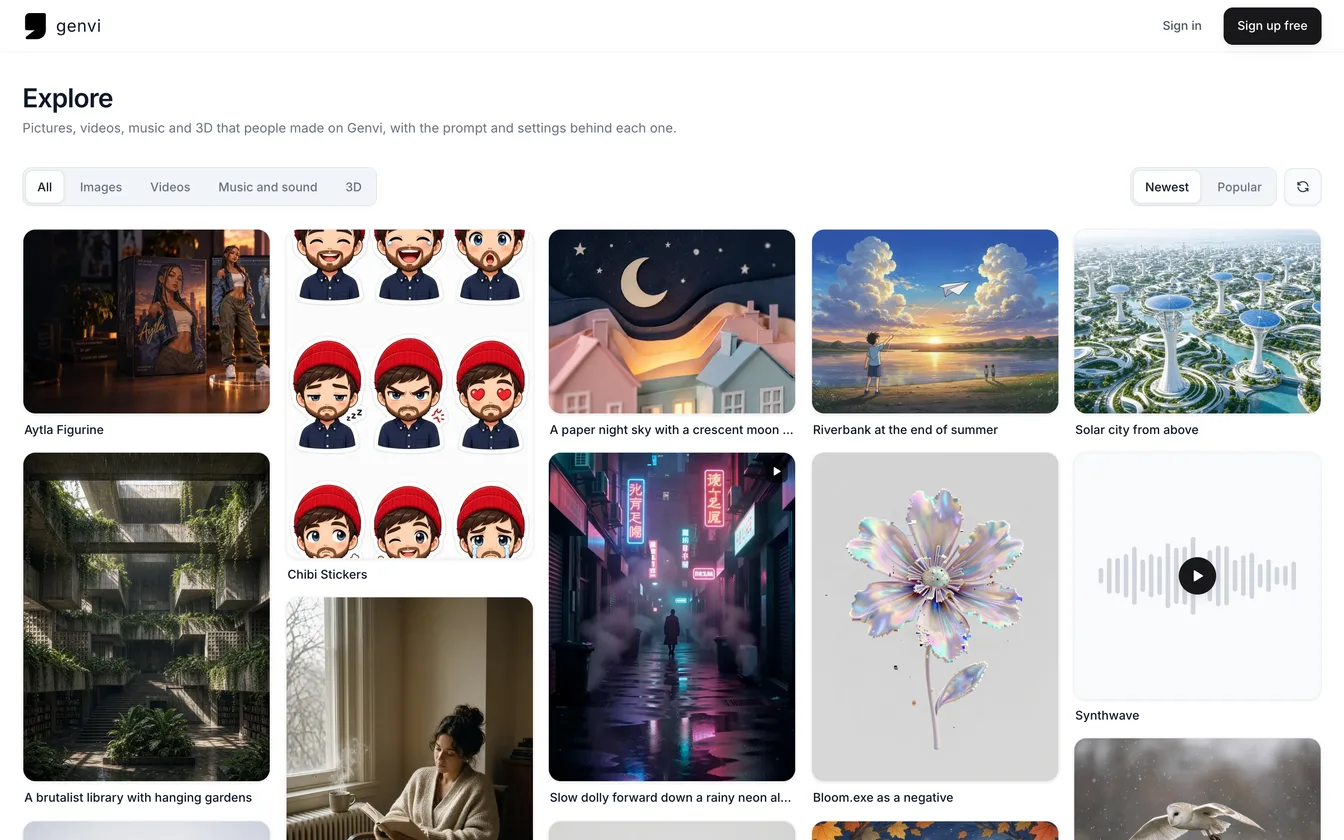
Explore has a Music and sound filter. It is a quick way to see which prompts make which songs.
Step 2. Work out how long each shot should be
Play the song and tap along to find its real speed. The model may not hit the speed you asked for. Then do a little math. One beat lasts 60 divided by the bpm. At 100 bpm, that is 0.6 seconds. Four beats last 2.4 seconds. Eight beats last 4.8 seconds. Six shots of 4.8 seconds add up to about 29 seconds, which is the whole song. Make your clips a bit longer than you need, so you can trim them.
Step 3. Make the shots
Make video clips that tell your story. Stay with one place or one idea so the clips feel like one video. Change the camera each time: far away, close up, low angle, moving in. In each prompt, describe one subject, one action and one camera move. Grok Imagine Video 1.5 lets you pick a length from 1 to 15 seconds, so ask for 5 or 6 seconds and trim later. If the same person must appear in every clip, read how to keep a character consistent in AI video first.

A frame from another clip: "a whale gliding through clouds above a city, in winter, cinematic." Made with MiniMax H3 Max Turbo (Fal).
Step 4. Put it together in the Video Composer
- Create a video project and open the Video Composer. This is the editor where you cut clips together on a timeline.
- In the dock, open Audio and add your song. Open Videos and add your clips. Uploads holds files you brought yourself.
- Put the song on an audio track. Put the clips on a video track, one after another.
- Drag the edge of each clip to trim it to your shot length. Clips snap to the edges of other clips, so there are no tiny gaps.
- Play it. Nudge each cut a little until it feels right. A cut just before the beat usually feels tighter than one just after.
The Video Composer cannot find the beat by itself, so you cut by ear and with the math above. The good part is that you can see every cut.
Step 5. Polish and export
- Use a clip's transitions to fade the song in and out. The sound fades with the picture.
- Add a title from Text in the dock.
- If your song has singing, open the clip's menu and choose Auto Captions. It writes the words it hears as captions on a new text track. A song with no voice has nothing to caption.
- Export from the header. Choose the shape (16:9, 9:16, 1:1, 4:5 or 21:9) and the quality. Export does not upload anything, has no waiting line, and costs no credits. Keep the tab open while it works.
Tips
- Make more clips than you need. About a third of any batch will have a flaw. Pick the best six of nine.
- Match the song's energy. A slow song wants slow camera moves. A fast song wants fast ones.
- Use one shape for everything. Make the clips in the shape you will export.
- Check the preview. It follows the same timing as the export, so what you hear is what you get.
- Keep it short. A 30 second video is cheaper, quicker to cut and easier to finish.
What it costs
You see a price estimate before you make the song and before each clip. Exporting costs nothing. A clip's price depends on the model and its length, so shorter clips and lower quality cost fewer credits. (Credits are what you spend on each generation.) Clips you throw away still cost credits. ElevenLabs Music charges per minute started, so a 30 second song is billed as one minute. See plans and credits.
FAQ
Can genvi make a song with lyrics?
It depends on the music model. Check the prompt box of the one you pick. If your song has singing, Auto Captions can turn the words into text on the screen.
Can I use my own song?
Yes. Upload it from the dock's Uploads panel and cut to it the same way.
Why do my cuts feel off the beat?
Check the real speed of the song you got, not the speed you asked for. Then work out the shot length again.
Is it one click?
No. If you want a video from one click, see how to turn a topic into a short video.