October 26, 2026
Formats: a studio for Effects, Persona and Ads
Formats is a new kind of genvi project. Fill in a short form, pick Effects, Persona or Ads, press Generate, and your results collect in one place.
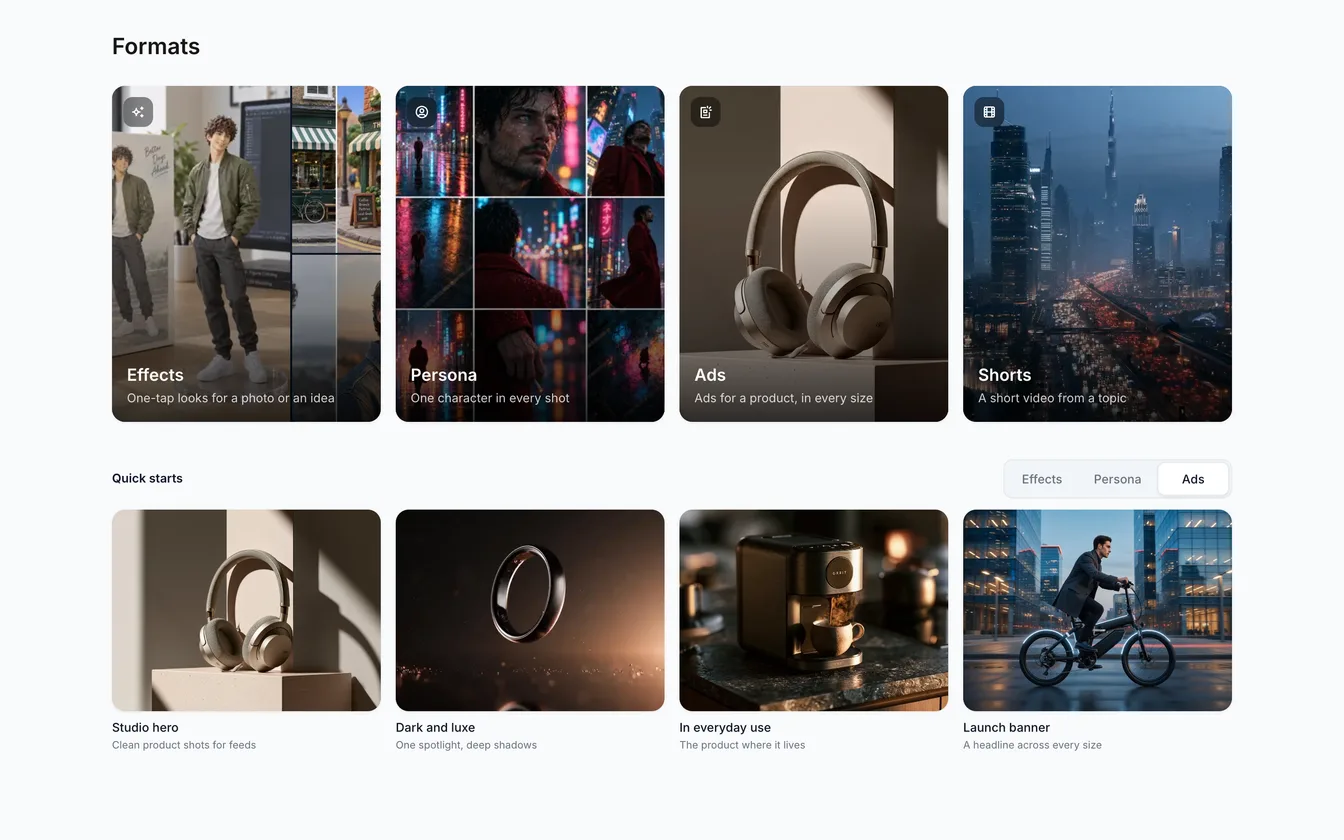
Much of what people make on genvi follows a pattern. It is often one of these: a look added to a photo, one character in many scenes, or one product in many ad sizes. Formats is a new kind of project for exactly that, a studio for Effects, Persona and Ads. You fill in a short form, press Generate, and the results collect in one place.
Start a Formats project
Formats has its own tab on the dashboard and its own entry in the menu. Each card starts a new project of that kind. Under the cards is a Quick starts row. It makes a project that is already set up. Each one has a picture of what it makes: quick templates for Effects, scenes for Persona and setups for Ads. Shorts, a short video made from a topic, is still being built.
Inside, the form is on one side and the project's files are on the other, with work in progress above them. The Generate button shows the estimated credits before you press it.
Effects
Effects uses the same quick templates you may know from the Home page, such as Sticker sheet, Desk figurine and Action figure box. Choose a template in the left panel, add your photo or idea, and press Generate.
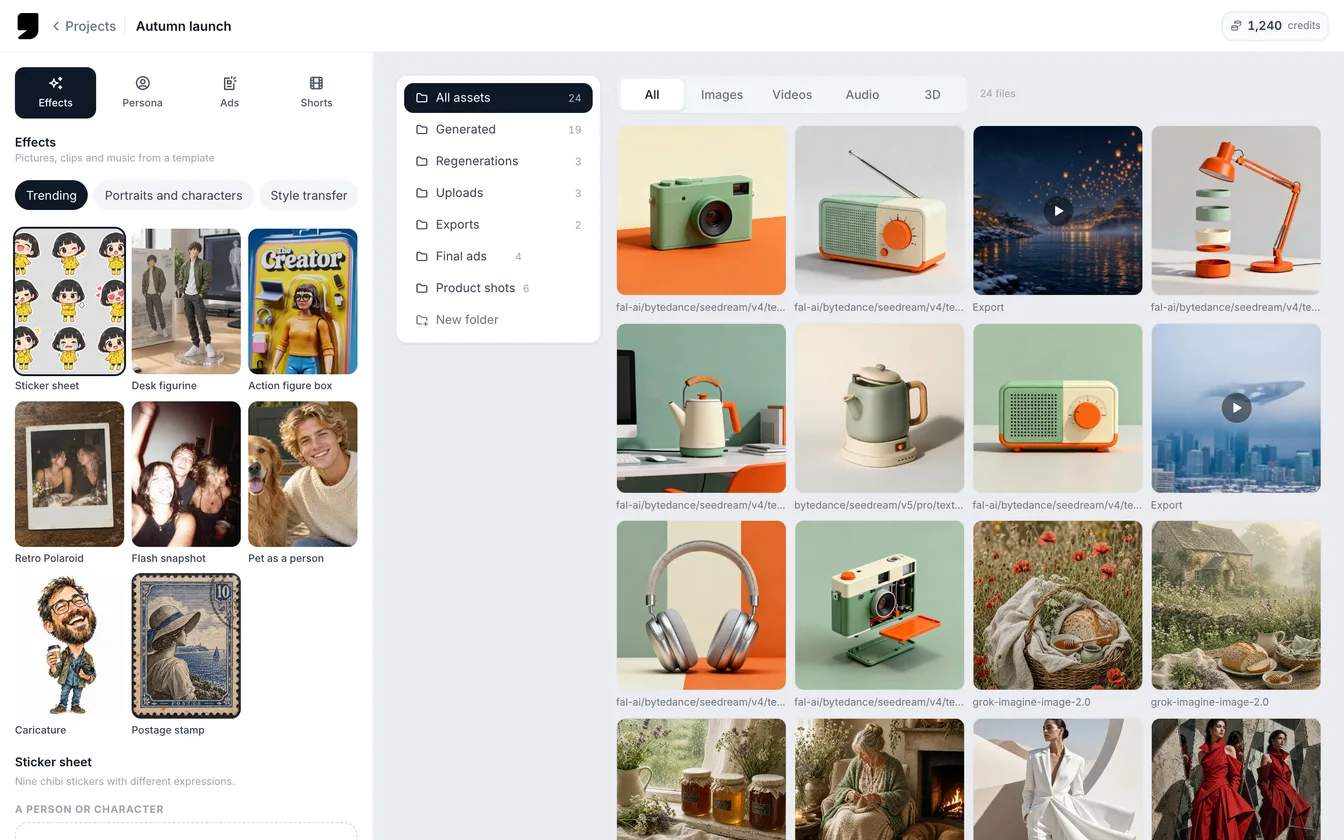
Effects: template tiles on the left, the project's results on the right.
Persona
Persona keeps one character looking the same in every shot. It starts each prompt with the character's @handle (its short name in References), so the same person appears every time. If you have no character yet, the form asks you to add one to References first. A few photos and a short description are enough.
- Pick the Character.
- Describe the Scene, for example a rainy café window in warm evening light.
- Choose the Framing: Portrait, Half body, Full body or In the scene.
- Choose a Shot, Photo or Clip, and the number of Takes: 1, 2 or 4.
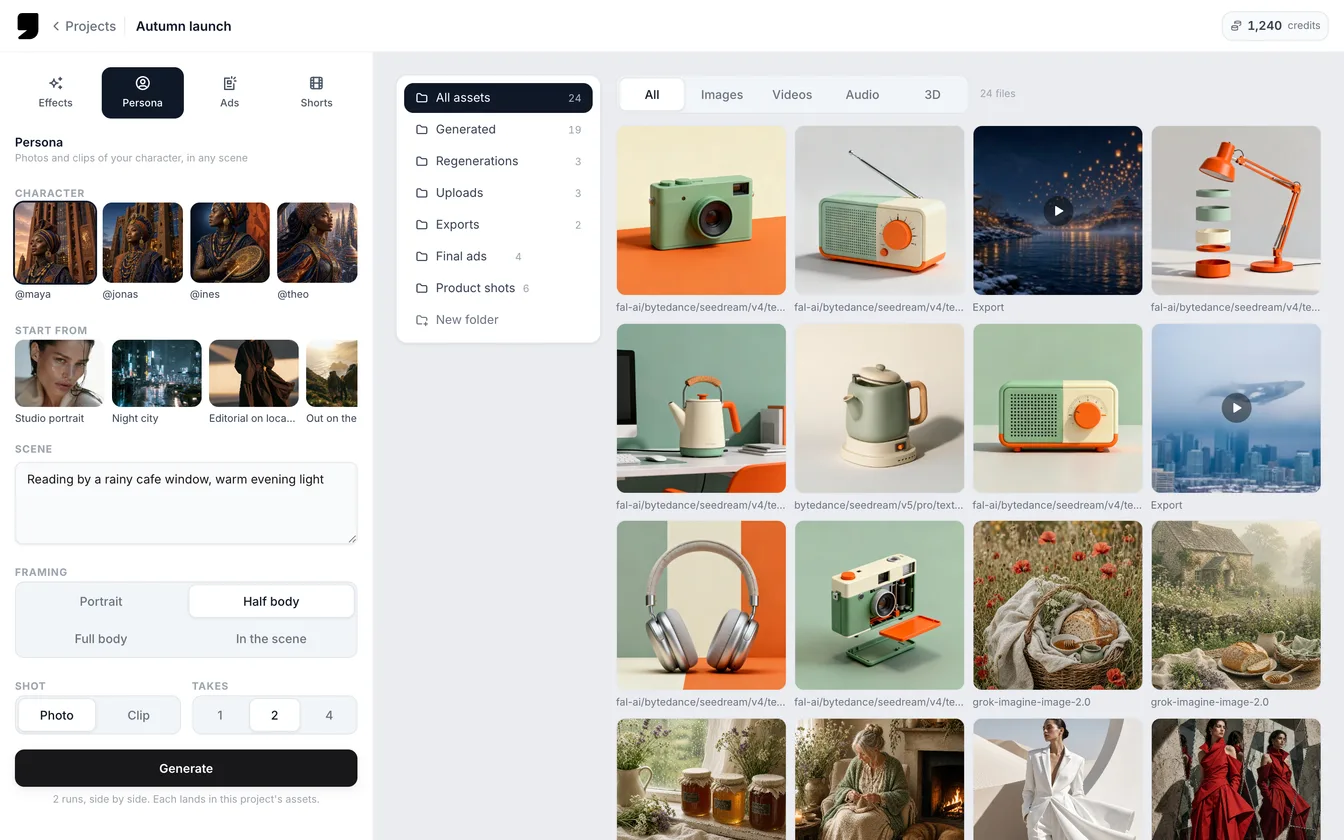
Persona: choose a saved character, describe the scene, then generate.
Ads
Ads makes product pictures from one product photo, one for each size you tick. Add the photo, say what the product is, and pick a Look (Studio, Lifestyle, Flat lay, Bold colour or Dark and luxe). Add a headline if you like, then choose sizes: Square 1:1 for feeds, Story 9:16, Landscape 16:9 or Portrait 4:5.
Where results go
Every run is saved under the project. Prices, charges, refunds for failed runs and recovery of interrupted runs all work the way they do in chat. If a run fails, the studio tells you. To browse what a project made, see project assets.
Formats works on the phone too, from the Studios tab, with the same forms.