October 18, 2026 · Updated November 3, 2026
How to use genvi from Claude with MCP: AI image generation
Connect Claude to genvi over MCP so you can ask for images and videos in chat. Make a key, add the connection, then ask Claude to make things.
This guide lets you ask Claude to make pictures, videos, voices and music in your genvi account, without leaving the chat. It works through MCP, which stands for Model Context Protocol. MCP is a standard way for an AI assistant to use another service's tools. genvi has an MCP server, so Claude can use genvi directly. This guide shows how to set up AI image generation over MCP with Claude Code or Claude Desktop. It also covers what Claude can do once connected, and how to keep your spending under control. It is written for people who are comfortable using a terminal.
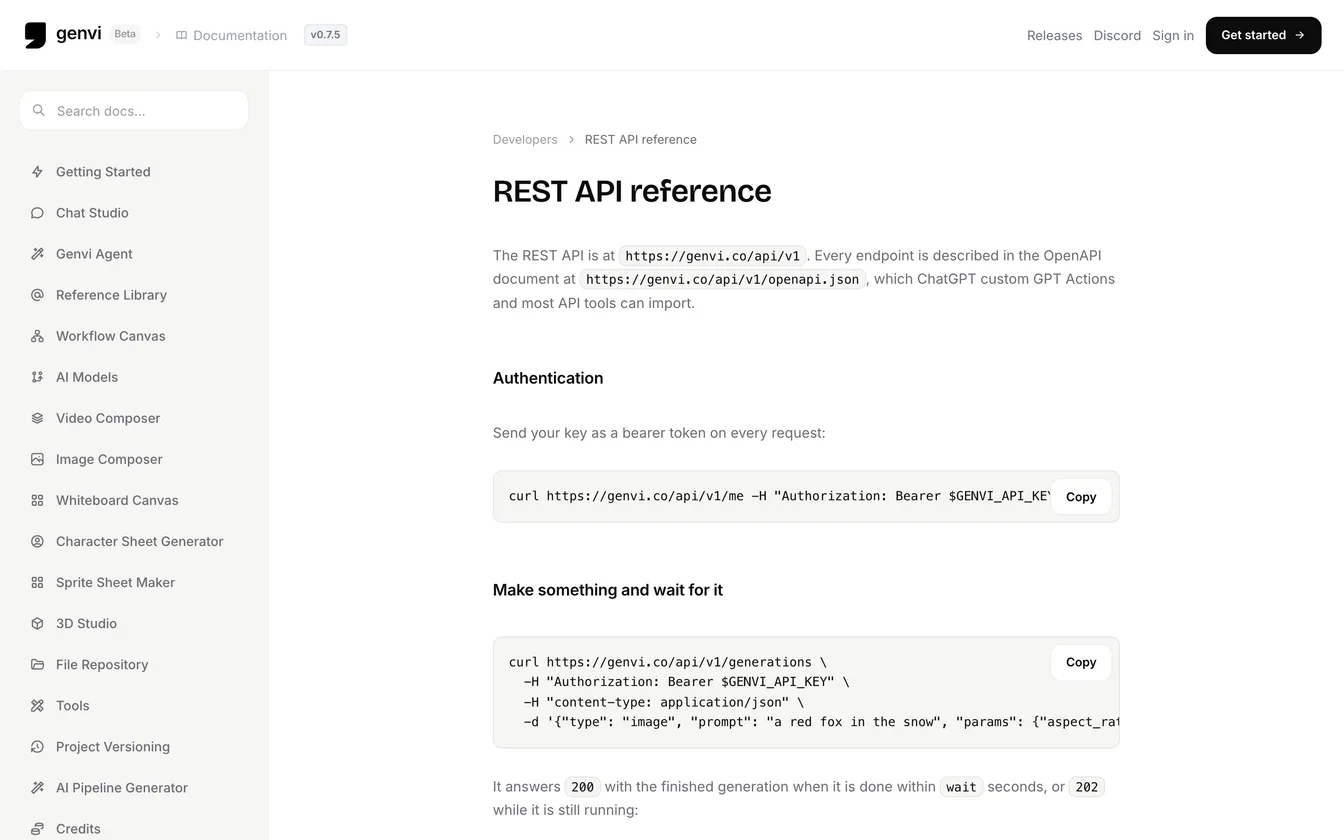
The developer documentation in genvi's docs browser. The Developers page in your account shows each setup with your new key already filled in.
What you will make
When you finish, Claude is connected to your genvi account. You can type "make a 16:9 poster of a lighthouse at dusk with genvi", and Claude will make it. The file is saved to your File Repository, the same as when you make something on the website.
What you need
- A genvi account with credits. Credits are what you spend on each generation. A key has no balance of its own. It spends the credits of the account that made it.
- Claude Code (Anthropic's coding app for the terminal), or Claude Desktop with Node installed (Node is a tool that the Desktop setup uses). Other tools work too, including Cursor, VS Code, Gemini CLI, Codex CLI, opencode and Antigravity. The docs cover them.
- About five minutes.
Step 1: Make an API key
- Sign in, open Settings, then the Developers tab.
- Click Create key. A key (also called an API key) is a password that lets another app use your account. Name it for where you will use it, such as "Claude Code laptop".
- Choose what it may do. The choices are Full access, Generate and Read only. Generate lets the assistant make things and read your reference library, and leaves out your project list. It is the right choice for this guide.
- Check the Daily credit limit. A key that can spend starts with a limit of 500 credits a day. It lasts 90 days unless you change that.
- Copy the key when it is shown. genvi keeps only a scrambled copy, so you see the key once when you create it (and once more if you replace it). Keys begin with
gvk_, so security tools can spot one if it leaks.
Treat the key like a password. Never paste it into a public place or a chat.
Step 2: Set up AI image generation over MCP
The MCP address is
https://genvi.co/api/v1/mcp. Your key goes in as a bearer token. That just means the key is sent with each request, as proof that it is you.Claude Code
Run this once in a terminal. Replace the placeholder with your key:
claude mcp add --transport http genvi https://genvi.co/api/v1/mcp --header "Authorization: Bearer your API key"Then type
/mcp in Claude Code. genvi and its tools should be in the list.Claude Desktop
Claude Desktop runs helper programs on your computer, so here it runs the genvi command-line tool as that helper. This also lets Claude use your 3D apps and a folder to save files in. Open Settings, Developer, Edit Config and add this to
claude_desktop_config.json:{ "mcpServers": { "genvi": { "command": "npx", "args": ["-y", "@genvi/cli", "mcp"], "env": { "GENVI_API_KEY": "your API key" } } } }Restart Claude Desktop. The claude.ai website does not work yet, because it needs a sign-in method (OAuth) that genvi does not offer. Use Claude Code or Claude Desktop.
The Developers page shows these snippets with your new key already filled in, so you can copy them from there. You can also use the
genvi command-line tool, which talks to the same service.Step 3: Ask for an image
In a Claude chat with genvi connected, ask in plain words:
Make a 16:9 poster of a lighthouse at dusk with genvi. Then make a version with fog.
Claude uses genvi's tools to do the work. It first looks up the model with
genvi_get_model to see which settings it has. Then it calls genvi_generate with a type, your prompt (the text describing what you want) and settings such as the shape of the picture. Quick jobs return the result and a link within 50 seconds. Longer jobs, such as video and 3D, return a job number first, and Claude checks on it with genvi_get_generation.
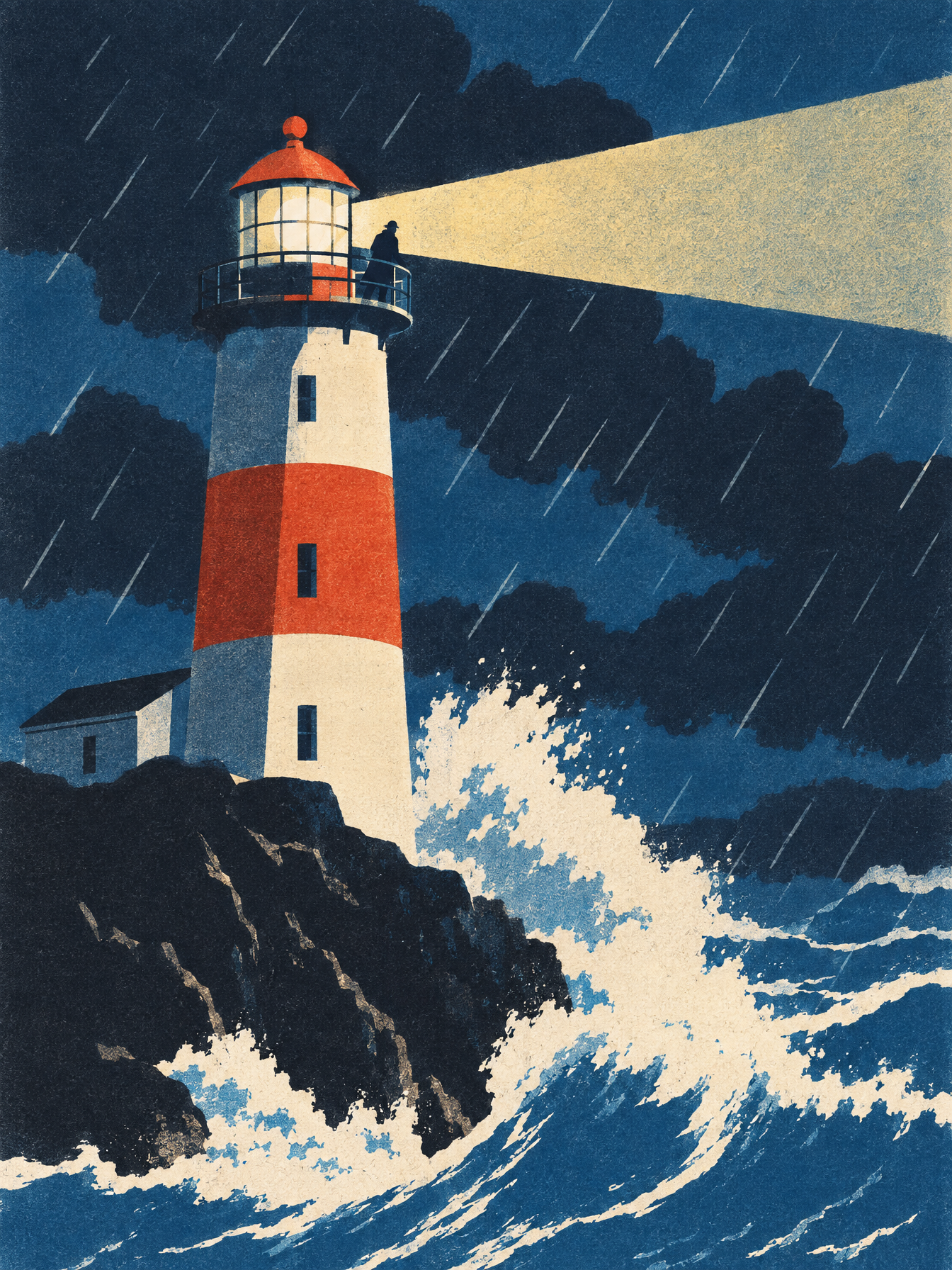
The same subject with FLUX 2 Flash, as a winter-edition screen print. To ask for a variation, send one more message.
Step 4: Price it before you run it
Ask Claude to price a job first.
genvi_estimate_cost gives a price using the same calculation as the real charge, so the figure is what you will pay. For bigger work, ask for a plan:Plan a 15 second ad for a cold brew can with genvi: a hero shot, the shot animated, and a music bed. Show me the plan and the price before running anything.
genvi_plan returns up to eight steps, each with its model and price. Nothing runs yet. When you approve, genvi_run carries out the plan within a credit budget. You can follow it with genvi_get_run.The tools Claude gets
| Tool | What it does |
|---|---|
| genvi_generate | Makes one image, video, voice-over, sound, music, text or 3D model |
| genvi_list_models and genvi_get_model | Lists models with prices, and shows one model's settings |
| genvi_estimate_cost | Shows the exact price before you run |
| genvi_list_references | Lists the characters, places and styles in your library, so you can mention them as @handle |
| genvi_plan and genvi_run | Plans a multi-step piece, then carries it out |
| genvi_get_generation, genvi_list_generations, genvi_cancel_generation | Checks, lists or cancels jobs |
| genvi_account | Shows which account the key belongs to |
A key only gets the tools its permissions allow. A Read only key cannot start a generation.
Tips
- Keep a character the same. Save a character to your reference library, then mention it as
@handlein the prompt. The key needs permission for the library, which Generate and Full access include. - Name the setting. Settings can be written as
aspect_ratiooraspectRatio(both mean the shape of the picture). Either works. - Limit the damage. Use a separate key for each tool, with a daily limit you can live with. A leaked key can spend only its daily limit per day.
- If a key leaks. Replace it from the Developers page. You can stop the old key right away, or stop all your keys. Either takes effect on the next request.
- Check what it did. The Developers page lists your last 30 generations made with your keys, with the key behind each.
The thinking behind these limits is in API keys that act as their owner, and the launch is in genvi from Claude, ChatGPT, Cursor and the terminal.
What it costs
A generation through MCP costs the same as the same generation on the website, and uses your account's credits. Three limits are checked before a run starts: the key's daily credit limit, an optional limit for one run, and your balance. Claude can call
genvi_estimate_cost to show the price first, and you can read it before saying yes. A failed run is refunded, and its share of the daily limit is given back.FAQ
Does it work with ChatGPT or Cursor?
Yes, but the setup is different. Cursor, VS Code, Gemini CLI, Codex CLI, opencode and Antigravity use the same server address. ChatGPT connects through a custom GPT Action that imports
https://genvi.co/api/v1/openapi.json, because its own connectors need a sign-in method called OAuth.Can I use the claude.ai website?
Not yet. It needs a sign-in method (OAuth) that genvi does not offer. Claude Code and Claude Desktop work today.
What if I lose my key?
It cannot be shown again. Create a new key, update your tool with it, and stop the old one.
Is there a command-line tool?
Yes. Install it with
npm install -g @genvi/cli, run genvi login and paste your key. genvi mcp runs the same tools on your computer.