September 14, 2026
Free file tools: convert, compress, trim and make PDFs
genvi now has free file tools in your dashboard. Convert, shrink and trim images, video and audio, and make GIFs, PDFs and ZIPs.
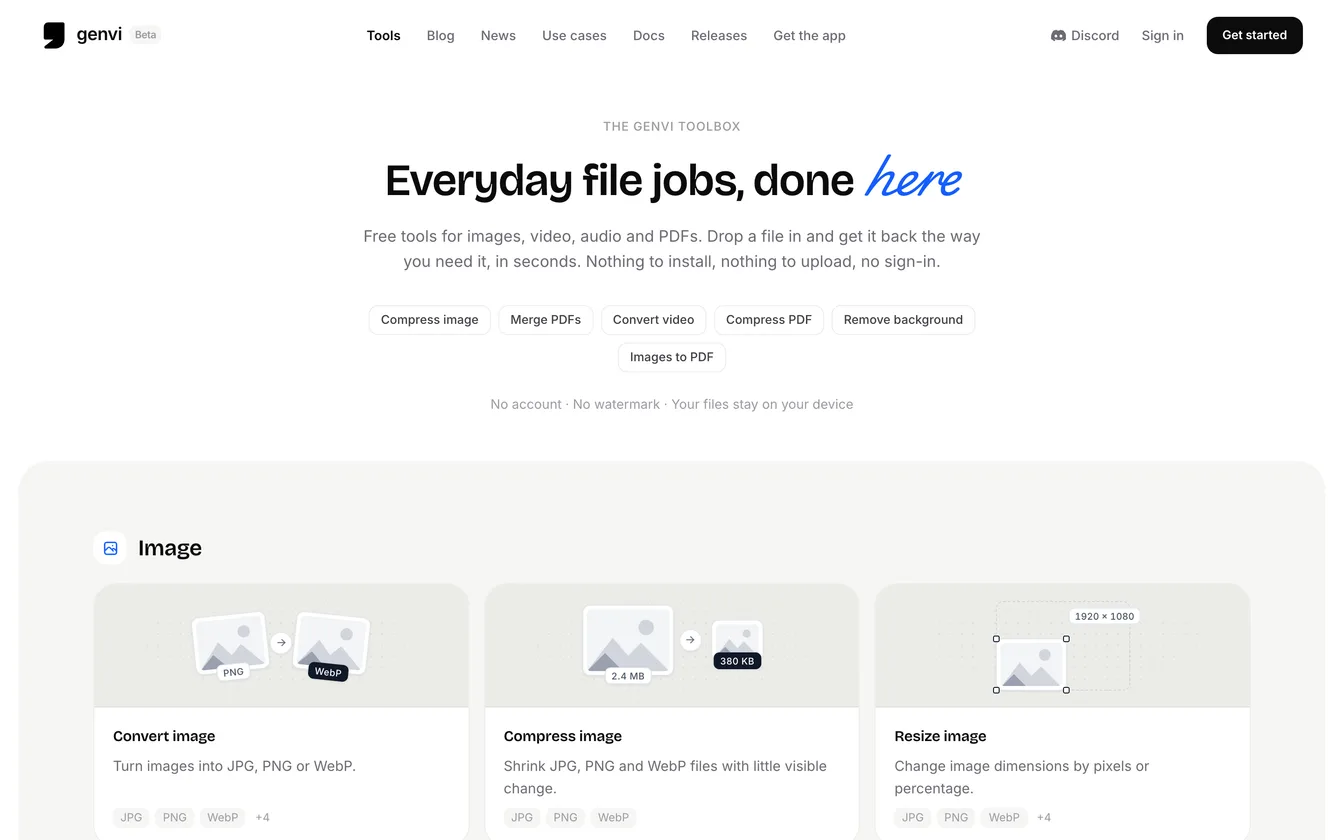
genvi now has free file tools. You can convert, shrink and resize images, convert, shrink and trim video, cut audio, make GIFs, turn images into a PDF and zip files together. They are in the new Tools tab of your dashboard. Each one works on your own device, so your files are not uploaded to us.
What the free file tools do
There are seventeen tools, in five groups.
| Group | Tools |
|---|---|
| Image | Convert image, Compress image, Resize image, Rotate and flip, Remove background, Remove photo metadata, GIF maker |
| Video | Convert video, Compress video, Trim video, Mute video, Extract audio, Video to GIF |
| Audio | Convert audio, Trim audio |
| Images to PDF | |
| Files | Create ZIP |
A few details. Convert image turns JPG, PNG, WebP, GIF, BMP, AVIF or SVG into JPG, PNG or WebP. Compress image makes JPG, PNG and WebP files smaller with little visible change. Remove photo metadata deletes hidden details such as location and camera info, without squeezing the picture again, so it keeps its quality. Remove background cuts out the subject and leaves a transparent PNG. It uses a small program in your browser that downloads the first time you use it. Convert video handles MP4, MOV, WebM and MKV.
How to use a tool
- Open Tools in your dashboard, next to Files. Search by name or pick a group.
- Choose a tool and add files from your device, or pick them from your genvi Files.
- Set the options. Convert image, for example, asks which format you want and how good the quality should be.
- Run it, then download the result. Most results can also be saved to the Exports folder in Files. MOV, MKV, M4A and PDF results download instead.
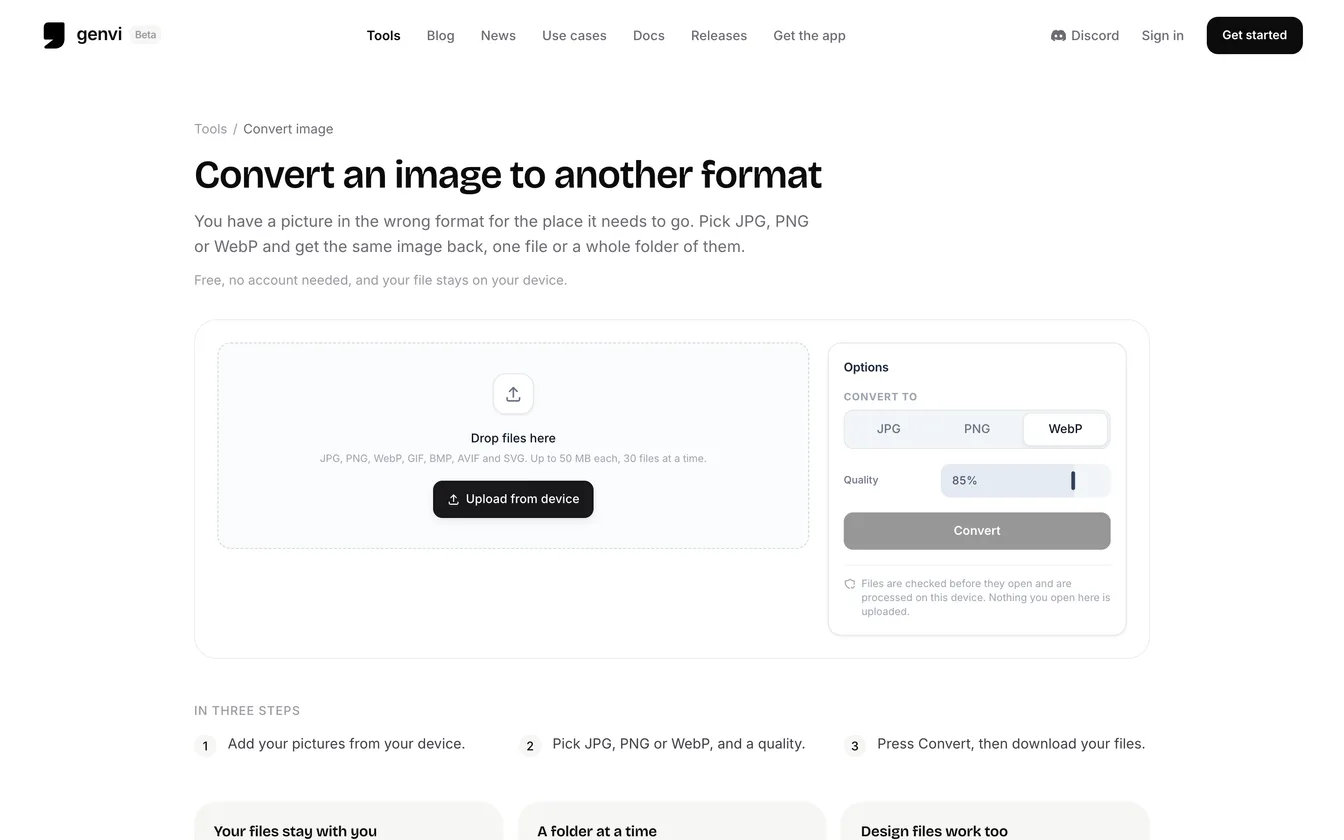
The Convert image tool: a drop zone for files and an options panel to convert to JPG, PNG or WebP with a quality setting.
It runs on your device
Your browser does the work, using what it already has. There is no server cost for us, so the tools are free and use no credits. A file from your device is never sent anywhere unless you choose to save the result to Files.
Because your browser does the work, the limits depend on your device's memory, not on us:
- Images: up to 50 MB each and 30 files at a time for most tools. Remove background takes 10 files of up to 25 MB. Remove photo metadata takes up to 50 files.
- Video: up to 1 GB per file and up to 3 hours, five files at a time for most tools. Trim video and Video to GIF take one file.
- Audio: up to 500 MB per file and 3 hours, ten files at a time for Convert audio.
- Images to PDF: up to 100 images. Create ZIP: up to 100 files and 1 GB in total.
Video and audio tools need a browser that supports a feature called WebCodecs. Not every browser does.
Checked before it opens
Every file is checked before a tool touches it. genvi looks at what the file really is, not just its name. It refuses programs, scripts and installers, however they are named. It checks an image's size before opening it, so a huge one is turned away quickly. It also refuses SVG pictures that contain scripts.
What it costs
Nothing. The tools use no credits and need no plan. They are for the jobs around your generations. For example, you can make a result smaller before you share it, trim a clip, or remove location data from a photo before you use it as a reference. Saved results go through the same checked upload as any other file. To learn how large uploads reach storage, see uploads over 4.5 MB straight to storage.